System User Interface
GARD 8000 SYS RFL Electronics
August 1, 2012 5-30 973.334.3100
In order to perform the security tasks involved the GARD 8000 needs a certificate file and private key
file, both of which must be PEM (Privately Enhanced Mail) encoded. The unit comes with an RFL
self-signed certificate. You may choose between using the built in certificate and key or a custom
certificate and key that you upload.
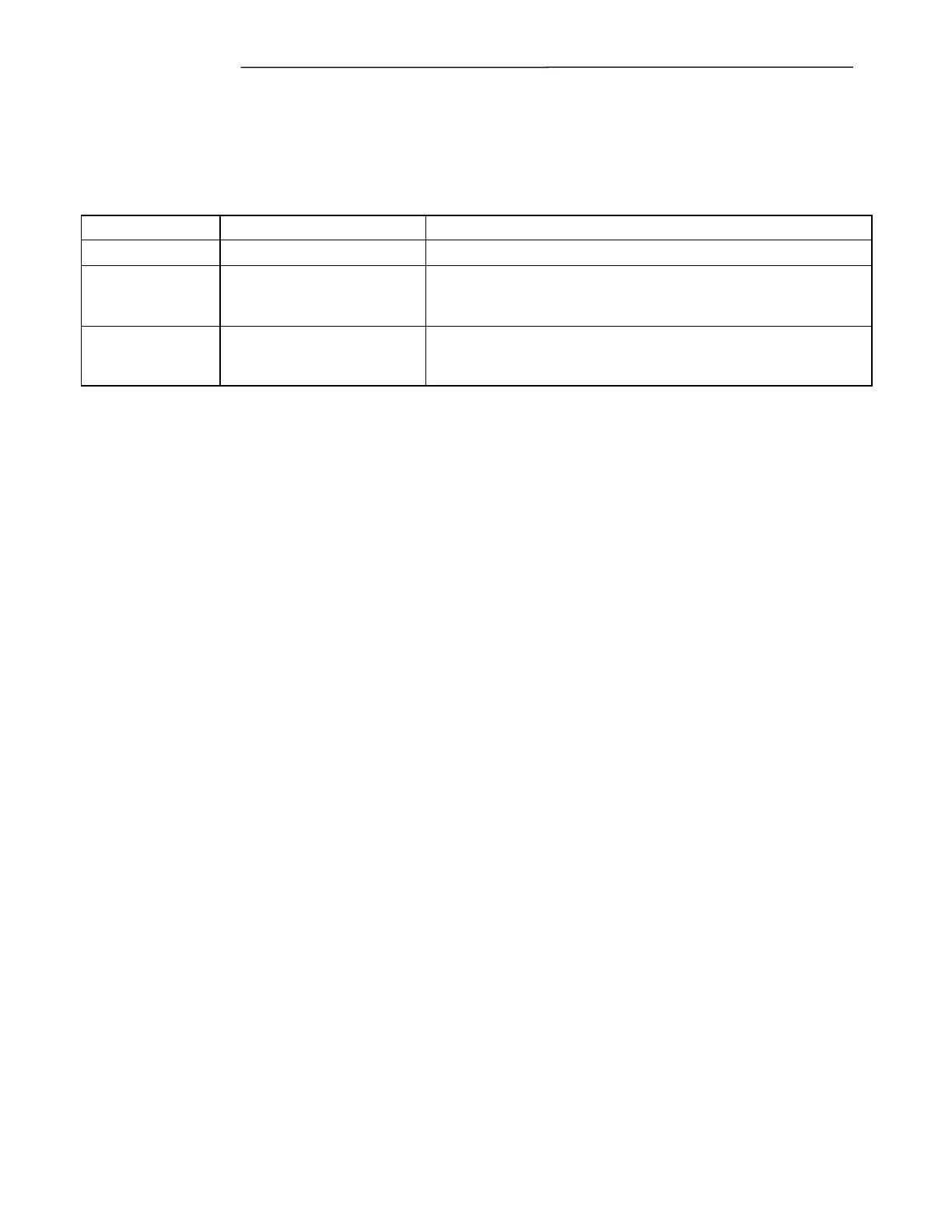
Table 5-4. Security Levels
User must remember to use https instead of just an IP address in the
address bar of the browser. Private key is the same for all GARD
8000 browsers and therefore may be considered compromised.
User must remember to use https instead of just an IP address in the
address bar of the browser. User has to generate their own
certificate and key pair.
Using the RFL Self Signed Certificate
When using the RFL self-signed certificate the browser will not trust the signing certificate authority
by default, and will therefore indicate a problem with the certificate. You may bypass this warning
and force the browser to continue, but if you do so you will have to do it again next time you log in.
The user should set up the browser to trust the RFL GARD 8000 certificate authority. To do this
follow the appropriate procedure based on your browser.
Trusting RFL CA cert: Internet Explorer
The following was written based on IE version 7, but should be similar to other versions.
1. Click on the link to the RFL GARD 8000 certificate authority certificate as shown at the
bottom of the web page in Figure 5-23
2. When asked what to do – click on Open.
3. The Certificate Import Wizard should appear – click on Next.
4. When prompted for a file name click on Next since IE will have filled that out with the file
just downloaded from the GARD 8000.
5. The next dialog box prompts for a password – leave empty and leave all boxes unchecked,
click on Next.
6. The next dialog box offers to automatically select the certificate store, which you should not
do. Click on the option to put the certificate in a particular store and then select the Trusted
Root Certification Authority Store – click on Next.
7. Click on Finish.


 To Next Page