System User Interface
GARD 8000 SYS RFL Electronics
August 1, 2012 5-20 973.334.3100
5.5.2 TSD SCREEN ORIENTATION
The TSD display orientation is normally factory set for Portrait display. It can be factory set for
Landscape if the GARD is mounted vertically. In the rare event that the orientation of the Touch
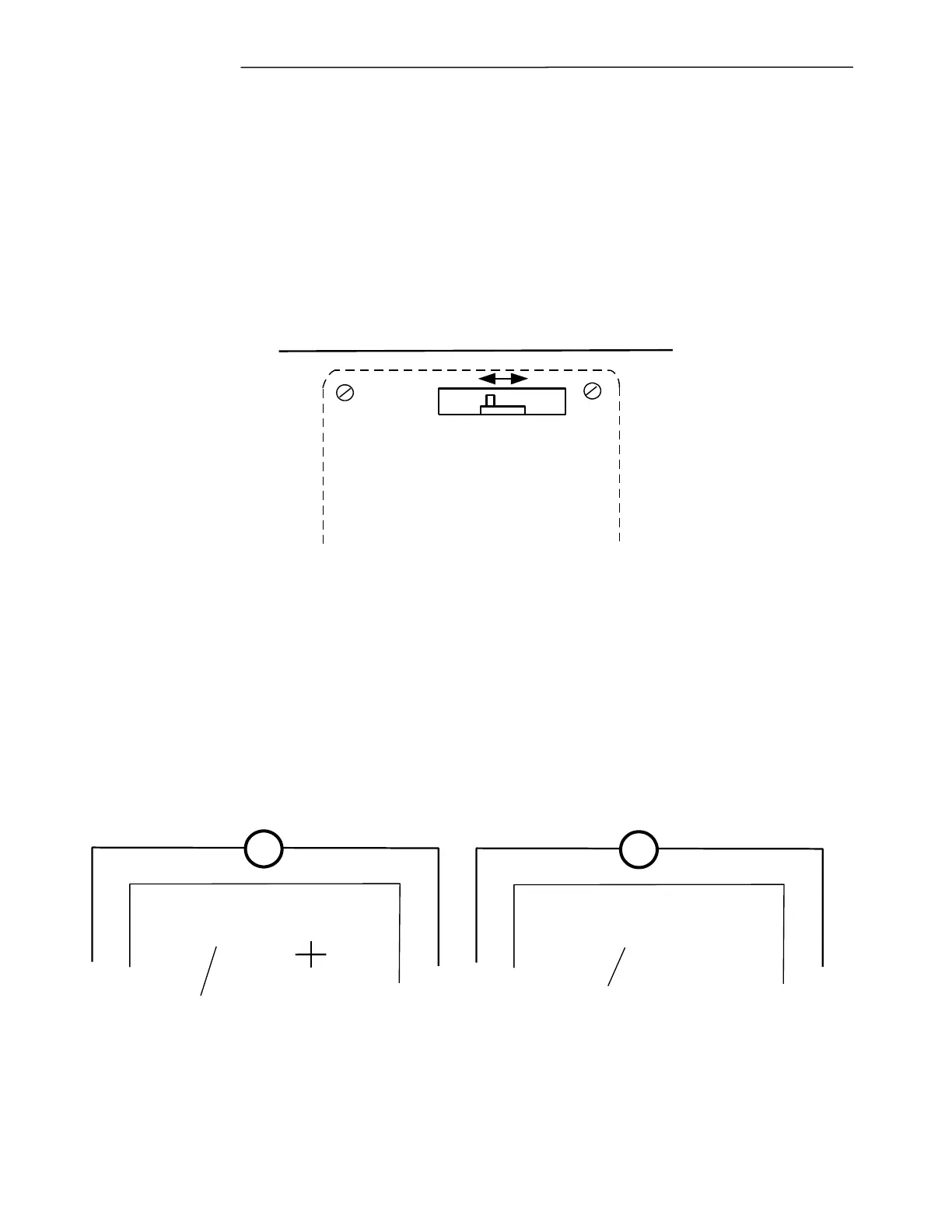
Screen requires changing, effective with TSD version SW8K0465WCE0004 a slide switch is provided
on the rear of the Touch Screen Display. To change the TSD orientation proceed as follows:
1. Shut OFF the main power to the GARD unit.
2. Carefully remove the Front Panel (4-screws) to gain access to the rear of the TSD.
3. Set the Slide Switch as required, see below.
Figure 5-13. Touch Screen Orientation
4. Reinstall the Front Panel and power up the unit.
5.5.3 TOUCH SCREEN INITIALIZATION
The following messages will appear when first initializing the touch screen or following an intentional
reset or loss of power. The TSD is initialized by pressing the center of the target as it moves around
the screen. Effective with TSD version SW8K0465WCE0004 the screen below can be accessed by
holding down the “Refresh” and “Home” buttons simultaneously. Note that with the above version of
the TSD software, initialization is retained in memory and once factory calibrated no further user
intervention is normally required.
Press and briefly hold stylus on the center of the
target. Repeat as the target moves around the
screen. Press the Esc key to cancel.
Tap the Touch Screen with the stylus, this will bring
you to the default "TSD Main Menu" as shown in
Figure 5-20 or to the "Push Button Interface" if
configured as shown in Figure 5-19. There is no
"Enter" or "Esc" key.
New calibration settings have been measured.
Press the Enter key to accept the new settings.
Press the Esc key to keep the old settings.
1
2
Tap the Touch Screen with the
stylus, there is no "Esc" key.
Figure 5-14. Touch Screen Initialization.
5.5.4 SCREEN DISPLAY, WAKE-UP


 To Next Page