System User Interface
GARD 8000 SYS RFL Electronics
August 1, 2012 5-7 973.334.3100
5.2.1 HOW TO ACCESS THE GARD 8000 LOGIN PAGE
1. Configure the IP Address of your PC or laptop. Go to 5.8 (Guidelines for Configuring a PC
for IP Networks) if you need assistance. This sub-section gives details on DHCP and Static
settings on your computer using Windows 7
®
or Windows XP
®
operating systems.
2. Connect your PC to the GARD 8000 using a Cat 5 Patch Cable to the front RJ-45 Ethernet
port.
3. From Internet Explorer go to the Address Bar and enter the IP Address of the GARD 8000
which is 192.168.1.1, then press the Enter button.
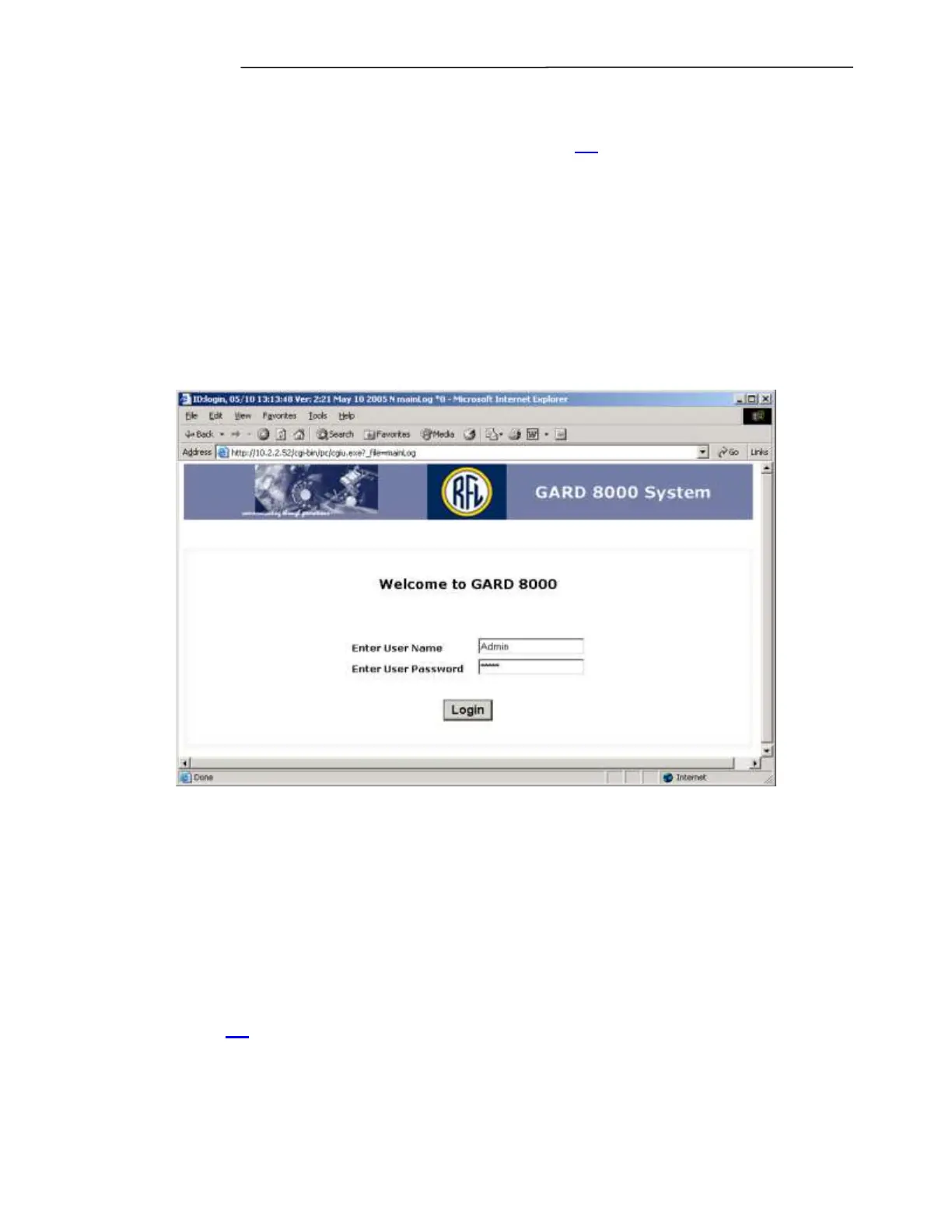
4. The GARD 8000 Login Page will be displayed.
Figure 5-8. GARD Login Access
5. Type in the User Name and Password. The User Name and Password are both case sensitive.
Then press the Login key. This will give you access to the GARD 8000 Chassis
Configuration Status page as shown in Figure 5-10 for the 3U chassis, or Figure 5-11 for the
6U chassis.
There is no ‘backdoor’ for the Admin password. The default password is ‘Admin’ but when
changed, the actual password has to be used. Please contact the factory for password recovery
procedures. See 5.6 Passwords and Security for information on changing the password.


 To Next Page