GARD DNP Configuration and SNMP Trap Agent
GARD 8000 SYS RFL Electronics
April 23, 2015 16-25 973.334.3100
1. Verify that the SNMP Get request works.
a. Once a valid SNMP Trap/Get feature key is configured to the GARD 8000 chassis, verify
that each OID (object ID) in the RFL GARD MIB is accessible.
b. Read all the system OIDs, verify that the retrieved values match with the “System
Information” web page.
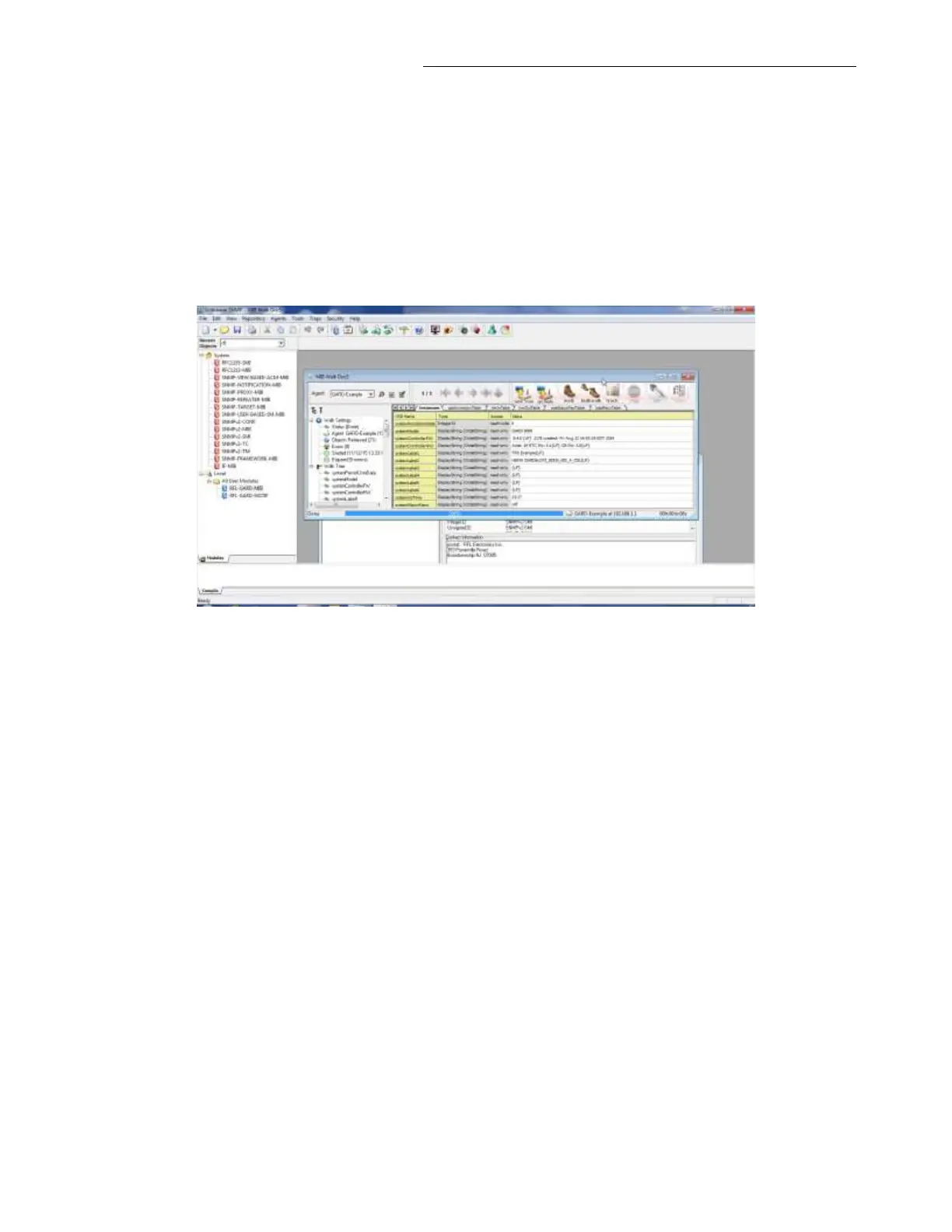
c. Click on each of the tabs in screenshot below to populate: cardinventoryTable, hmilnTable,
hmiOutTable, soeStatusTextLabel, & TrapRecvTable.
d. Clear the SOE records on the GARD 8000 and read the SOE table back. Verify that no data
is available in this sub-tree.
e. Generate an SOE record and read the SOE table back. Verify that the new SOE record is
added to the table.
2. Verify that the admin password change works.
a. Change the password of the admin user. Verify that the old password is no longer valid.
Re-configure the MIB browser with the new password. Verify that all sub-trees are
accessible.
b. Set the “systemPersistUsmData” OID value to 1 from the MIB browser (this will save the
change immediately). Reboot the Gard 8000 chassis. Verify that all sub-trees are accessible
once the reboot cycle is done.
c. Go to the “System Configuration” web page. Check and save the “Reset SNMPv3
Password” box. Verify that the checkbox is unchecked. Verify that all sub-tress are
accessible from the default password.


 To Next Page