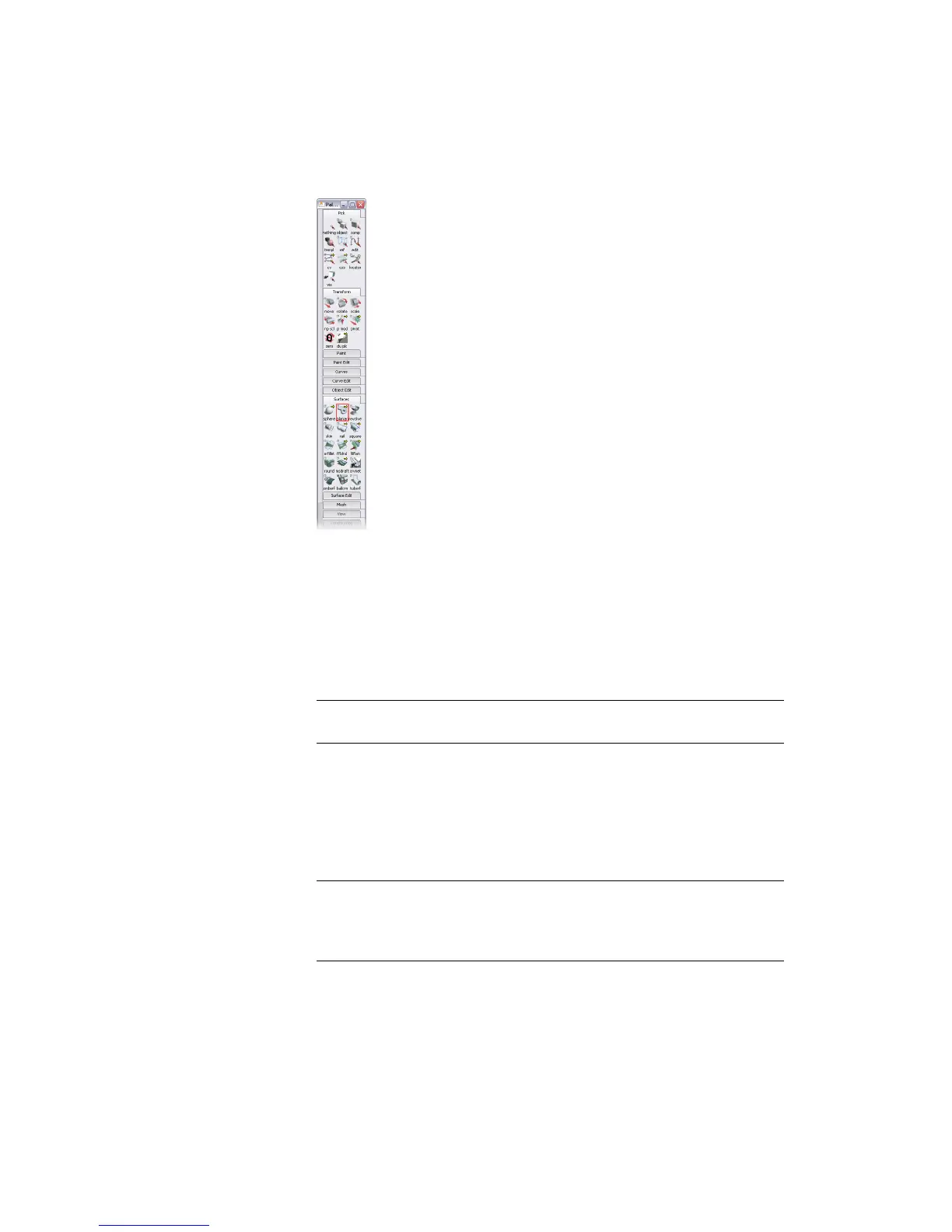
The Palette window is divided into separate palettes of tools, each labeled
with a tab at the top.
For example, the Curves palette contains tools for creating new curves.
The Curve Edit palette contains tools for editing and reshaping existing
curves.
2 Find the Surfaces palette. It is the eighth palette from the top of the
window.
NOTE If you cannot see the Surfaces palette, use the scroll bar on the left
side of the palette window to scroll up or down until it is visible in the window.
3 Hold the cursor over a tool.
The name of the tool appears in a small box just below the icon. This
small text window is called a tooltip.
This feature can help you to identify tools until you become familiar with
the icons in the palette.
NOTE Once you are familiar with the icons in the palette, you may want to
disable tooltips. To do this, select the Tooltips option in the Interface
section of the General Preferences window (Preferences > General
Preferences ❒).
Tool Basics | 27



 To Next Page