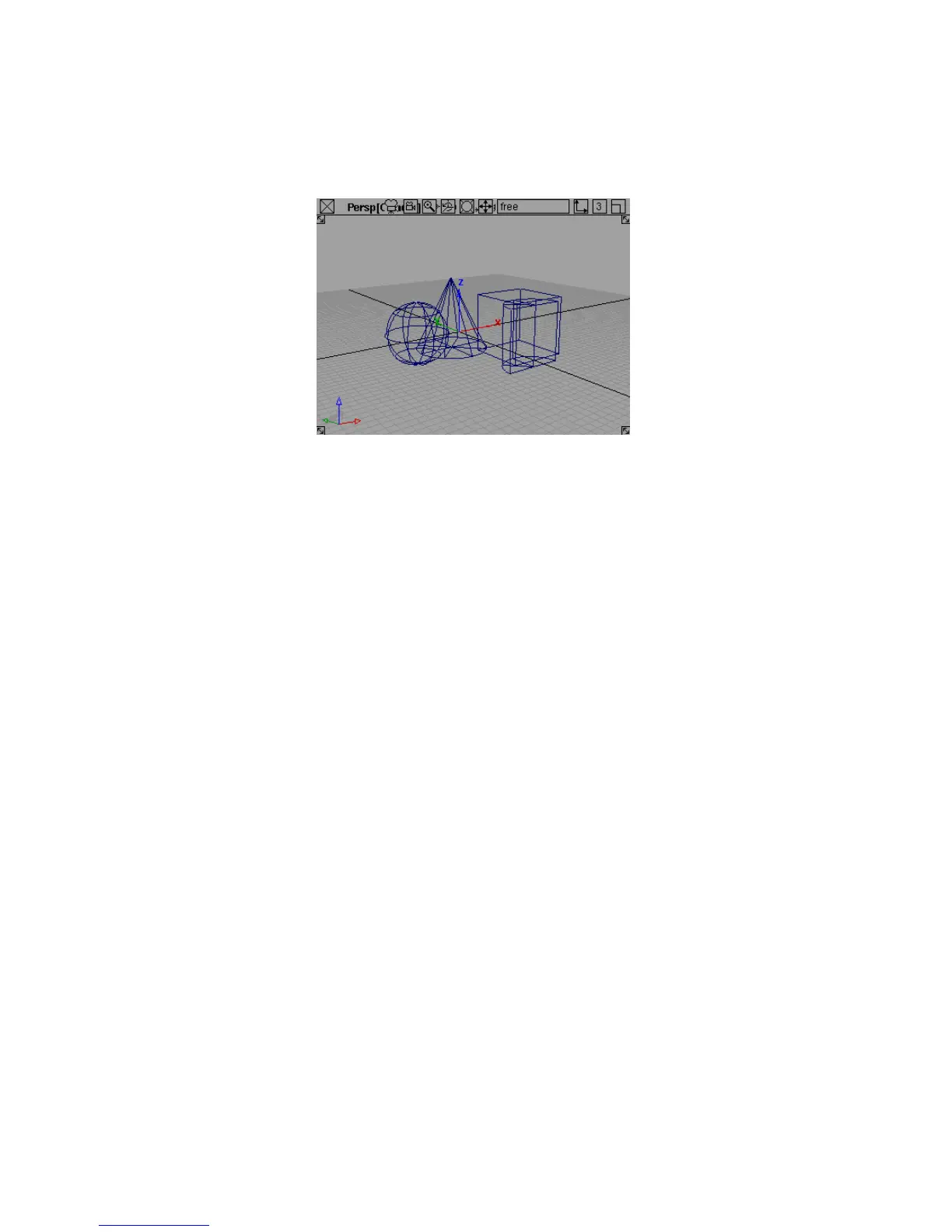
When you use Look At with nothing or everything picked, the view
centers on all the geometry in the scene.
Look At is most useful to quickly find geometry that is outside the view of
a window or too far to be seen clearly. Alias provides two additional tools to
make it easier to move the camera around a model quickly: the “point of
interest” and Viewing Panel.
Changing the Point of Interest
Normally, camera move mode (Shift+Alt (Windows) or Shift+Command (Mac))
is calibrated to best view objects at the origin (the center of world space,
coordinate 0,0,0). This can become awkward when you want to move the
camera around objects away from the origin.
The point of interest manipulator lets you center the camera movements on
a point on the model.
To use the point of interest manipulator
First, make sure the point of interest manipulator is turned on.
1 Choose Preferences > General Preferences ❒.
The General Preferences window appears.
2 Click Viewing on the left-hand side to open the Viewing section.
3 Turn on the Use point of interest option.
Changing the Point of Interest | 63



 To Next Page