So, if our target is a product volume of 250 ml, you would expect to add 25%
to account for the plastic material and airspace, giving a target of 312.5 ml
for the external shape modeled. This would then be displayed as 312500 mm3
in the Mass Properties window.
Revolving a Cap
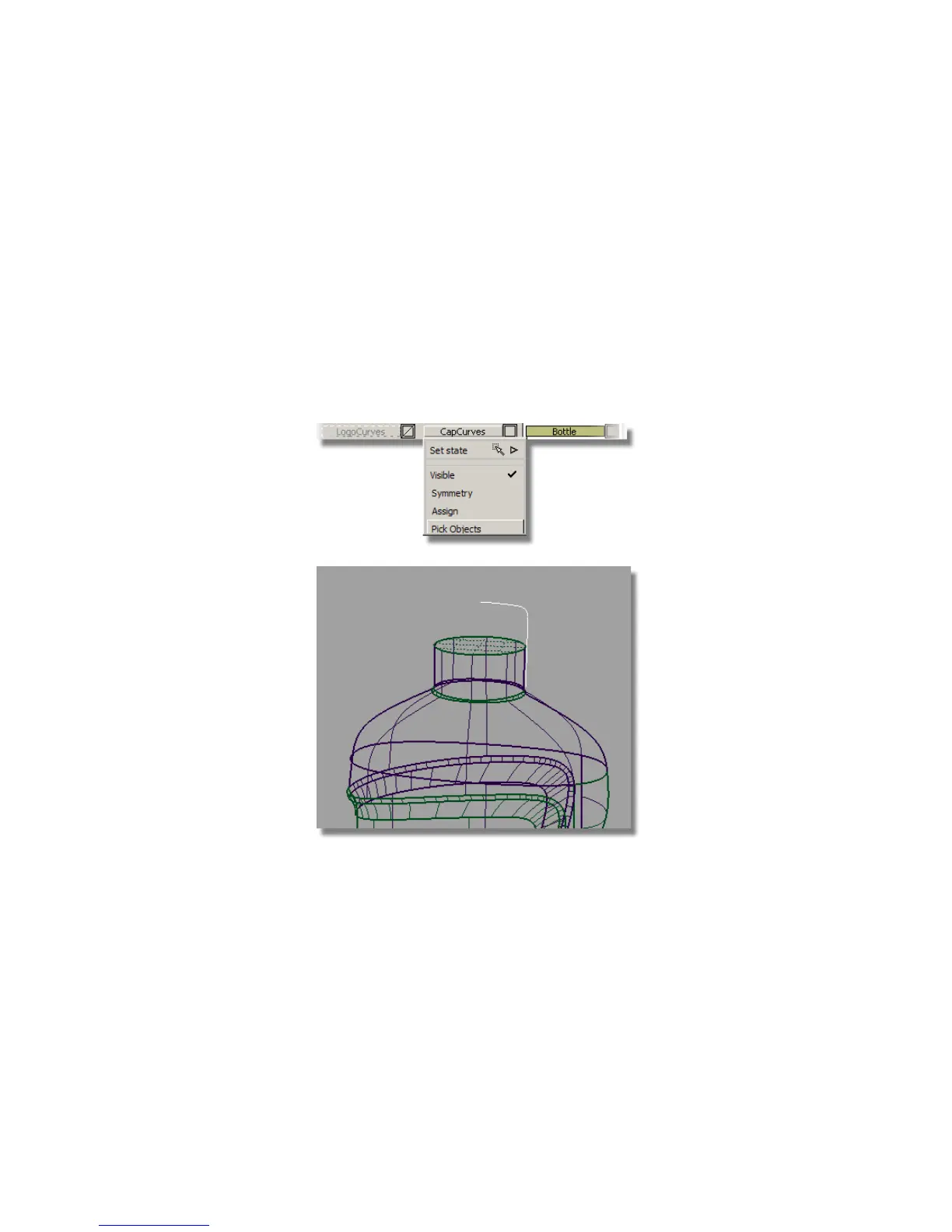
To finish off the model, you can build a simple cap from curves supplied on
the CapCurves layer.
1 Turn on the visibility of the CapCurves layer.
2 Select all the cap curves using Pick Objects on the layer sub-menu.
3 Choose Surfaces > Revolve and double-click the icon to open the option
window.
4 In the Axes section, select Global. This enables you to revolve all the
curves at the same time around the origin.
Part 6: Completing the Model | 597



 To Next Page