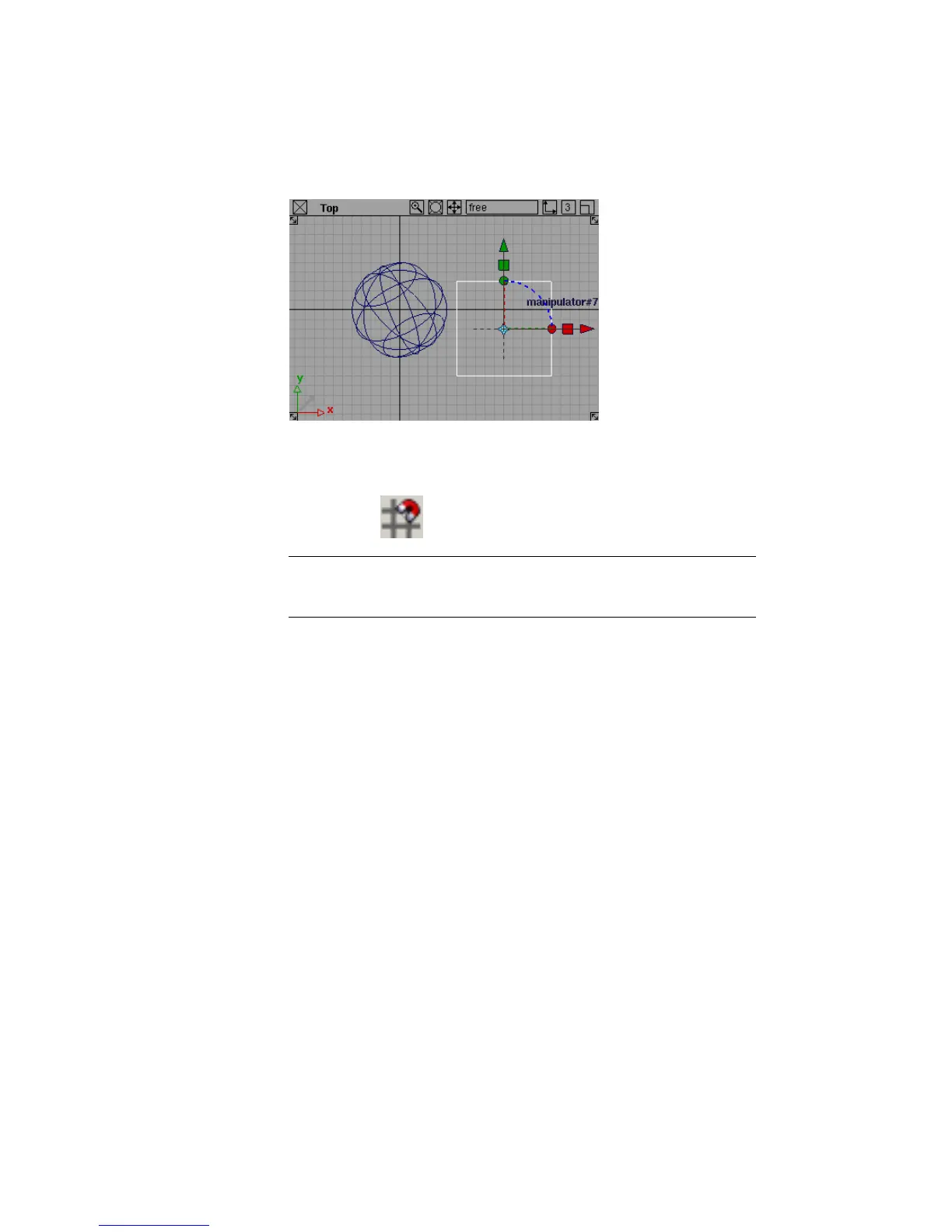
The cube snaps to the grid intersections as you drag.
8 Place the cube at a grid point by releasing the mouse button.
9 Click the Grid snap button again to turn grid snapping off.
NOTE In addition to using the Grid button, you can grid snap by pressing
and holding the Alt (Windows) or Command (Mac) key while you place a
primitive.
To use the palette menu to choose the Cone tool
This time use an alternative method for choosing tools from palettes.
1 Click the tab at the top of the Surfaces palette.
The palette collapses to just the tab, and the other palettes move up to
fill the space.
This feature is very useful for saving space in the palette window and in
shelves. You can still choose tools from the palette using the palette’s
menu.
2 Click the right mouse button on the Surfaces palette’s title tab to open
the palette’s menu.
3 Click the Primitives option to open the submenu.
Just like the menus at the top of the screen, arrows indicate that an item
in the palette menu has subitems.
30 | Chapter 3 Interface Basics



 To Next Page