This arrow indicates that more, similar tools are available in a hidden
subpalette. To access the extra tools, click and hold the mouse to open the
subpalette.
1 In the Surfaces palette, click and hold the Sphere tool icon.
2 The Surfaces > Primitives subpalette appears.
3 Hold the middle mouse button on the different tools in the subpalette to
see their names.
4 Click the Cube tool.
The subpalette disappears. The Cube tool is selected and now occupies
the space in the main palette where the Sphere tool was.
This time place the new primitive using grid snapping.
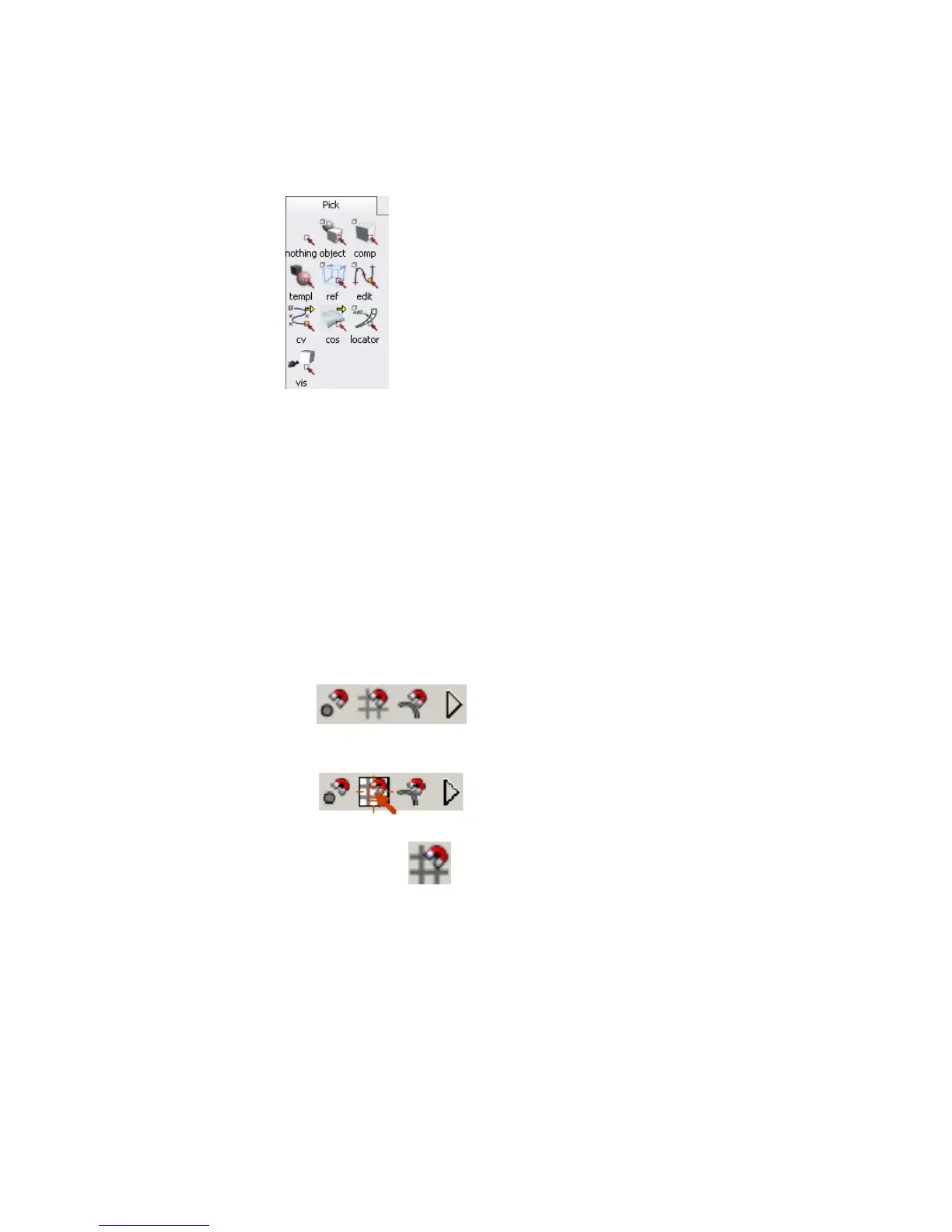
5 Find the snap buttons, to the right of the promptline.
6 Click the Grid button to turn on grid snapping.
7 Click and drag in the Top view window.
Using a Snap Mode | 29



 To Next Page