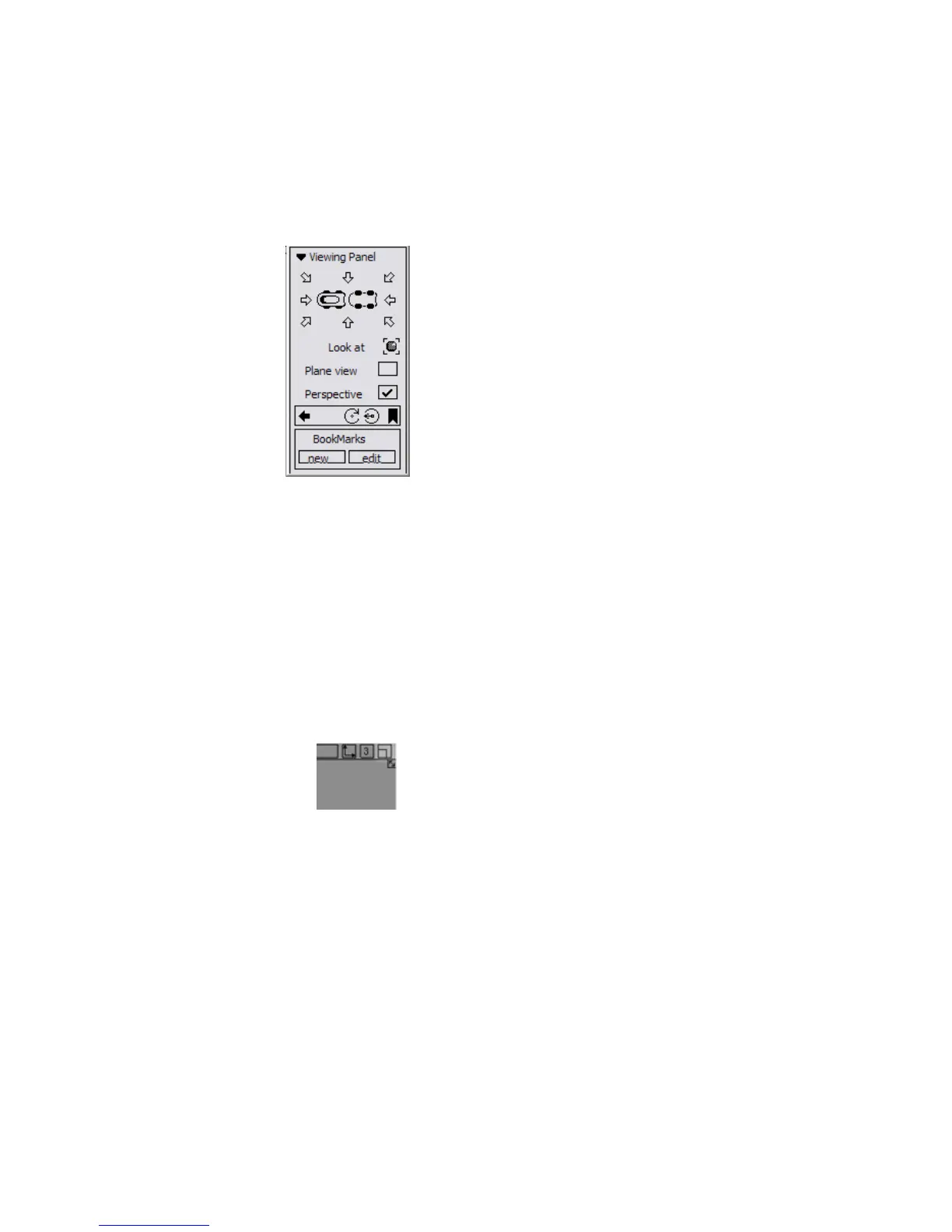
Using the Viewing Panel
The Viewing Panel appears when you enter camera move mode in the
Perspective window.The ViewCube tool and NavBar appear by default, but
you changed this setting in the previous section. This window lets you quickly
switch the Perspective window to a default or user-defined view of the model.
As you work on the model, you will probably find yourself changing the
camera view back and forth between two or more areas of interest. The
Viewing Panel lets you “bookmark” views of the model and return to those
views by clicking the name of the bookmark.
To use the Viewing Panel to move between different views
1 Click the maximize box in the upper right corner of the Perspective view
window.
The Perspective view window enlarges to full screen.
2 Open the General Preferences window and click Go.
3 Hold down the Shift and Alt (Windows) or Shift and Command (Mac) keys
to enter camera move mode. Keep the keys held down for the rest of this
procedure.
Using the Viewing Panel | 67



 To Next Page