Part 4: Creating a 2D bump texture
In this section, you will create a shader for the Grip surface by duplicating
an existing shader. Then, you will apply a bump map to the new shader to
create the effect of a bumpy surface.
Watch Part 4 of the tutorial.
Creating a shader for the Grip surface
1 Open the Multi-lister.
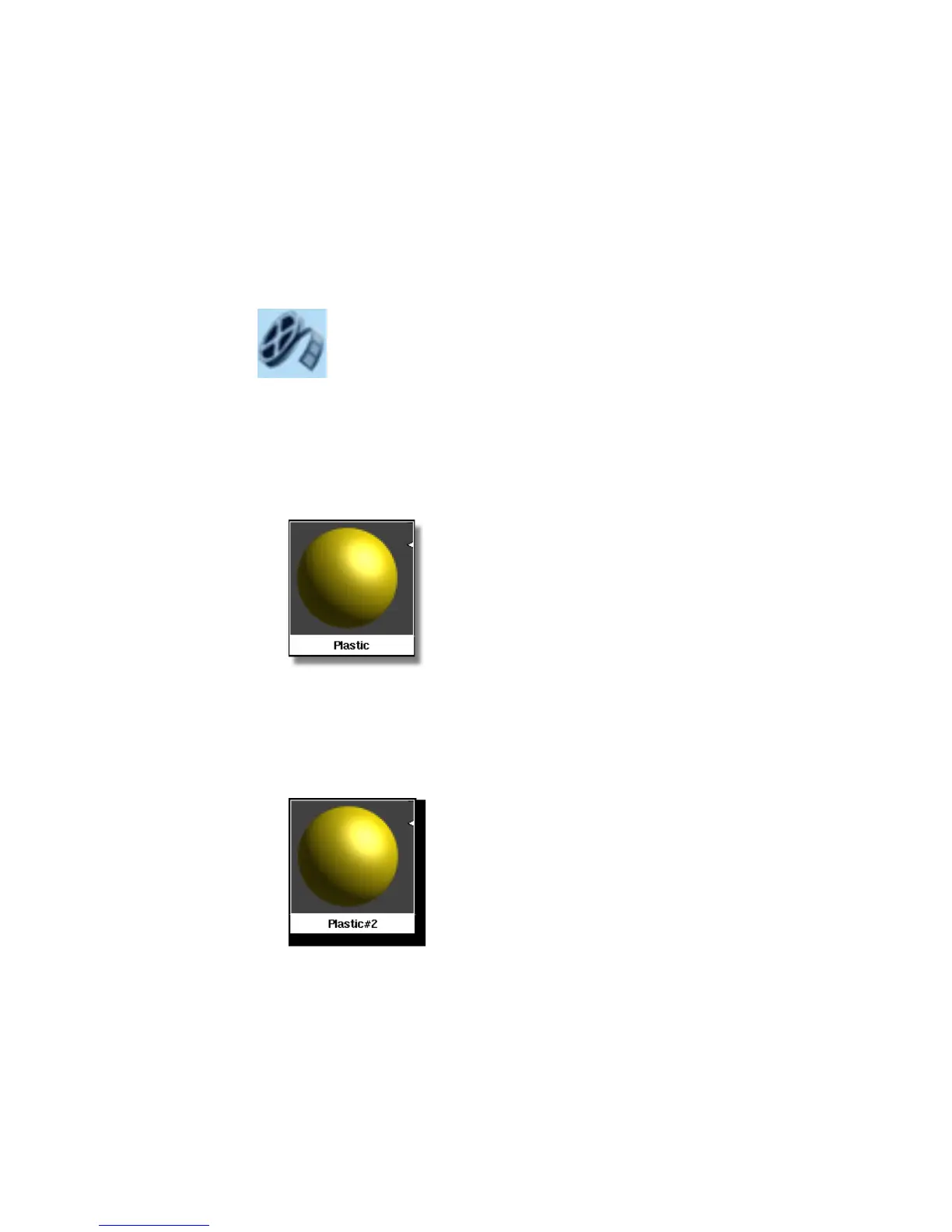
2 Click the Plastic shader to make it active.
3 In the Multi-lister, select the Copy command (Edit > Copy).
A new shader is created called Plastic#2. We are creating a shader instead
of modifying the original plastic shader, because the original shader was
also shared by the Decorations layer. We don’t want to change the shader
on the decorations, just on the grip.
710 | Chapter 11 More rendering



 To Next Page