A dialog appears, asking if you want to overwrite the file. Click OK.
The rendering process begins.
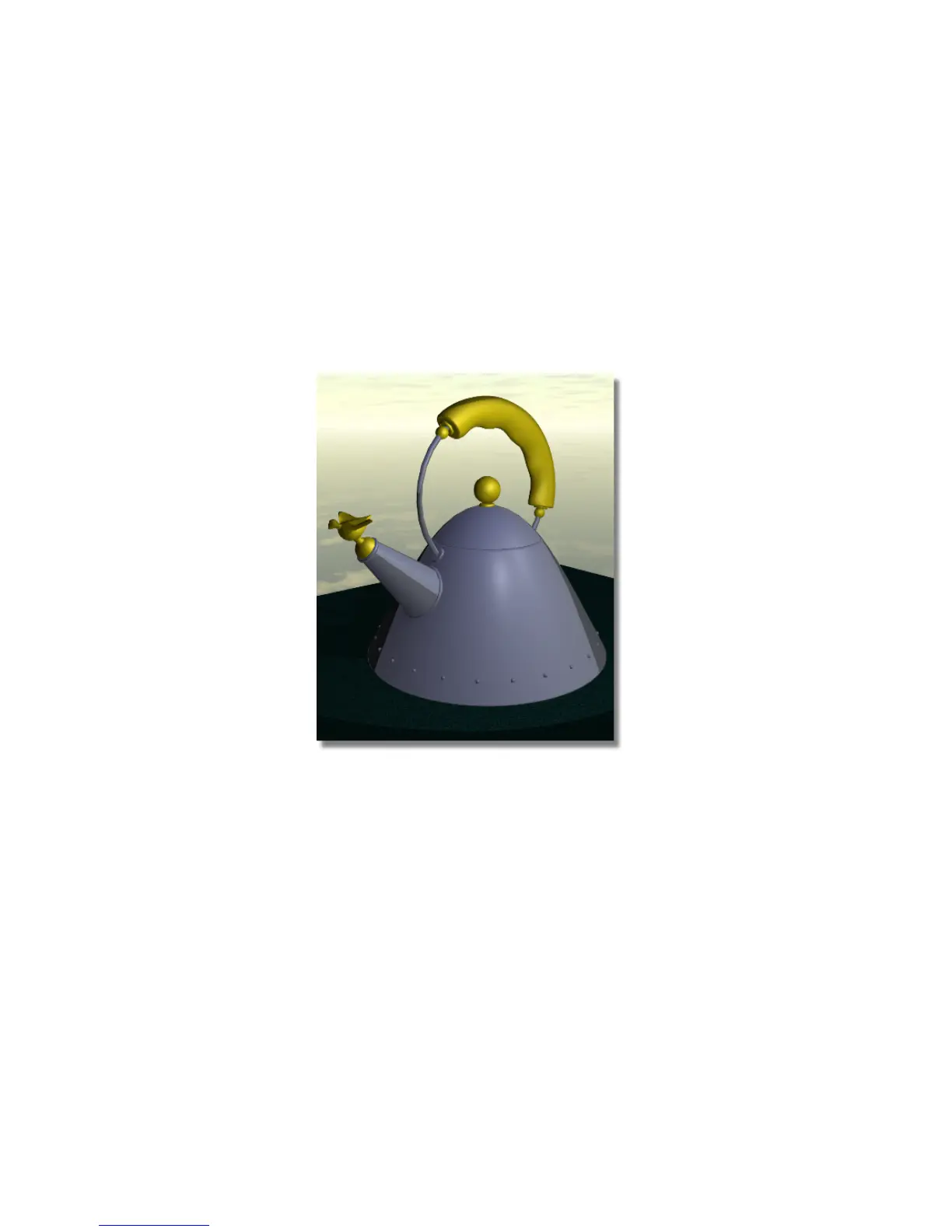
3 Click the Show button on the Render Monitor to view the rendered
image.
The tabletop now has a granite surface. Although the camera angle that
you are using does not show the thickness of the tabletop, if you were to
re-position the camera to view the table thickness and re-rendered the
scene, the table would look like it was cut from a solid piece of granite.
4 Click the close box on the window bar of the rendered image to close it.
Save your work
1 Save your work in the wire file of the Lessons directory.
2 Name your file myadv_rend3.wire.
Part 3: Creating a 3D solid texture | 709



 To Next Page