Trimming the surfaces
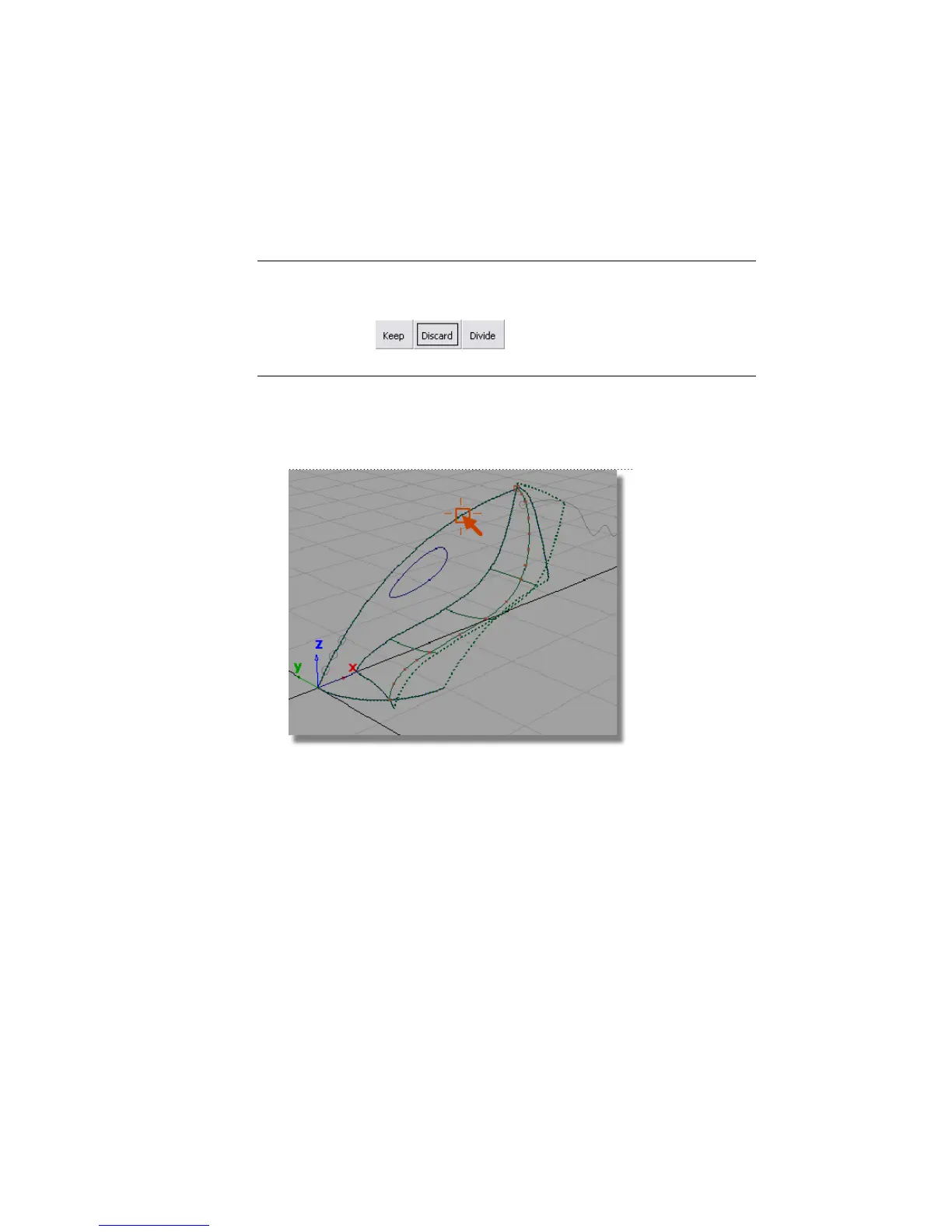
Now, you will trim off the excess from the upper and lower surfaces.
NOTE A trimmed surface is not actually cut; it exists in a hidden form that does
not render or affect modeling. While performing a trim, you can easily discard
part of a trimmed surface by selecting the unwanted portion of the geometry and
clicking the Divide button that appears at the bottom right
corner of the screen.
1 Choose Surface Edit > Trim > Trim Surface .
2 You are prompted to select a surface to trim.
Pick the upper surface.
3 You are then prompted to select one of the following:
Shift select to select surfaces or click to select REGIONS.
The last option allows you to trim away the excess parts of the surface,
so this is the prompt you will respond to.
Click any part of the upper surface on the inside part that you want to
keep.
300 | Chapter 6 Modeling a Vacuum Cleaner



 To Next Page