There is a second type of renderer called a raytracer. This type of renderer is
much more accurate and can produce accurate reflections and refractions.
Raytracing is also a process that takes much longer to compute than a typical
raycast render.
In this section, you will learn how to raytrace an image. First, you will delete
the Chrome texture from the Metal shader. Then, you will raytrace the scene.
Watch Part 5 of the tutorial.
Deleting the chrome texture
In the previous tutorial, you applied a chrome texture to the teakettle surface.
The chrome texture is assigned to the Metal shader. Now, you will delete this
texture because it will not be needed when raytracing.
1 Open the Multi-lister window, and display only the shaders (Render
> Multi-lister > Shaders).
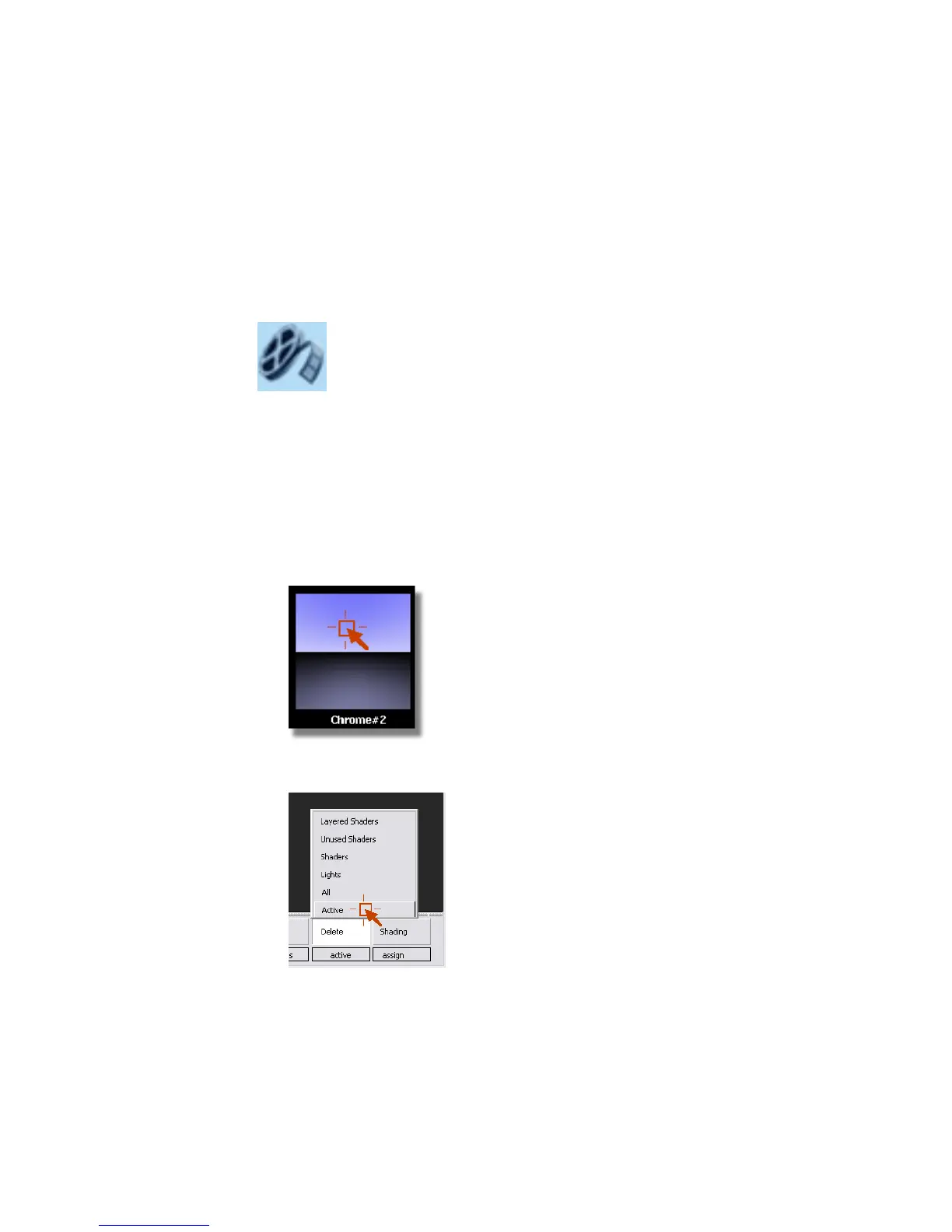
2 Click the Chrome#2 swatch to make it active.
720 | Chapter 11 More rendering



 To Next Page