To customize a marking menu with common tools
1 On the Preferences menu, open the Interface submenu and choose
Marking Menus.
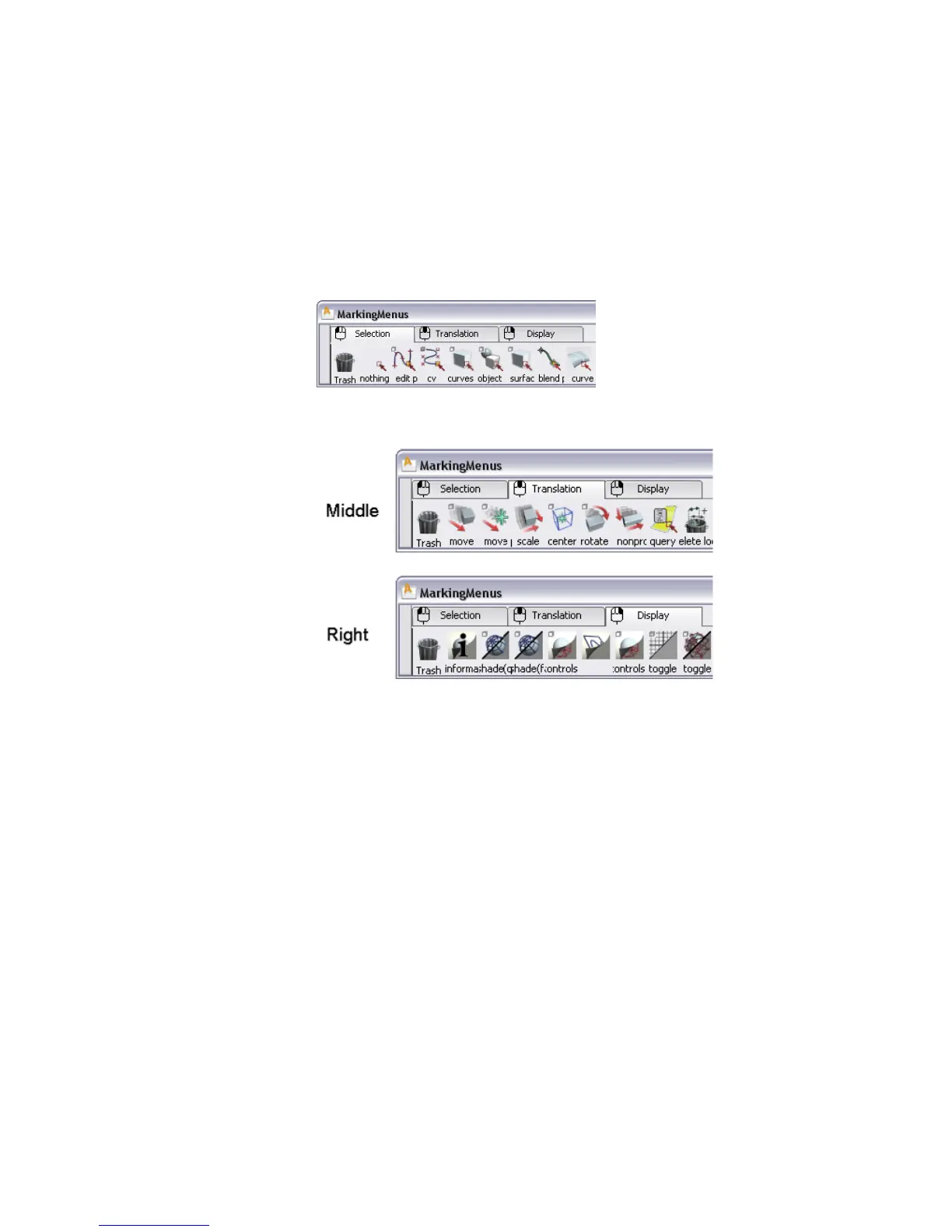
The MarkingMenus shelf window appears.
This is a special shelf window. The tools and menu items on the different
tabs appear in corresponding marking menus.
The procedure to modify the content of marking menus is similar to the
one for modifying shelves that you learned earlier.
Here you will make a small modification to the Selection marking menu
shelf.
2 Click the Pick tab in the Palette (if it isn’t already expanded) and locate
the Pick > Template tool.
3 Hold down the middle mouse button on the icon and drag it to the marking
menu shelf, to the location shown in the image below.
Using and Customizing Marking Menus | 51



 To Next Page