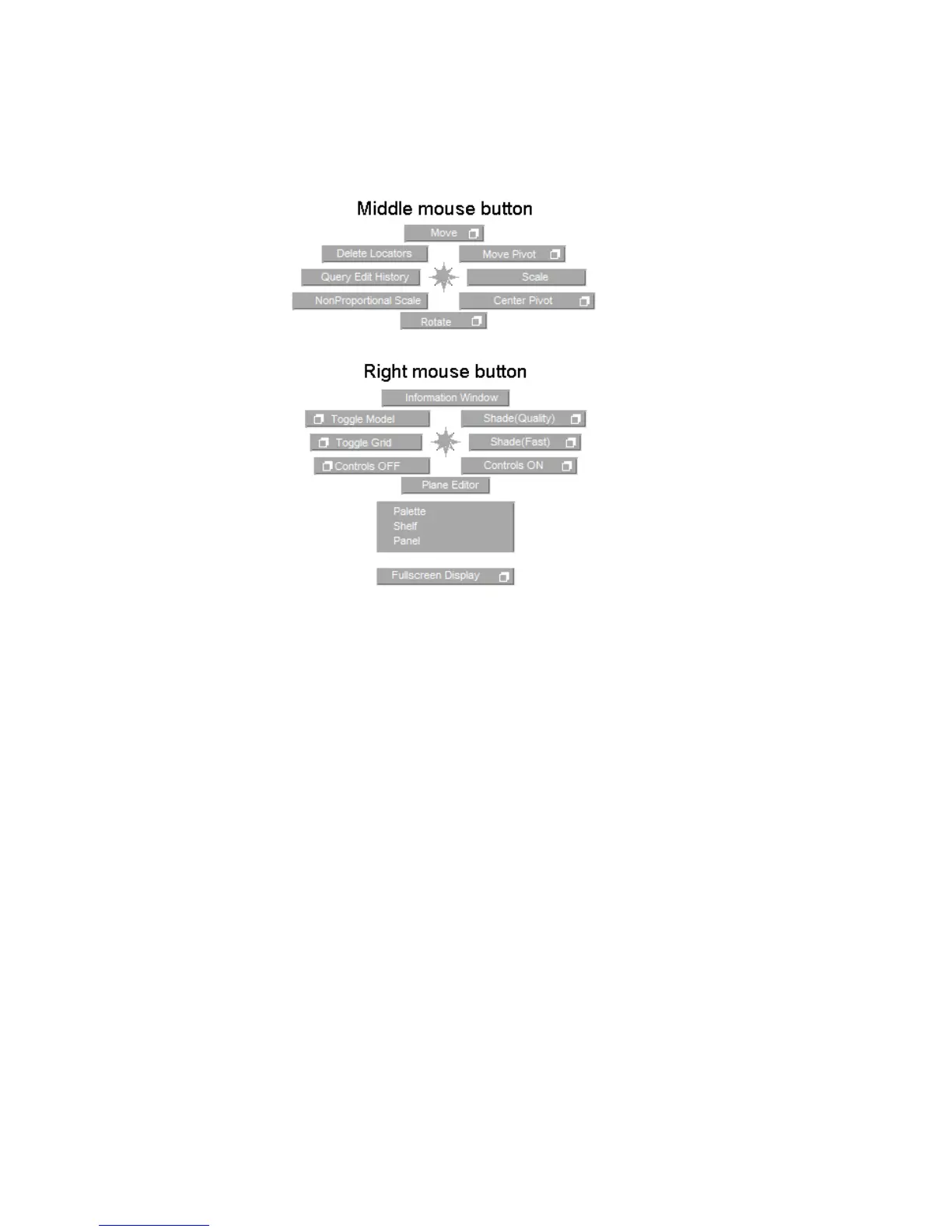
Once you have learned which direction corresponds to which tool in a
marking menu, you can use a quick gesture to choose the tool.
6 Hold the Shift and Ctrl (Windows) or Shift and Control (Mac) keys, then
drag up and release the mouse button quickly.
The black line shows the direction, but the menu is not drawn.
When you release the mouse button, the marking menu flashes the name
of the selected tool on the screen.
You have just selected Pick > Nothing .
Use this method to choose tools even faster once you have mastered the
positions of the tools on the menu.
Learn which tools are on the marking menus, and use the marking menus
whenever you need to choose one of those tools. The more you use them, the
faster you will become, until you can choose tools with quick gestures.
50 | Chapter 3 Interface Basics



 To Next Page