Watch Part 4 of the tutorial.
Setting the Image Quality
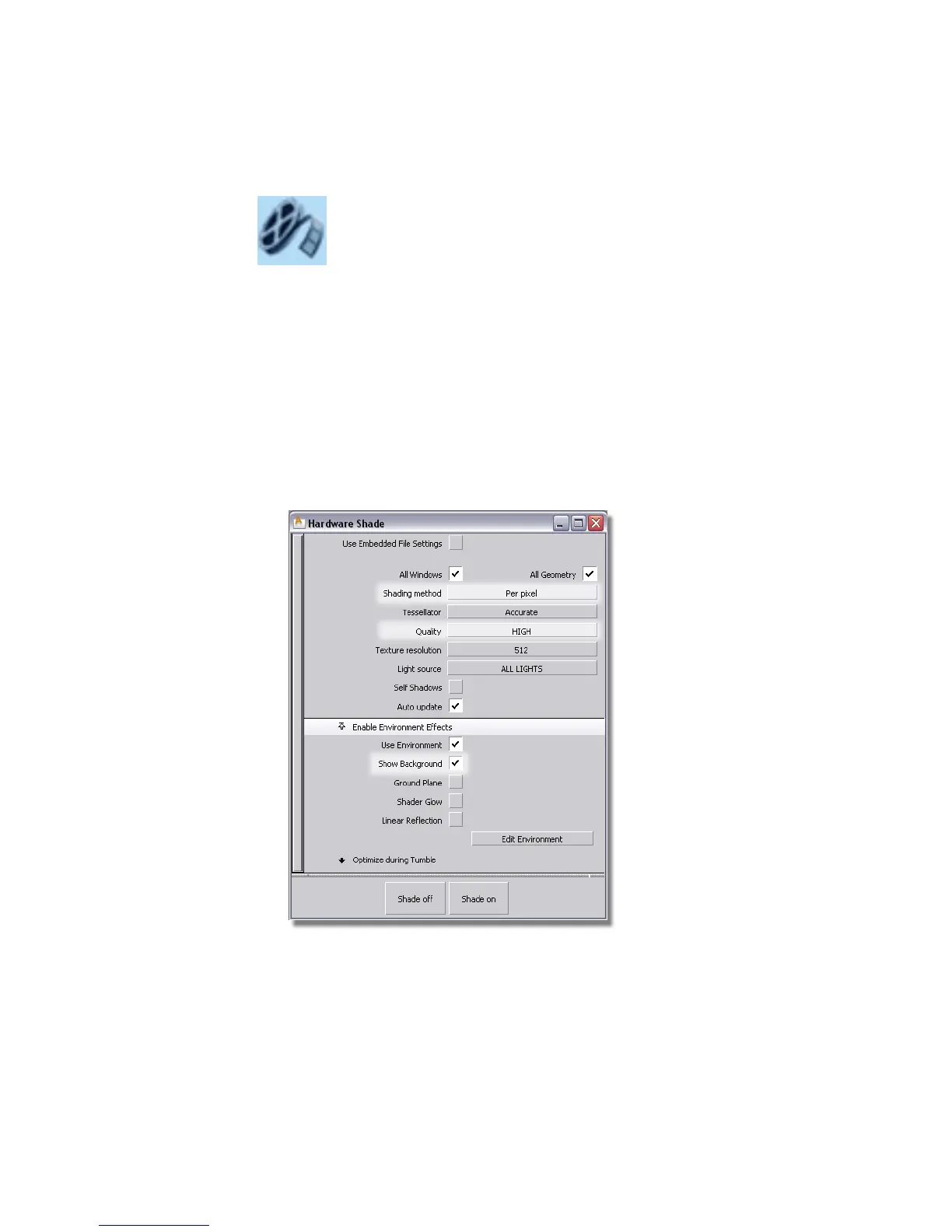
First, set the quality of the Hardware Shade to High.
1 Maximize the Perspective window.
2 Choose WindowDisplay > Hardware Shade ❒.
3 Make sure that Quality is set to HIGH and Shading method is set to
Per pixel, to create a high quality image.
4 In the Enable Environment Effects section, turn on Show Background.
The background color defaults to black, which obscures the shadows.
670 | Chapter 10 Shaders and Lights



 To Next Page