TIP If the trimming is not correct, click Revert at the bottom of the screen
to go back one step and re-select the trim regions. If you want to correct the
trim at a later stage, you can use Surface Edit > Trim > Untrim to restore
the surface to its untrimmed state.
Creating the Label Surface
If the bottle is to have a paper label, paper can only bend in one direction at
a time if it is to have no folds or wrinkles. Therefore the label surface should
only bend in one direction. This is called single-curvature.
You will create a single-curvature surface by using a Skin surface between
two identical curves.
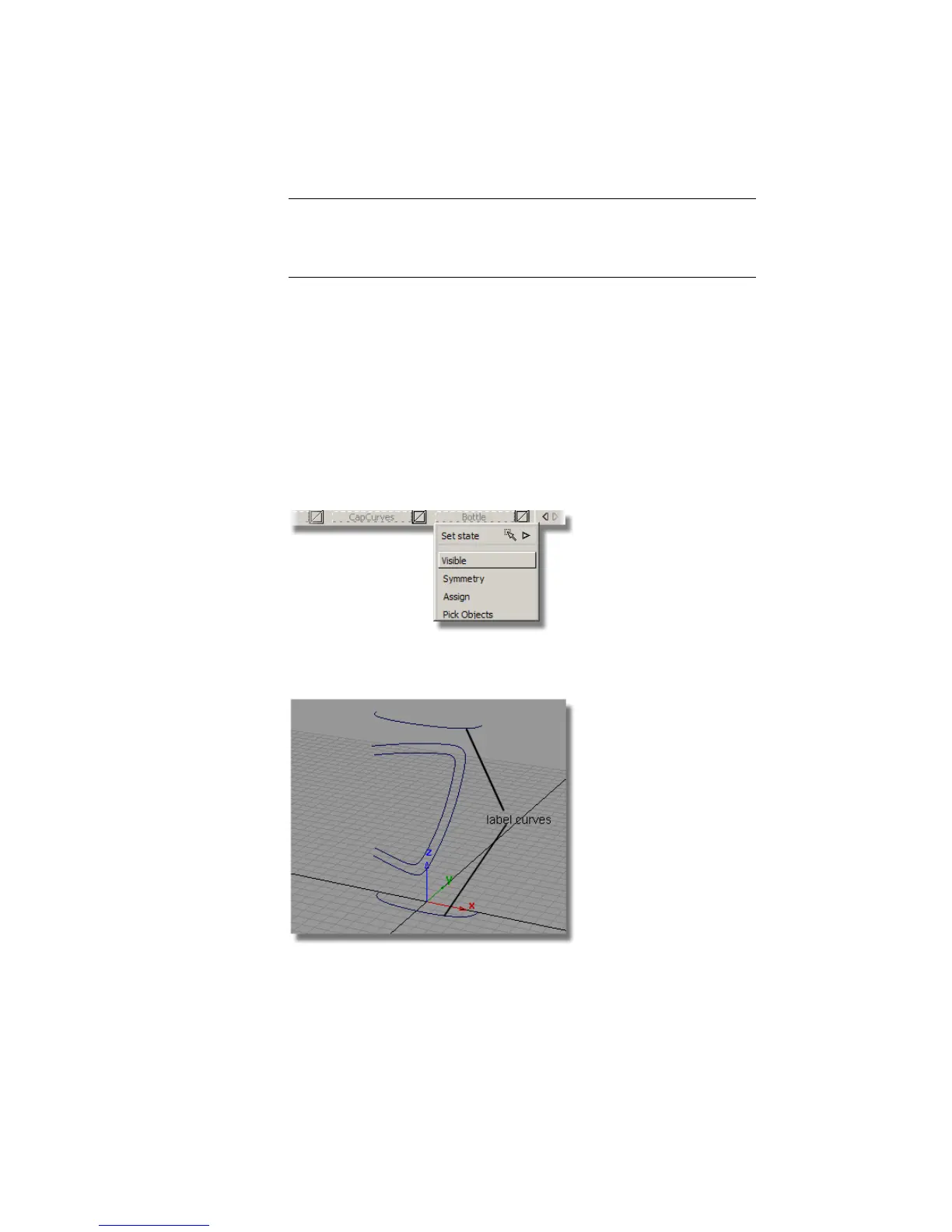
First, organize your model using the layers.
1 Make the Bottle layer invisible using the layer sub-menu.
There are two identically shaped curves for the skin surface; these will be
used to create the label.
550 | Chapter 8 Modeling a Sports Shower Gel Bottle



 To Next Page