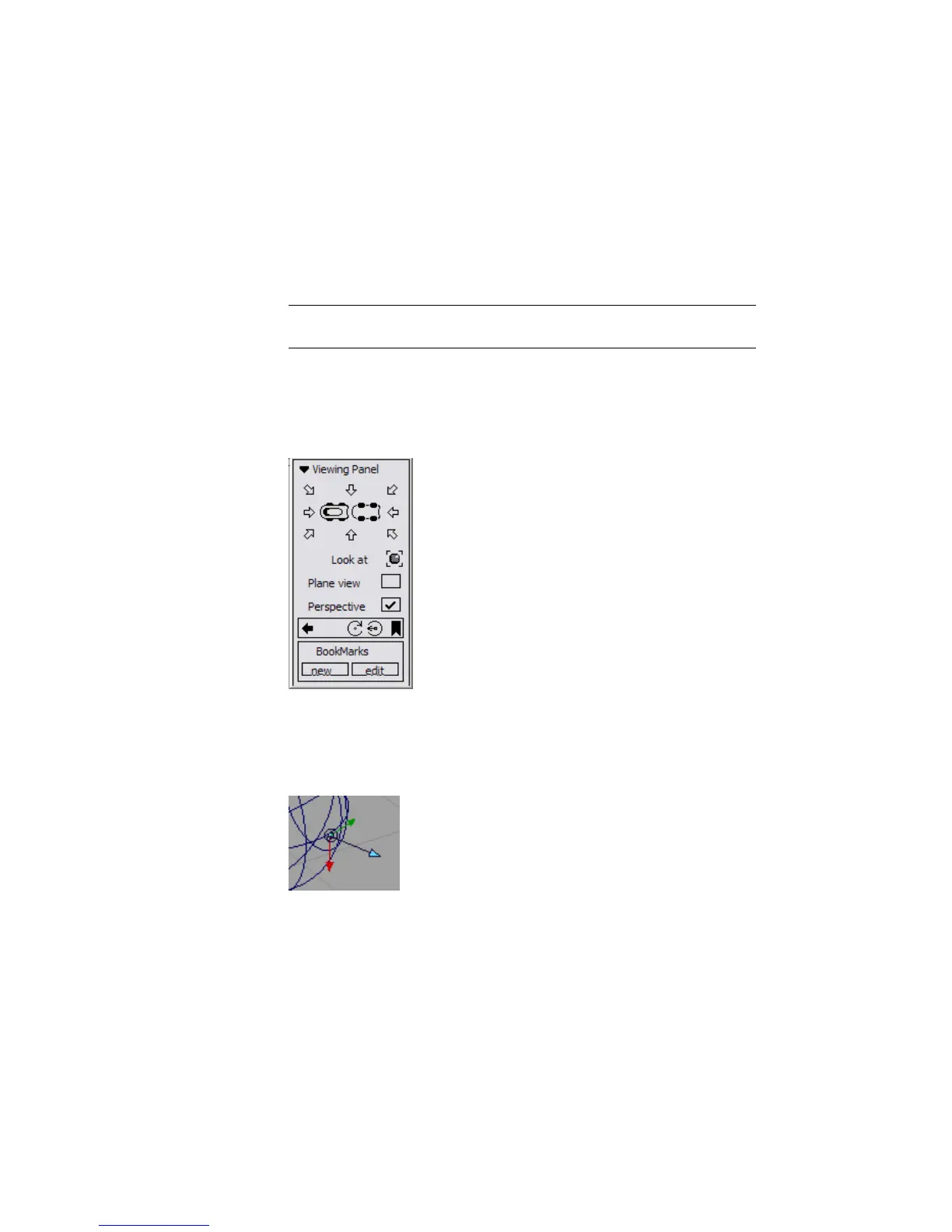
4 Change the View Control setting to Viewing Panel.
The ViewCube is the default view control, but we will use the Viewing
Panel in these tutorials. The ViewCube and NavBar provide the same
functionality as the Viewing Panel. For information, see Use the ViewCube
tool and NavBar.
NOTE The point of interest manipulator works the same for both the Viewing
Panel and the ViewCube and NavBar.
5 Click Go to close the window and use the new settings.
6 Hold down the Shift and Alt (Windows) or Shift and Command (Mac) keys
to enter camera move mode. Keep the keys held down for the rest of this
procedure.
The Viewing Panel appears in the upper left corner of the Perspective
window.
7 Position the mouse pointer on the wireframe of one of the primitive
objects and double-click with the left mouse button.
When you release the mouse button, the point of interest manipulator
appears on the model where you clicked.
64 | Chapter 3 Interface Basics



 To Next Page