Drag with the left mouse button to tumble. The view tumbles around the
point of interest.
8 Click and release on another point on one of the primitive objects.
The point of interest manipulator jumps to the new point.
9 Drag the circle at the center of the point of interest manipulator.
The manipulator moves across the surface of the object.
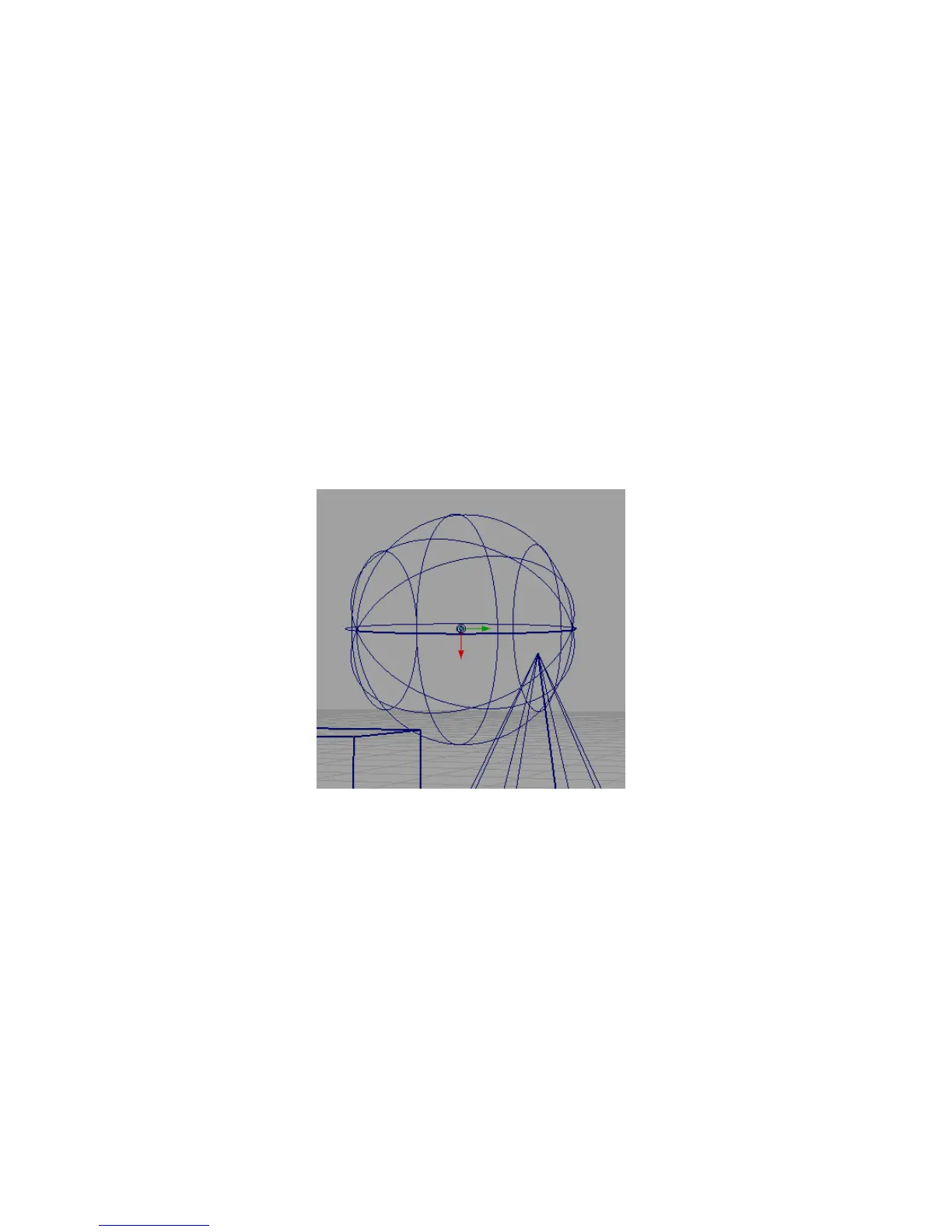
10 Notice the light blue or yellow arrow extending from the center of the
manipulator. This arrow indicates the normal at this point on the surface.
The arrow is light blue when it is pointing toward you and yellow when
pointing away.
11 Click the light blue or yellow arrow.
The view changes to look at the point down the normal.
12 Now look for the red and green arrows extending from the center of the
manipulator (tumble the view to show the arrows more clearly, if
necessary).
These arrows represent the tangents along the U and V directions of the
object.
13 Click the red arrow.
The view changes to look down the tangent in the U direction.
Changing the Point of Interest | 65



 To Next Page