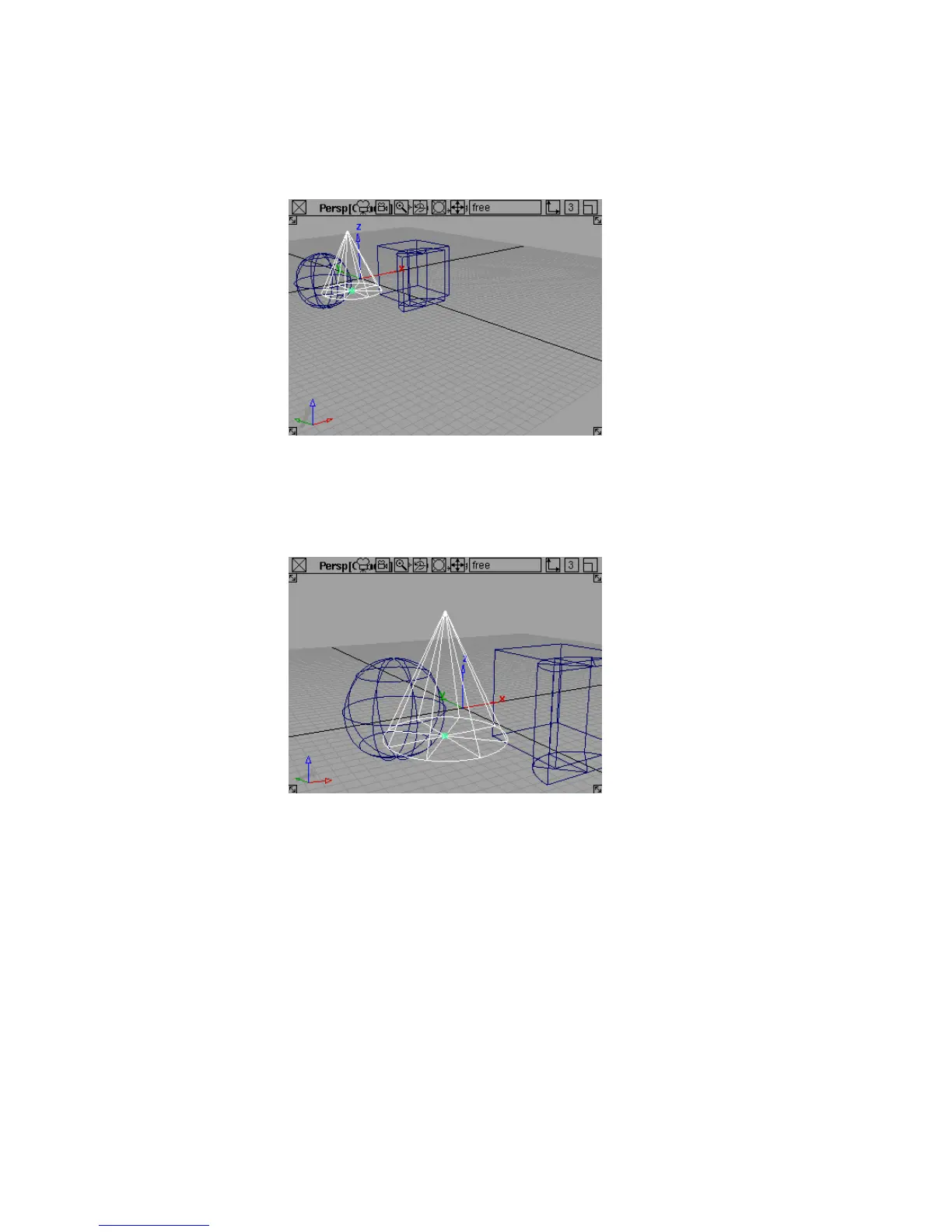
5 Find the View palette. It is near the bottom of the Palette window.
6 Choose the Look At tool.
7 The active view window (the window with the white outline) changes
to center on the picked object.
8 Pick nothing .
9 Use the Look At tool again.
10 The active view changes to center on all the existing geometry.
62 | Chapter 3 Interface Basics



 To Next Page