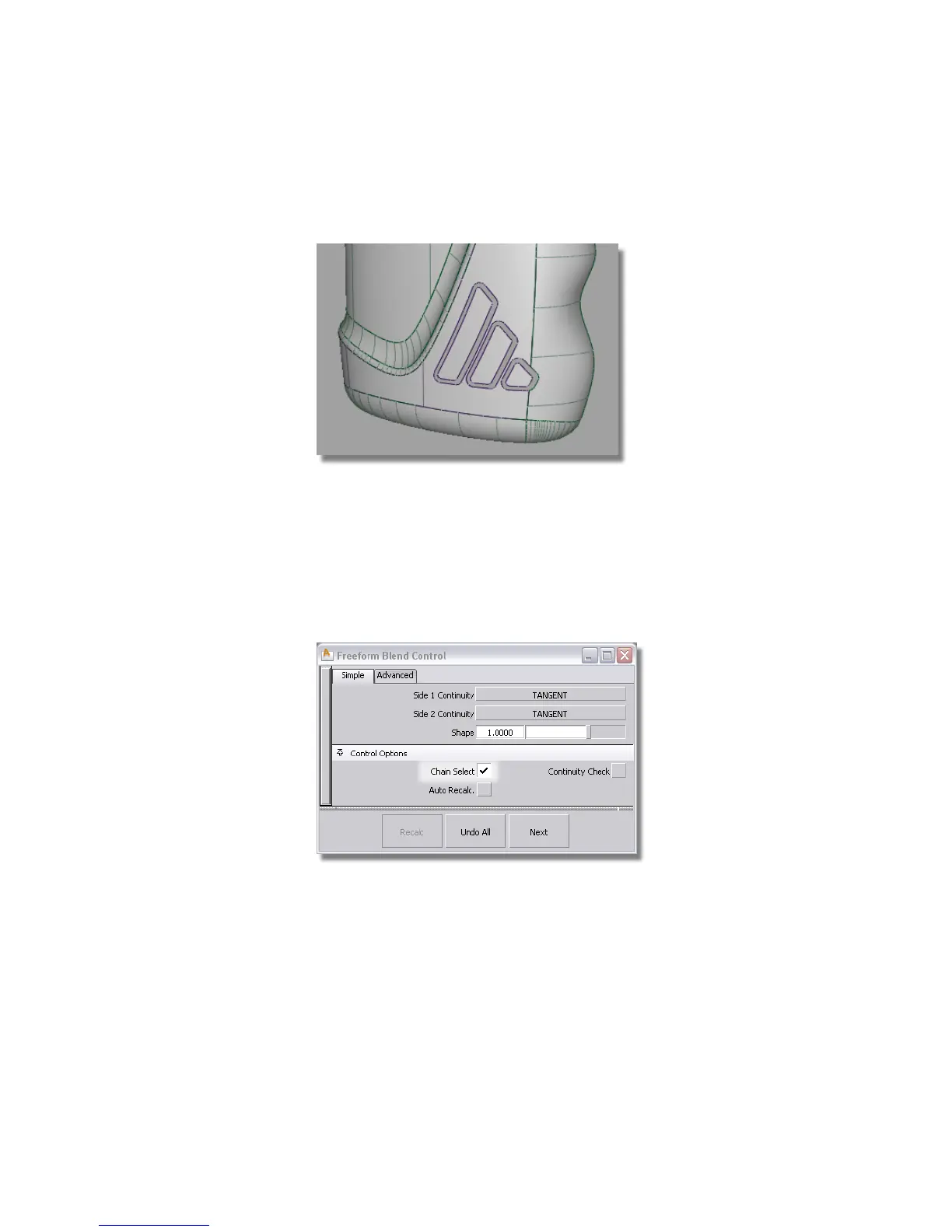
1 Maximize the Perspective view and use diagnostic shading to check
that the gaps have been created for the blend surfaces.
Next, you will create the freeform blend surface. As the logo shapes were
made up of many curves, you can use the Chain Select option to select
the whole edge.
2 Choose Surfaces > Multi-Surface Blend > Freeform Blend , and double-click
the icon to open the option window.
3 Choose the Chain Select option, and leave the option window open
on screen.
4 You are prompted to pick the input surface curves. Click the edge of the
first logo offset surface as shown.
Part 5: Embossed Logo Details | 585



 To Next Page