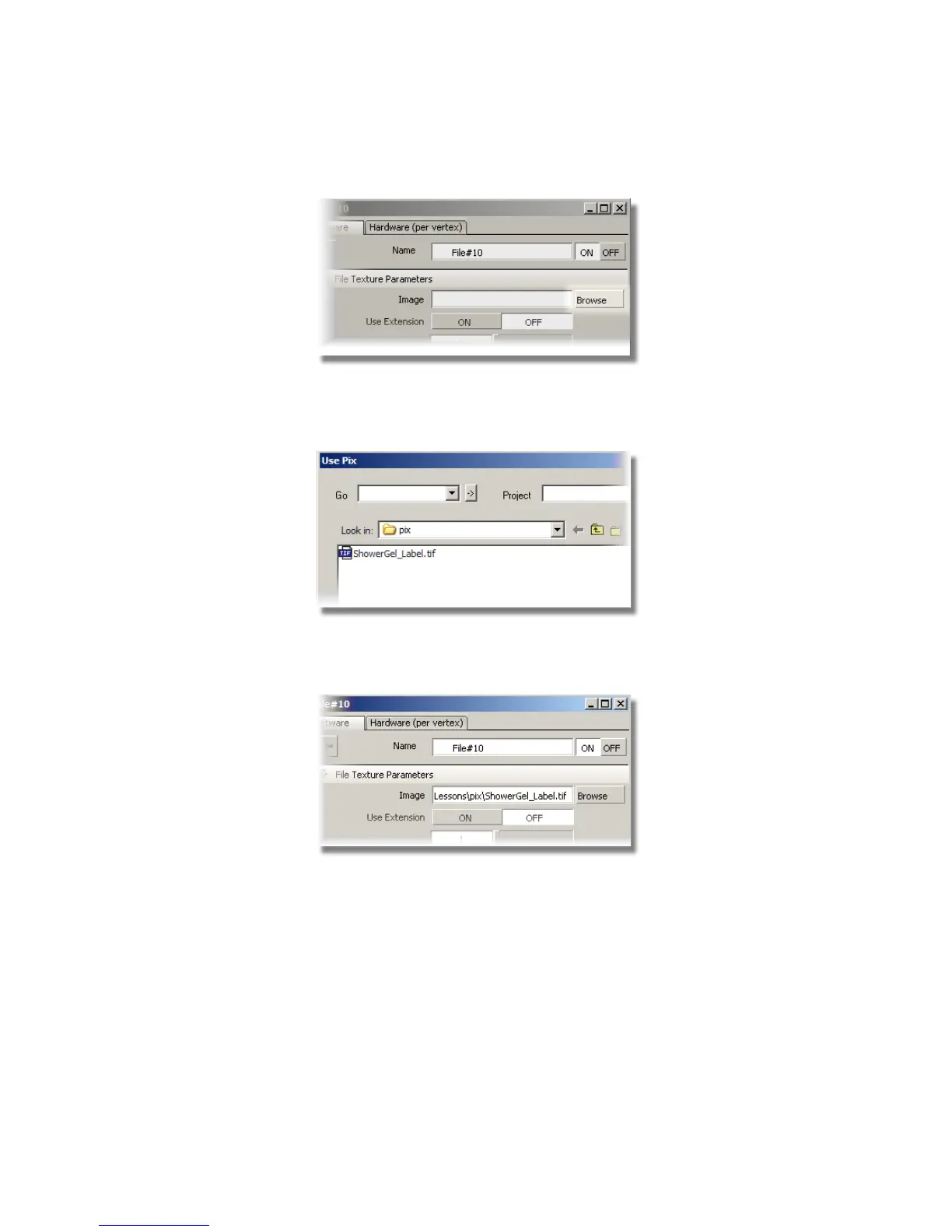
The File Browser opens into the pix directory of the Lessons project. To
retrieve the file that contains the label image, navigate to the CourseWare
directory.
4 Select the ShowerGel_Label.tif image.
The pathname of the label file is shown in the Image section.
Leave the editor window open on the screen, as you will use it later to
modify the position of the label.
The shader icon in the Visualize Panel shows the label wrapped around
the shader ball.
Part 2: Adding a Label | 651



 To Next Page