214733 85 Revision A
Main Menu
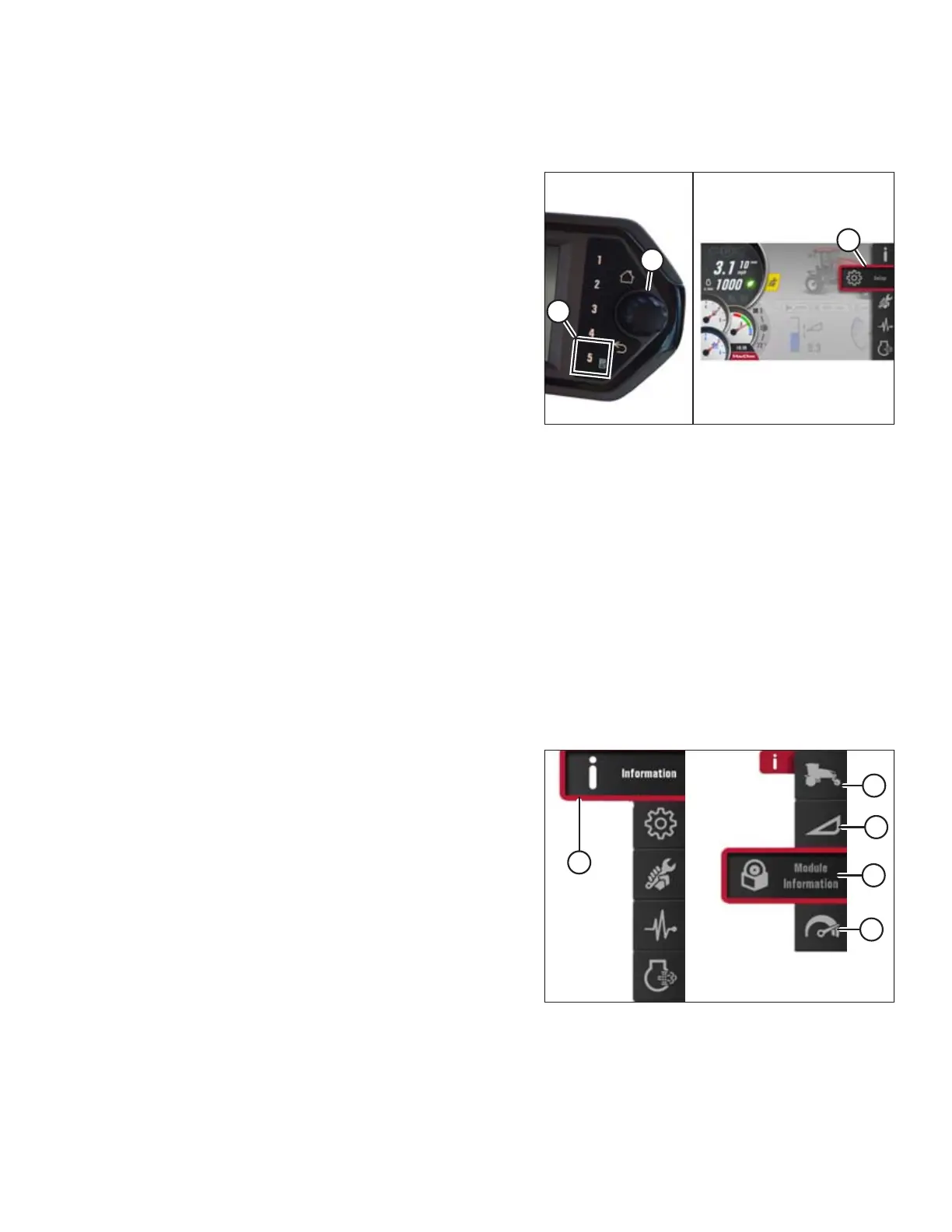
To display the main menu and select functions, follow these steps:
Figure 3.82: Opening the Main Menu
1. Press soft key 5 (A) to open the main menu or press SHIFT
and SELECT on the ground speed lever.
2. Use the Harvest Performance Tracker (HPT) scroll knob (B)
or the ground speed lever (GSL) scroll wheel (not shown) to
place the red cursor (C) over the icon you want to select.
NOTE:
Using scroll knob will activate titles that explain each
selection.
3. Press the HPT scroll knob (B) or the GSL SELECT button (not
shown) to select the highlighted icon.
NOTE:
Pressing the corresponding soft key will also work.
The main menu provides access to submenus for viewing and adjusting windrower and header settings. Refer to Menu
Icons, page 85 for details on navigating the following submenus:
• Information
• Settings
• Maintenance
• Diagnostics
• Engine aftertreatment
Menu Icons
Several menu icons are available in the main menu. Selecting a menu icon will open submenu icons, menu lists, and radio
buttons for viewing and adjusting windrower and header settings.
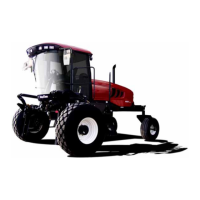
Figure 3.83: Information Icon and Information
Submenu Icons
Information: Icon (A) displays the following submenu icons:
• Windrower Information (B)
• Header Information (C)
• Module Information (D)
• Performance Information (E)
NOTE:
Header Information (C) has a hidden menu allowing Dealers to
modify the stored list of headers. To access, hold the EEC button
for 5 seconds while on the Header Information page.
OPERATOR’S STATION


 To Next Page