214733 90 Revision A
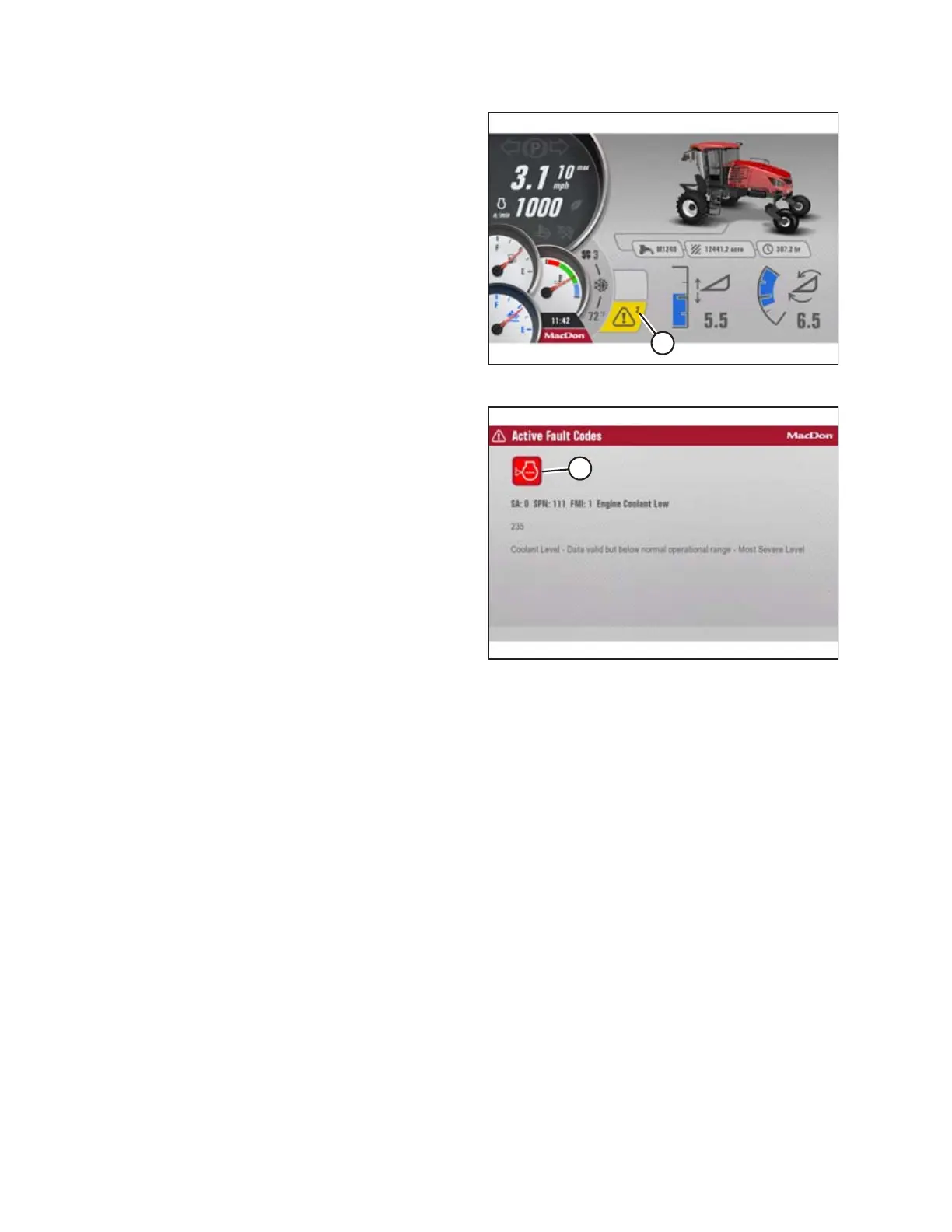
Figure 3.94: Telltale Icon (Multiple Faults Detected)
If multiple faults are detected, the number of faults will appear
in the corner of the telltale icon (A).
Figure 3.95: HPT Fault Description Page
Using the HPT scroll/select knob, select the question mark
symbol next to the short description to display a detailed
description of the fault. If there are multiple faults, the icons (A)
will appear in a row. To display a detailed description of each
fault, use the HPT scroll/select knob to select the icon.
3.17.3 Setting up the Harvest Performance Tracker (HPT) Screen
The setup menu configures the HPT for specific operations. The following settings should be checked before initial
operation of the windrower.
The key must be turned to the ON position to enter the setup menu, but the engine does not have to be running.
Setting Screen Brightness and Volume
Follow this procedure to adjust the factory set screen brightness and alarm volume.
Setting screen brightness:
The screen brightness is shown with a 10-segment bar graph and is adjustable down to 10%. The brightness automatically
adjusts for daytime and nighttime operation. Day mode is defined as having the headlights or work lights OFF (or having
only the clearance lights ON). Night mode is defined as having either the headlights or work lights ON.
OPERATOR’S STATION


 To Next Page