214733 92 Revision A
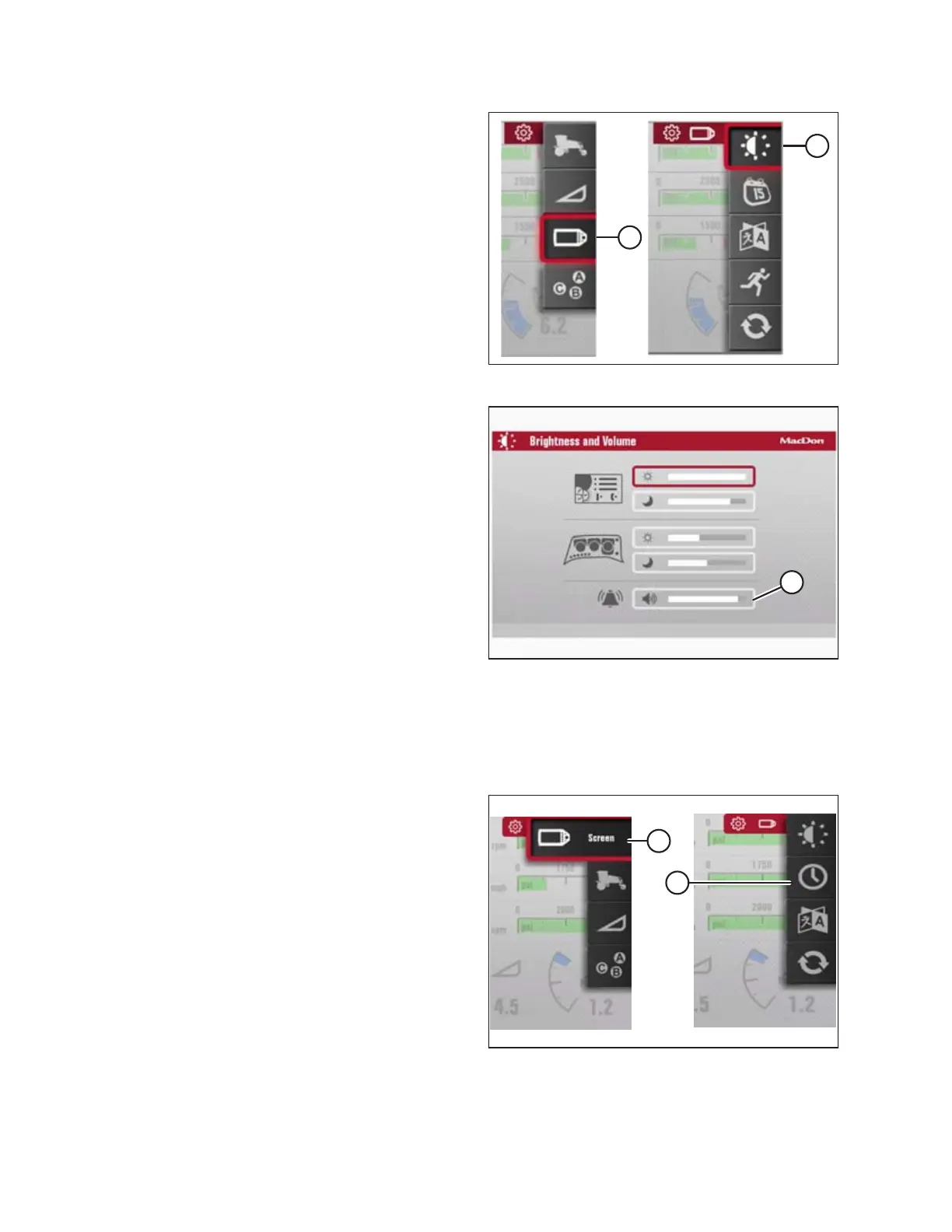
Figure 3.99: Brightness and Volume
7. Scroll to the SCREEN icon (A) and select it.
8. Scroll to the BRIGHTNESS AND VOLUME icon (B), and select
it to open adjustment window.
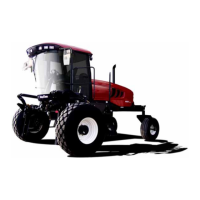
Figure 3.100: Brightness and Volume
9. Scroll to the VOLUME option (A) and select it.
10. Adjust volume by scrolling.
Setting Time and Date
Whenever the Harvest Performance Tracker (HPT) boots up, the time and date will display according to your selected
configuration.
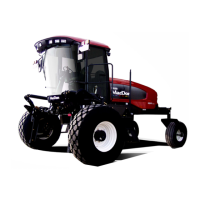
Figure 3.101: Time and Date
1. Navigate to the SETTINGS Menu with soft key 5 and the
HPT scroll knob. Refer to 3.17.2 Navigating the Harvest
Performance Tracker (HPT) Display, page 81 if required.
2. Scroll to the SCREEN option (A) and select it.
3. Scroll to the TIME AND DATE option (B), and select it to
open the adjustment window.
OPERATOR’S STATION



 To Next Page