OPERATOR’S STATION
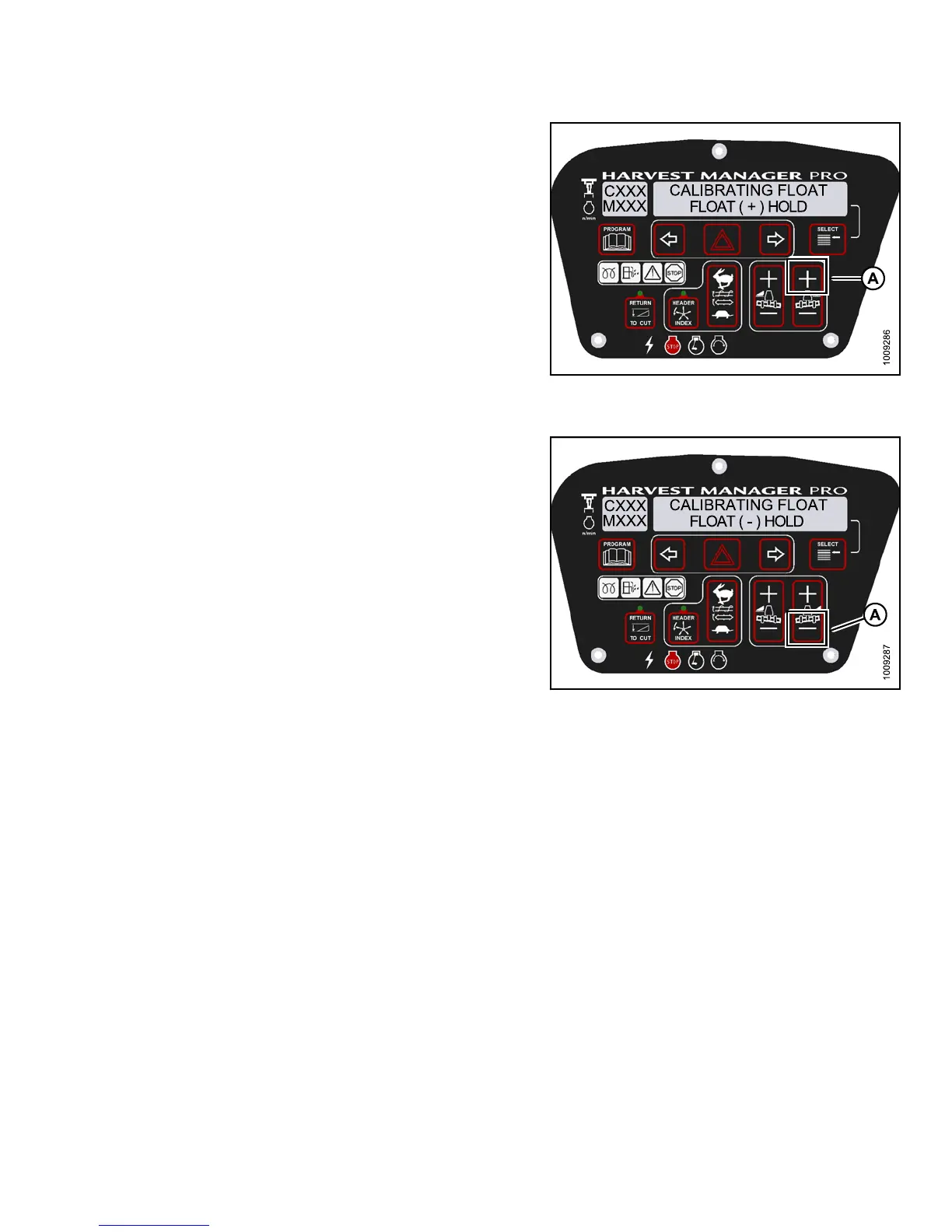
6. Press and hold FLOAT + button (A) on the CDM.
• CALIBRATING FLOAT is displayed on the
upper line.
• FLOAT ( + ) HOLD is displayed on the lower line.
NOTE:
ThewordHOLDwillflash during calibration.
FLOAT (+) DONE will display on t he lower line
once calibration is co mplete.
7. Release the FLOAT + button (A).
• CALIBRATING FLOAT is displayed on the
upper line.
• FLOAT ( - ) HOLD is displa yed on th e lower line .
Figure 3.95
: M155 Positive Header Float
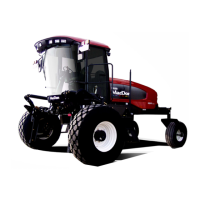
8. Press and hold FLOA
T - button (A) on CDM.
• CALIBRATING FLOA
T is displayed on the
upper line.
• FLOAT(-)HOLDisd
isplayed on th e lower line .
NOTE:
ThewordHOLDwillflash during calibration.
HDR FLOAT COMPLETE will display on the
lower line o n c e calibration is complete.
9. Release FLOAT - button (A).
• TO CALIBRATE SELEC T is displayed on the
upper line.
• HEADER FLOAT is displayed on the lower line.
Figure 3.96: M155 Negative Header Float
10. Press right arrow to select next header sensor
calibration or STOP & EXIT. Press SELECT
Refer to Calibrating the Header Height Sensor, page
95 or Calibrating the H eader Tilt Sensor, page 98.
11. Press PROGRAM to exit Programming Mode.
3.19.8 Programming the Windrower
The windrower can be programmed to meet changing crop conditions, activate newly added options, indicate
a change of header type, or increase the comfort level of the Operator.
Activating the Hydraulic Center-Link on an M155
NOTE:
• This procedure requires
installation of the optional Hydraulic Center-Link (MD #B4650).
147649 101 Revision A


 To Next Page