Add a vehicle 6 Vehicles
1.
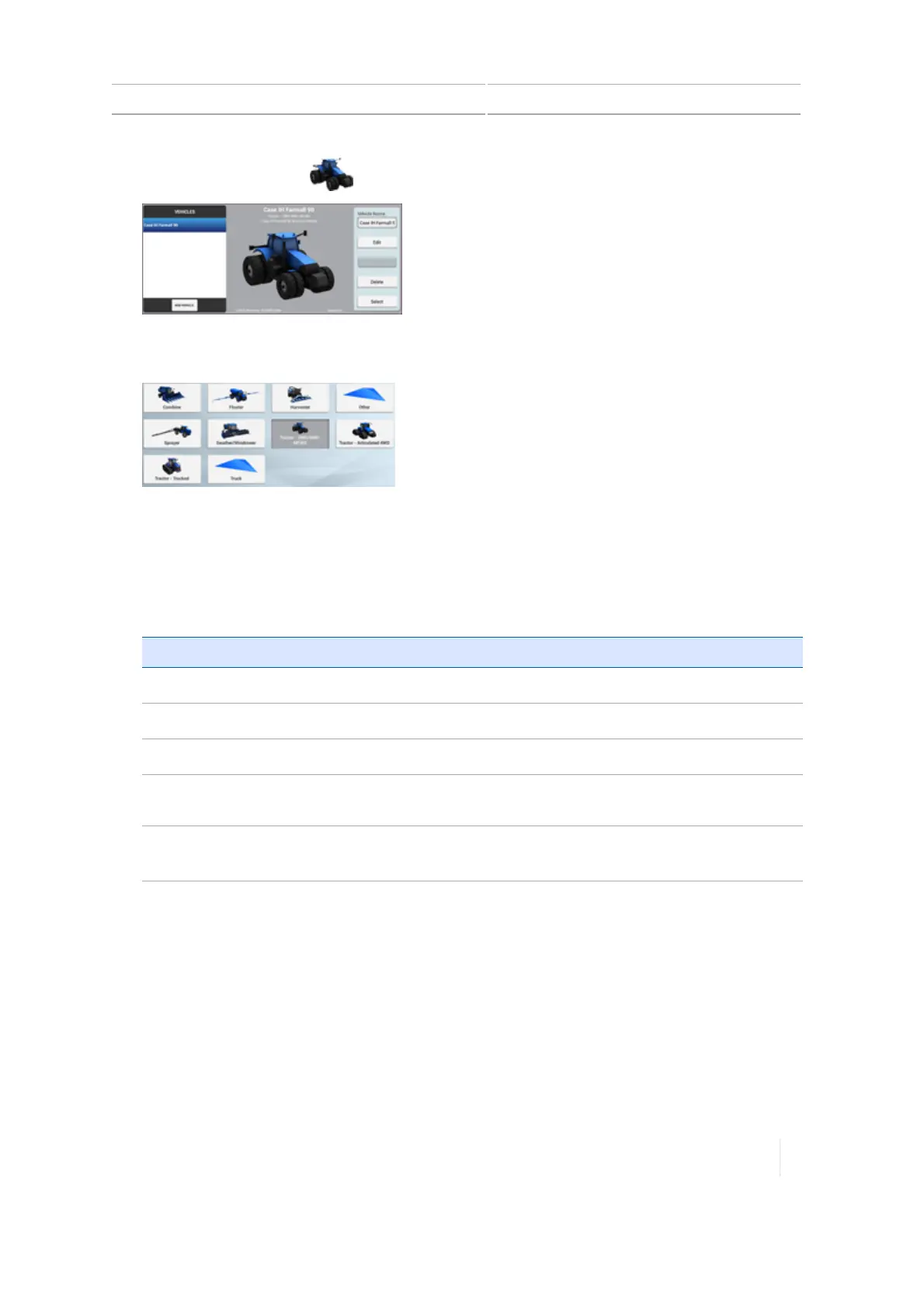
At the Home screen, tap . The Vehiclesetup panel displays.
2.
Tap ADDVEHICLE. A list of vehicle types displays.
3.
Tap the type of vehicle to set up.
4.
To enter information about the vehicle's make, model and so on, tap Next.
Note – Only vehicles on the current Trimble supported platforms for Autopilot, EZ-Pilot, and
EZ-Steer list are in the database. Generic vehicles are selectable for each vehicle type for
manual guidance.
Tap... To enter or select...
Make
Vehicle manufacturer
Series
Vehicle series (when applicable)
Model
Vehicle model
Option
Vehicle options from the manufacturer (Examples: Super Steer, Non Super
Steer,ILS, Non-ILS, or ISO CAN Ready)
Vehicle Name
The name of the vehicle is pre-filled from the options you chose for Make,
Series, and Model. You can optionally change this name if you wish.
5.
Tap Next. The SELECTION section displays. The receiver serial number is displayed, indicating
the GNSS receiver in the TM-200 Module is receiving signals.
Confirm that this is the proper serial number for the TM-200 Module attached to the TMX-2050
display. When moving displays between vehicles, this is not automatically updated.
6.
Tap Next. A list of steering/guidance types displays. The choices will depend on the vehicle:
ll Autopilot
l EZ-Pilot
Version 1.075, Revision C TMX-2050 Display User Guide 141



 To Next Page