10 Operations Vehicle operation
Vehicle operation
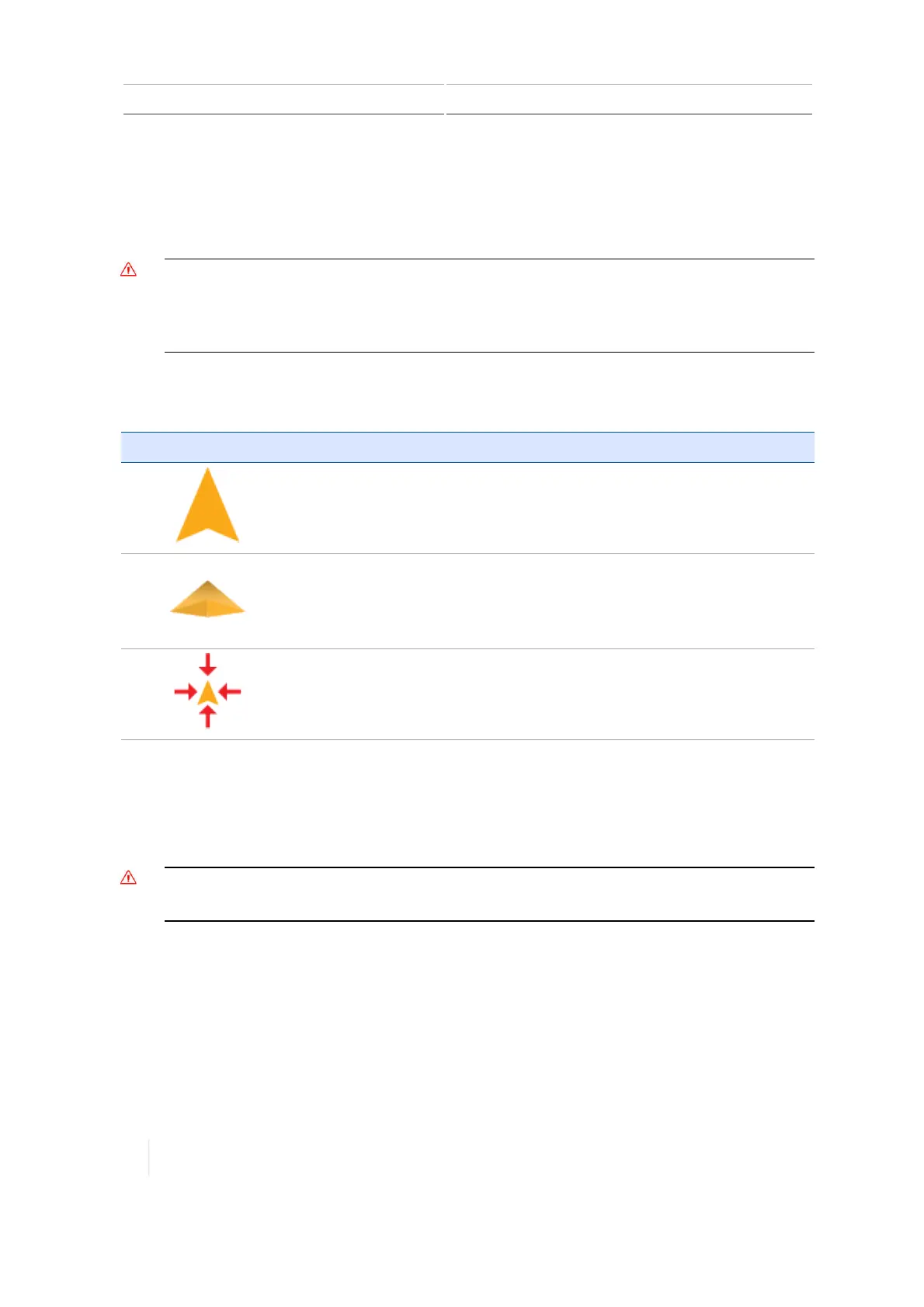
At the Run screen, tap the screen to display the vehicle position buttons. The Engage button shows
the status of your auto guidance system as well as enables you to tap on the button to engage the
system.
WARNING – Many large and sudden changes in satellite geometry caused by blocked satellites can cause
significant position shifts. If operating under these conditions, auto-guidance systems can react abruptly. To avoid
possible personal injury or damage to property under these conditions, disable the auto-guidance system and take
manual control of the vehicle until conditions have cleared.
Vehicle position
Button Tap to...
Change point of view on the
Run
screen to an overhead view.
Change the point of view on the
Run
screen to a view with the horizon.
Zooms view in or out on the
Run
screen.
Engage status with auto guidance
When the Engage button turns yellow, you can tap it to engage the auto guidance. After your
guidance system is engaged, the button changes to green.
WARNING – Auto guidance systems cannot avoid items in the field such as obstacles. Make sure you are
adequately trained to operate the auto guidance system.
242 TMX-2050 Display User Guide Version 1.075, Revision C



 To Next Page