Edit a material 9 Materials
Edit a material
1.
At the Home screen, tap . The Material setup panel displays.
2.
Tap Material Library.
3. Select the material in the list on the left-hand side of the screen and then tap Edit.
4. Tap each setting to make the required changes. See the settings table under the section Add a
material, 227.
5.
Tap .
Delete a material
1.
At the Home screen, tap . The Material setup panel displays.
2.
Tap Material Library.
3. Select the material in the list on the left-hand side of the screen and then tap Delete. The
system displays a confirmation screen.
4.
Tap to remove the material and to cancel the deletion.
Assign a material to a channel
Note – If you do not have the Field-IQ system Rate Control, you cannot assign a material to a
channel.
1.
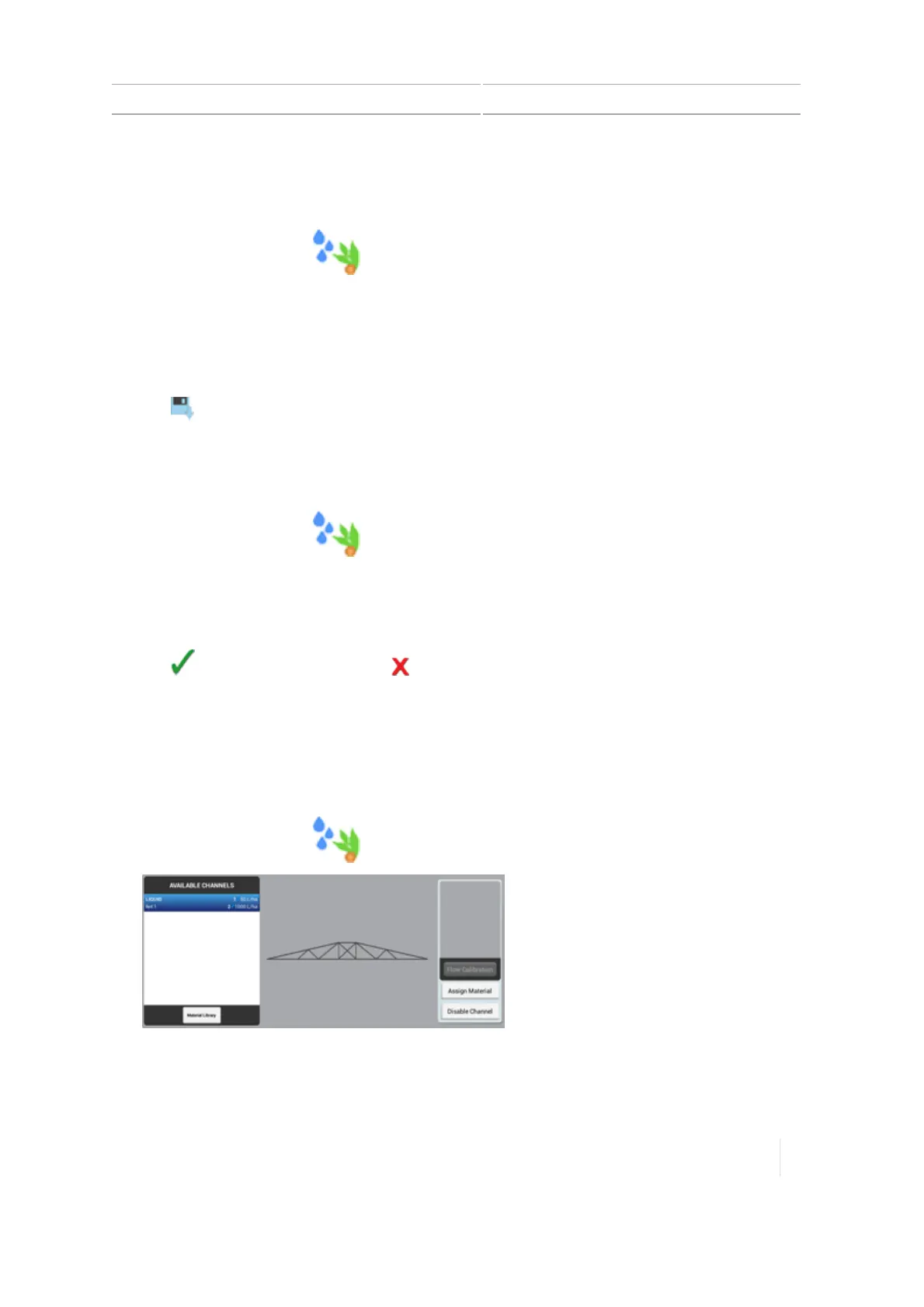
At the Home screen, tap . The Material setup panel displays.
2.
Tap the channel in the list on the left-hand side of the screen.
Note – If you do not have a channel set up, see Add a control channel, 197.
Version 1.075, Revision C TMX-2050 Display User Guide 229



 To Next Page