Fields and guidance 10 Operations
1.
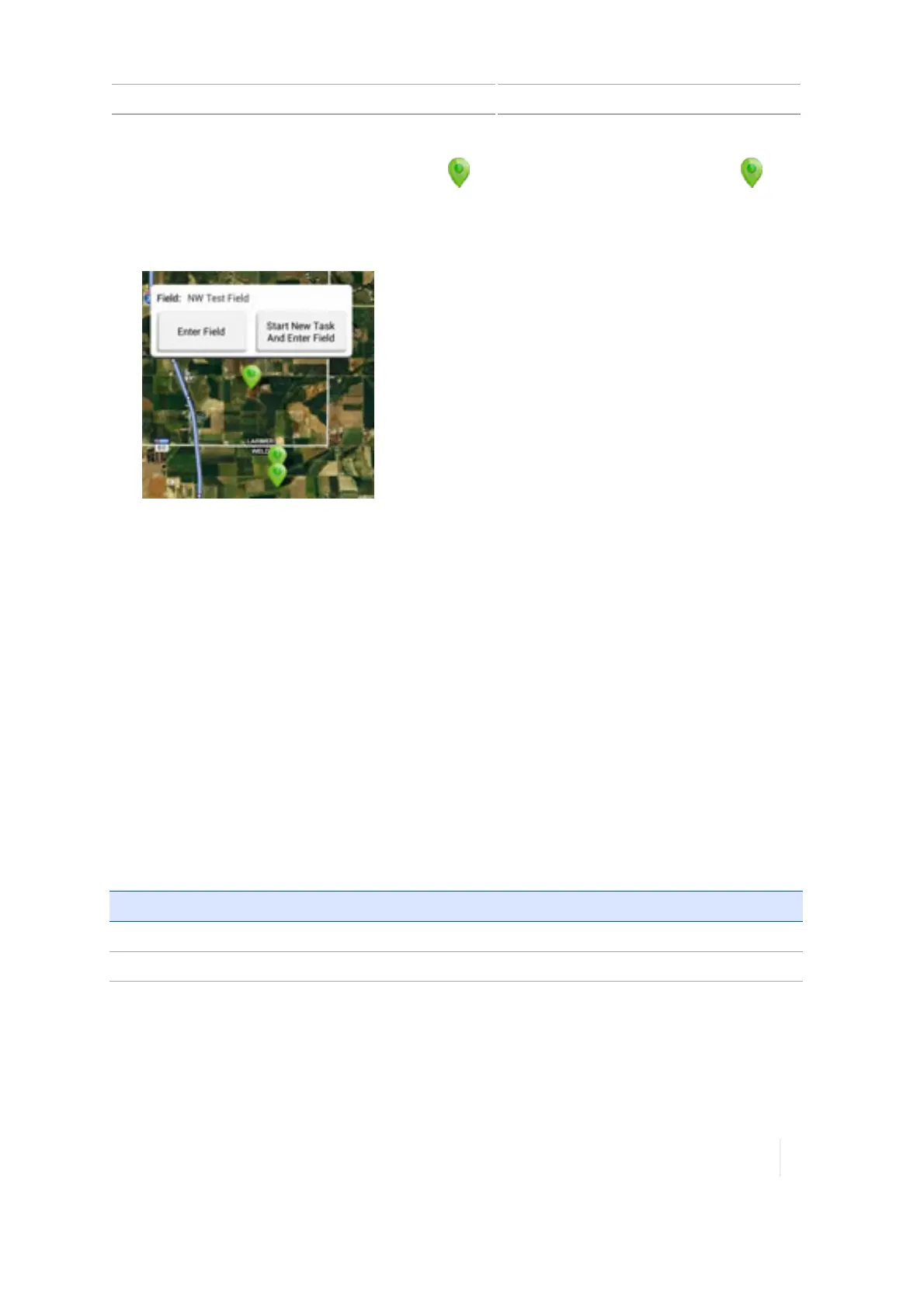
At the Home screen, the map shows points ( ) where your fields are located. Tap the that
represents the field you want to enter. (For a map to display on the Home screen, you must
have a updated GNSS connection.).
2.
A popup displays with the field name and two buttons.
3. To enter the field without beginning a new task, tap Enter Field.
4. To start a new task, tap Start New Task and Enter Field. The Run screen displays.
Run screen
The text and buttons displayed on your Run screen depend on:
l Whether you are using a guidance / steering system or manual guidance
l Other features you are using
l How your TMX-2050 display is set up
Fields and guidance
When you enter a field, you can create boundaries, guidance patterns and landmarks within that
field. To edit any of these elements, open the Field Manager. Here you can rename your field, and
include the name of your client and the name of the farm where the field is located.
For information on: See:
Fields
Field Basics, 180
Field Manager
Field Manager, 61
Tasks
While in the Run screen, you can log coverage of the activity you are performing in the field. As your
activity is logged, applicable information is saved in a task. The information related to each task
Version 1.075, Revision C TMX-2050 Display User Guide 235



 To Next Page