Purchase and activation process 1 Introduction
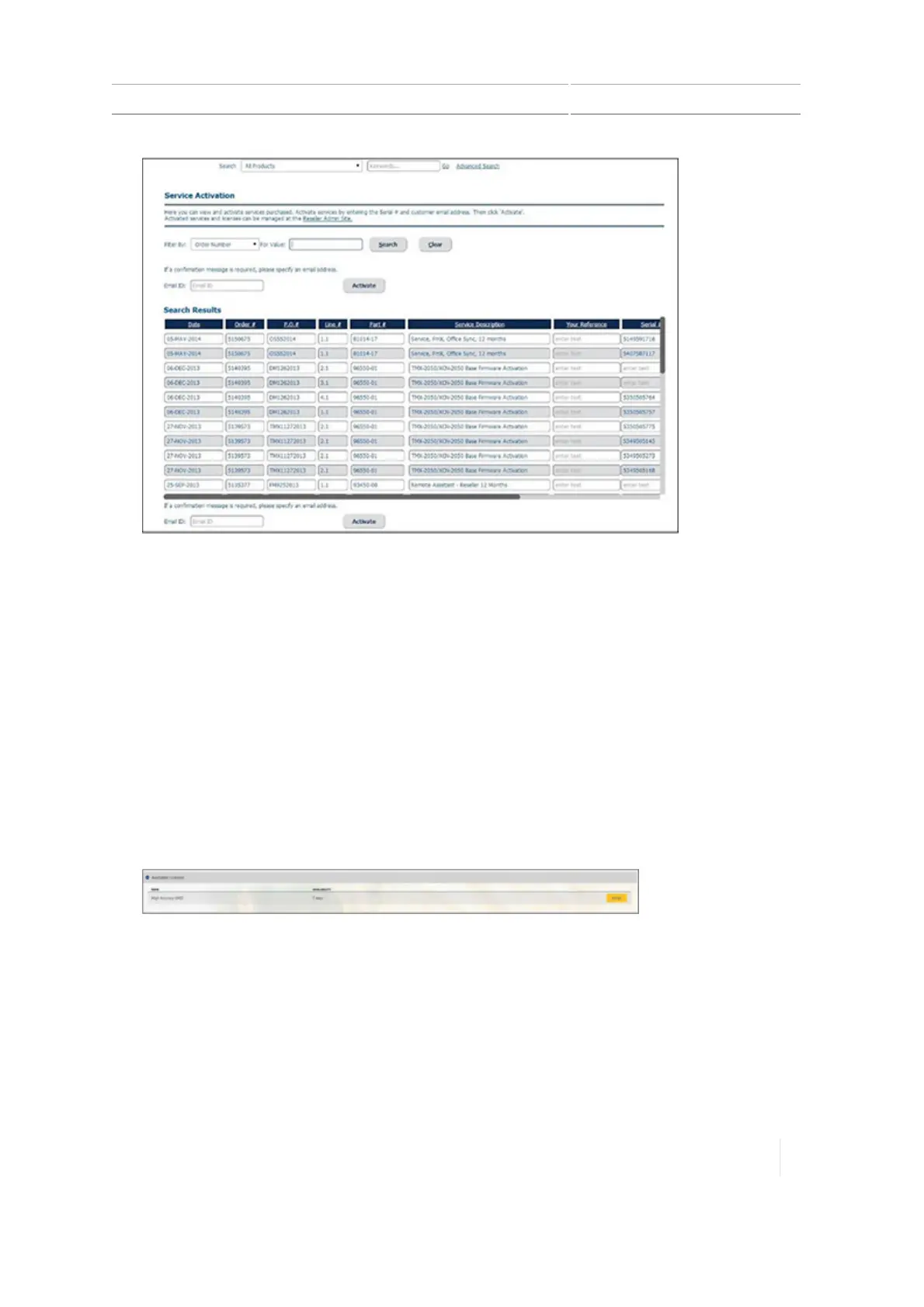
2. Find the sales order number of the service you have ordered (for example, the base firmware
for the TMX-2050 display).
3. Enter the serial number of the display in the Serial Number column.
4. Enter the email address of the customer who will be receiving the service. This email address
must be associated with an active Connected Farm account.
5. Click the Activate button. This causes the service (such as the base firmware)to be assigned to
the display.
Assign a license to the display in the reseller portal
1. Log in to the reseller portal.
2.
At the Activations tab, go to the Available Licenses list. These are the licenses that have not yet
been assigned to a display.
3. Find the license you want to assign and click the Assign button. A list of display serial numbers
opens.
4. Select the display serial number that you want to assign the license to and click Assign.
Version 1.075, Revision C TMX-2050 Display User Guide 35



 To Next Page