Guidance patterns 10 Operations
Button Use to...
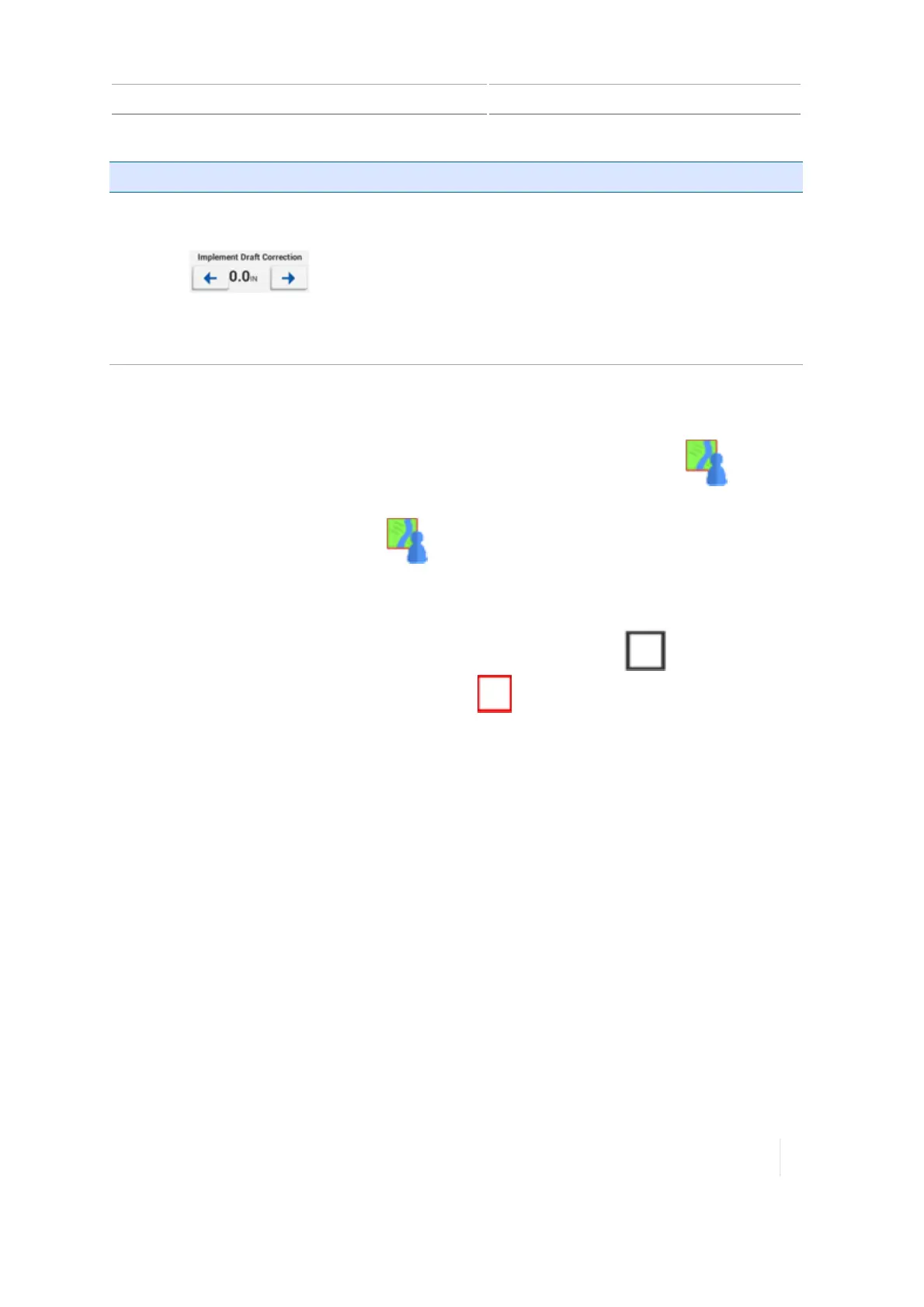
Implement Draft
Correction
Temporarily adjust the implement incrementally to the right or to
the left by tapping the arrows. The value is reset when a new task is
started or the display is powered off.
The value in the middle indicates the amount the implement has
been corrected.
To adjust the size of the increments, see Steering and guidance
settings, 85.
Guidance pattern shifting (Field Manager)
1.
At the Home screen, select the field where you want to edit the boundary. Tap to open
the Field Manager.
Or if you are at the Run screen, tap to open the Field Manager for the field you are
currently in.
2.
Tap GUIDANCEPATTERNS.
3.
Tap the pattern you want to edit. If the selected pattern is active, tap (black) to make it
inactive. If the selected pattern is not active, tap (red) to make it active.
Note – If you activate a pattern that was created with a different implement width, the
display will prompt you to shift the line for the new width or keep the original position.
4. If you have chosen a headland, you can change the number of circuits in a headland.
Version 1.075, Revision C TMX-2050 Display User Guide 261



 To Next Page