Select a vehicle 6 Vehicles
Select a vehicle
Before you can calibrate a vehicle or enter the Run screen, you must select the vehicle you want to
use for field activities.
Note – You can only enter the Run screen with a vehicle that has had vehicle setup and calibration
steps completed.
1.
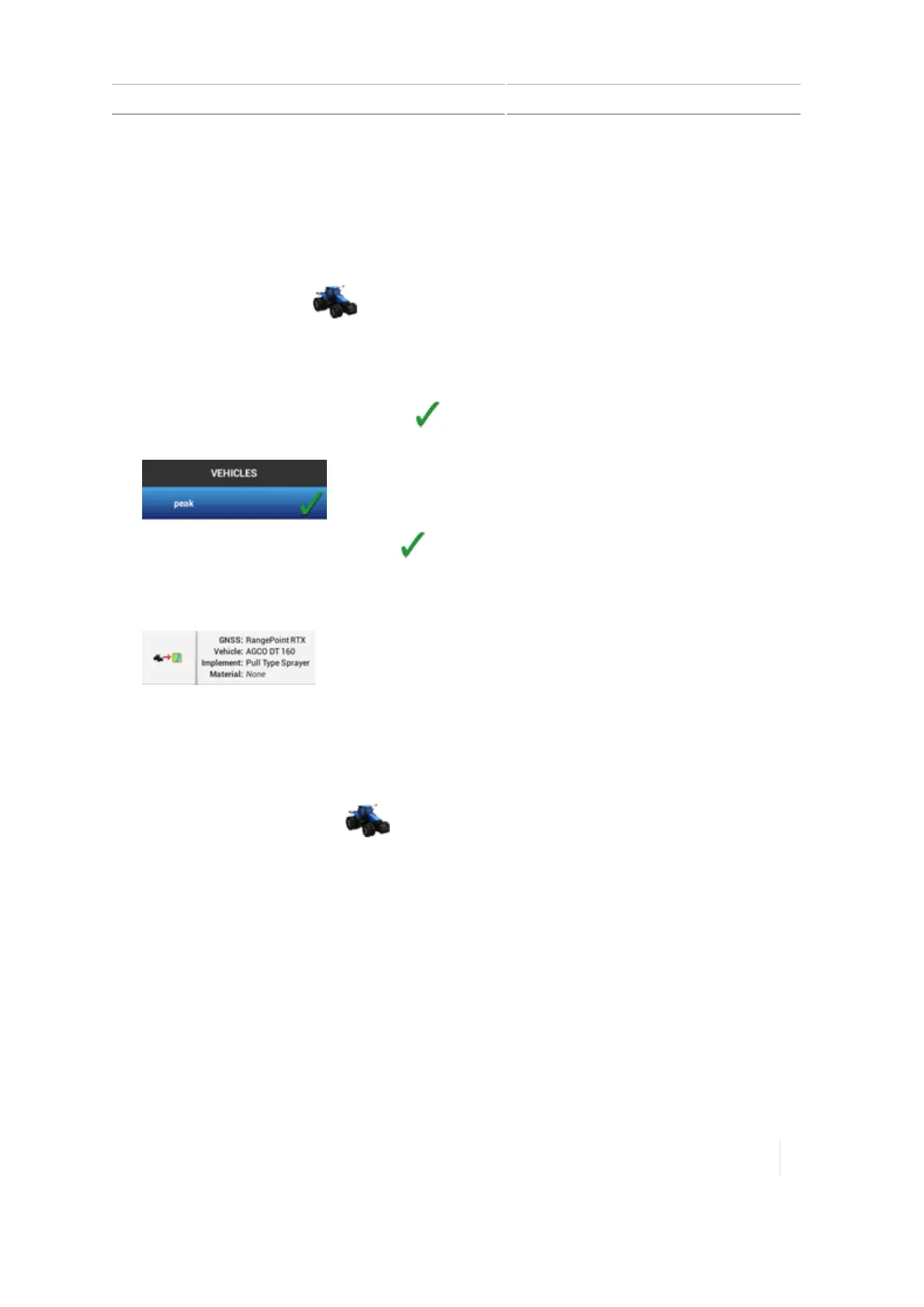
At the Home screen, tap . The Vehicle setup panel displays.
2. At the list on the left-hand side of the setup panel, tap the name of the vehicle you want to
select. The display changes the list item to a blue background with white text.
3.
To select the vehicle before performing field activities at the Run screen, tap Select. The name
of the vehicle highlights in blue and the indicates which vehicle you chose.
Note – Without a blue highlight, the indicates a vehicle that was selected previously.
4.
The display indicates in the lower left-hand portion of the screen which vehicle is selected for
field activities.
Manual guidance setup
1. Navigate to the GUIDANCE section of the vehicle setup panel:
a.
At the Home screen, tap . The Vehicle setup panel displays.
b. At the list on the left-hand side of the setup panel, tap the name of the vehicle you want to
edit. The display changes the list item to a blue background with white text.
c. Tap Edit, then GUIDANCE.
2.
Tap Selection, then tap Manual Guidance.
Version 1.075, Revision C TMX-2050 Display User Guide 145



 To Next Page