Edit a vehicle 6 Vehicles
Edit a vehicle
1.
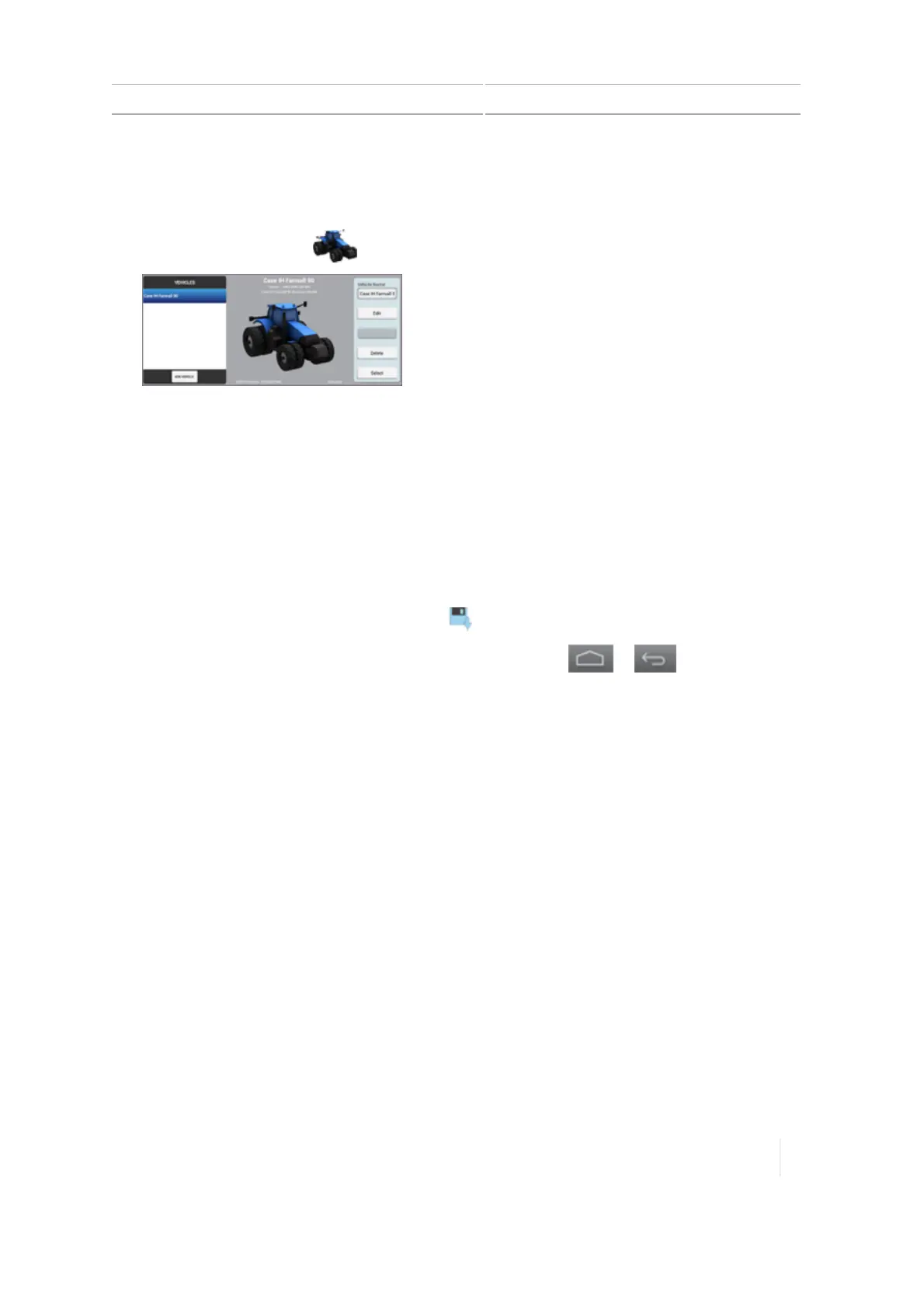
At the Home screen, tap . The Vehicle setup panel displays.
2.
At the VEHICLESlist on the left-hand side of the setup panel, tap the name of the vehicle you
want to edit. The display changes the list item to a blue background with white text.
3. On the right-hand side, tap Edit.The SUMMARYsection displays.
4. Navigate to the section(s) where you want to make changes.
5.
After you have completed your changes, tap SUMMARY.
If you have not completed all the required information, you can save the edits you made.
However, you cannot use the vehicle on the Run screen.
6.
When you are finished, tap SUMMARY. Tap to save your settings.
7.
To discard the changes and leave the vehicle setup panel, tap or on the left-hand
side of the display bar. A message displays, asking if you want to leave the setup panel without
saving your changes. After tapping No, you return to the Vehicle setup panel.
For details on the vehicle summary, see Vehicle summary, 144.
For information on guidance system types, see the applicable section:
l Autopilot system setup, 146
l EZ-Steer system setup, 173
l EZ-Pilot system setup, 167
l Manual guidance setup, 145
Save a vehicle
You can save:
l Complete vehicle settings after reviewing the SUMMARY section. For details on the vehicle
summary, see Vehicle summary, 144.
l
Unfinished vehicle settings, then complete the setup later.
Version 1.075, Revision C TMX-2050 Display User Guide 143



 To Next Page