7 Fields Select a field
To work with the field, see Preparing for operation, 234.
Select a field
To work with a field to work within it, you select it. When you add a field, it is selected automatically.
If you have multiple fields, you can select a field from:
l The point on the map at the Home screen.
l The list of fields.
Select a field through the map
The points on the map ( )of the Home screen indicate fields you have created. Tap the point that
represents the field.
Select a field from the list
The outlines on the map of the Home screen indicate fields you have created.
1.
At the Home screen, tap . A list of fields you previously created displays.
2.
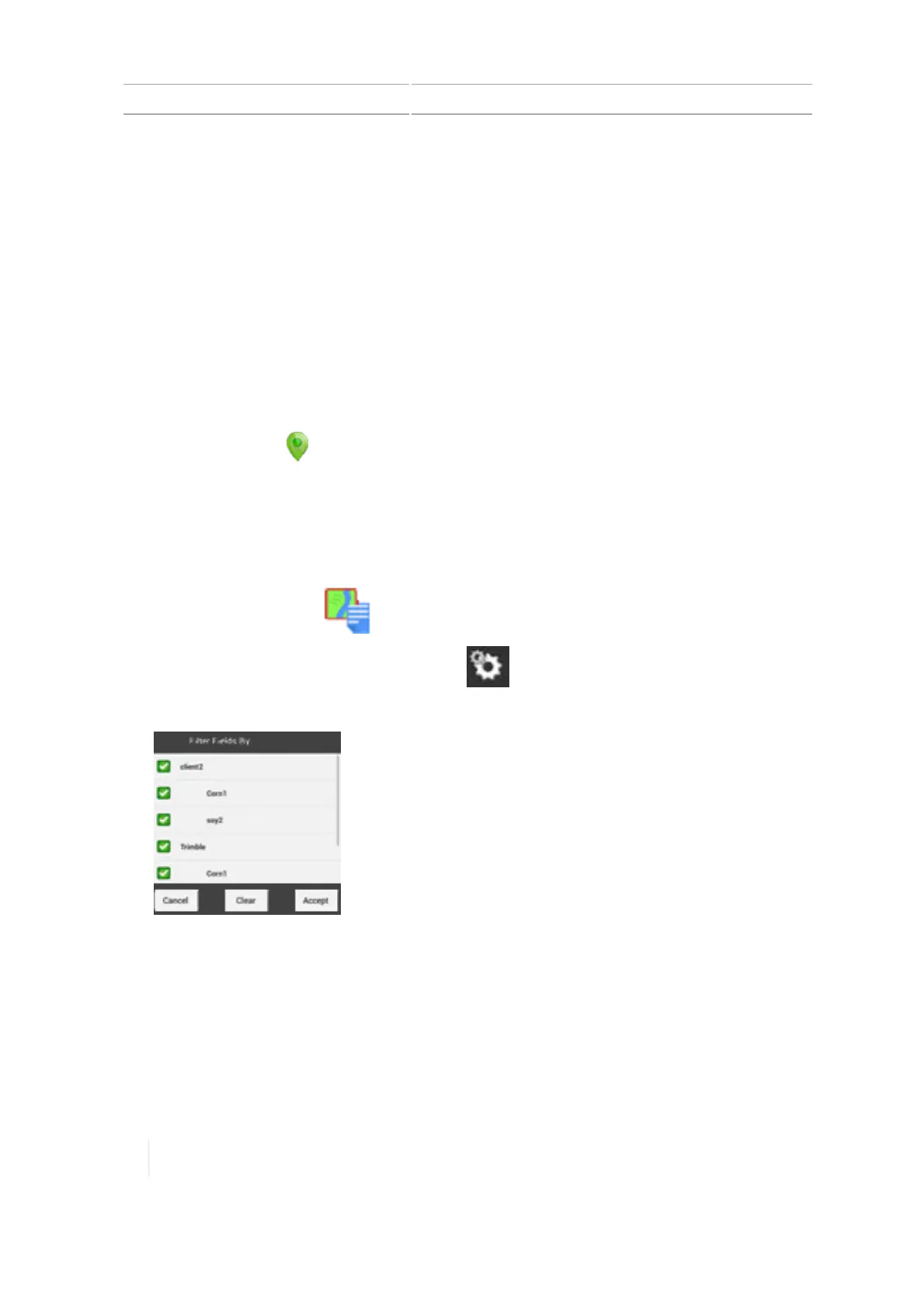
To reduce the number of fields in the list, tap . A filter tool displays, showing the client
name and the farms associated with the client.
3. Deselect (uncheck) the options you do not want to see and tap Accept. The Fields list now
shows fields associated with the client and/or farm that you left checked.
4.
Tap the name of the field to select it.
182 TMX-2050 Display User Guide Version 1.075, Revision C



 To Next Page