Guidance patterns 10 Operations
5. At the Guidance Patterns tab:
a.
Highlight the headland circuit pattern you want to work with and tap Activate. (This is not
necessary if you want to change to an existing line and did not need to create a new one in
step 3.)
b.
Tap Infill. The Infill Selection list displays. This lists the infill pattern that is currently
assigned to use with the headland.
c.
Tap .
The All Guidance Lines list displays. This lists all guidance lines that have been created for
this field that are within the headland boundary.
d.
Tap to highlight the guidance lines you want to associate with the headland (including the
new guidance line you created in step 3).
Tap . The Infill Selection list displays again.
e.
At the Infill Selection list, highlight the guidance line you want to change to and tap .
This assigns the guidance line to the headland.
6.
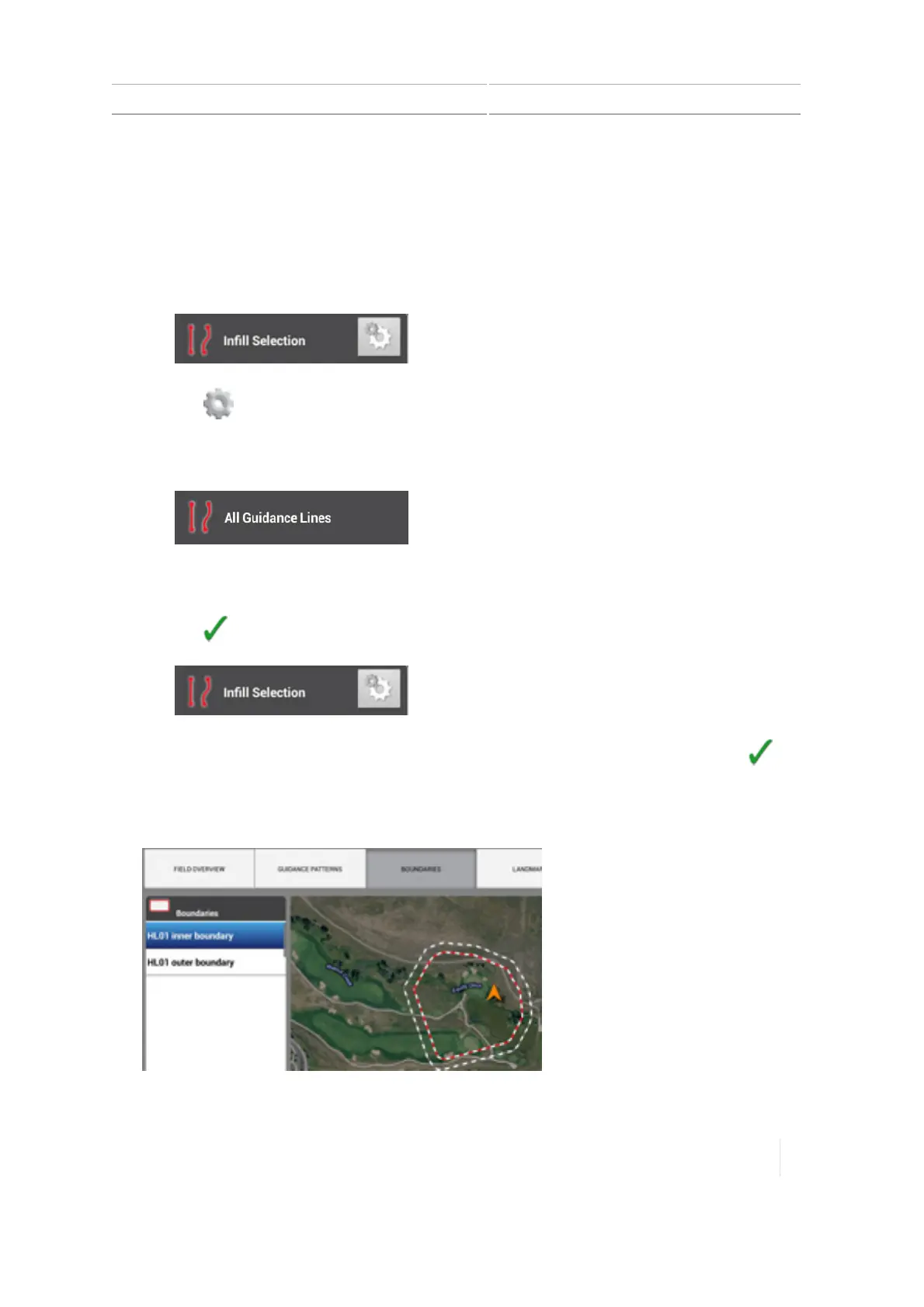
Tap Boundaries. In the Boundaries list on the left-hand side, tap the inner boundary of the
headland, then tap Activate.
Version 1.075, Revision C TMX-2050 Display User Guide 257



 To Next Page