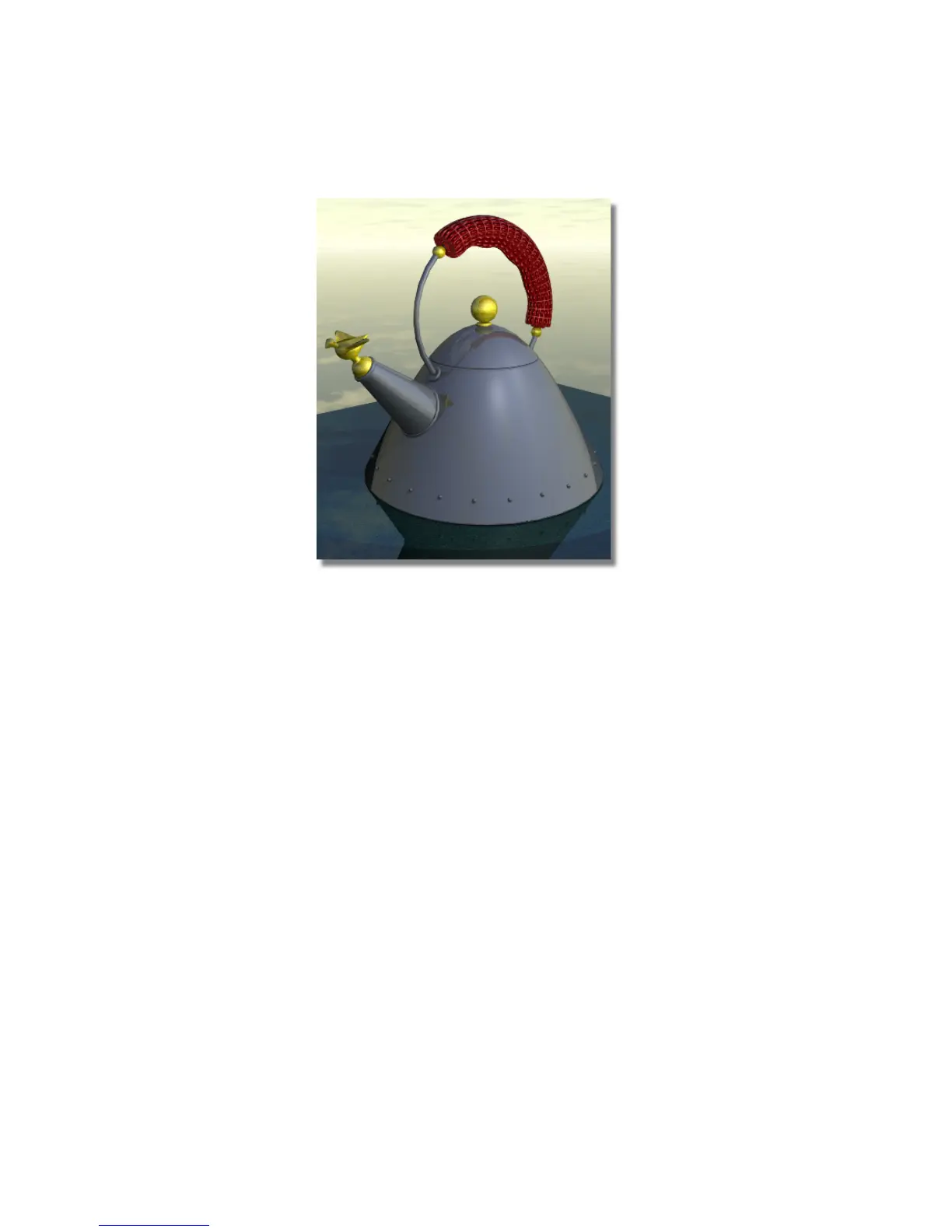
The sky texture is reflected in the entire scene, including the teakettle
and the tabletop. The reflection of the grip is visible in the top of the
teakettle, and the reflection of the teakettle is visible in the tabletop.
7 Close the rendered image and Render Monitor windows.
Adjusting the reflectivity of surfaces
In some cases, you may prefer to limit the amount of reflection that occurs
on a surface. Next, you will change the reflectivity of the teakettle and the
color on the teakettle.
1 Open the Multi-lister.
2 Double-click the Metal shader to open its Control Window.
Part 5: Raytracing | 723



 To Next Page