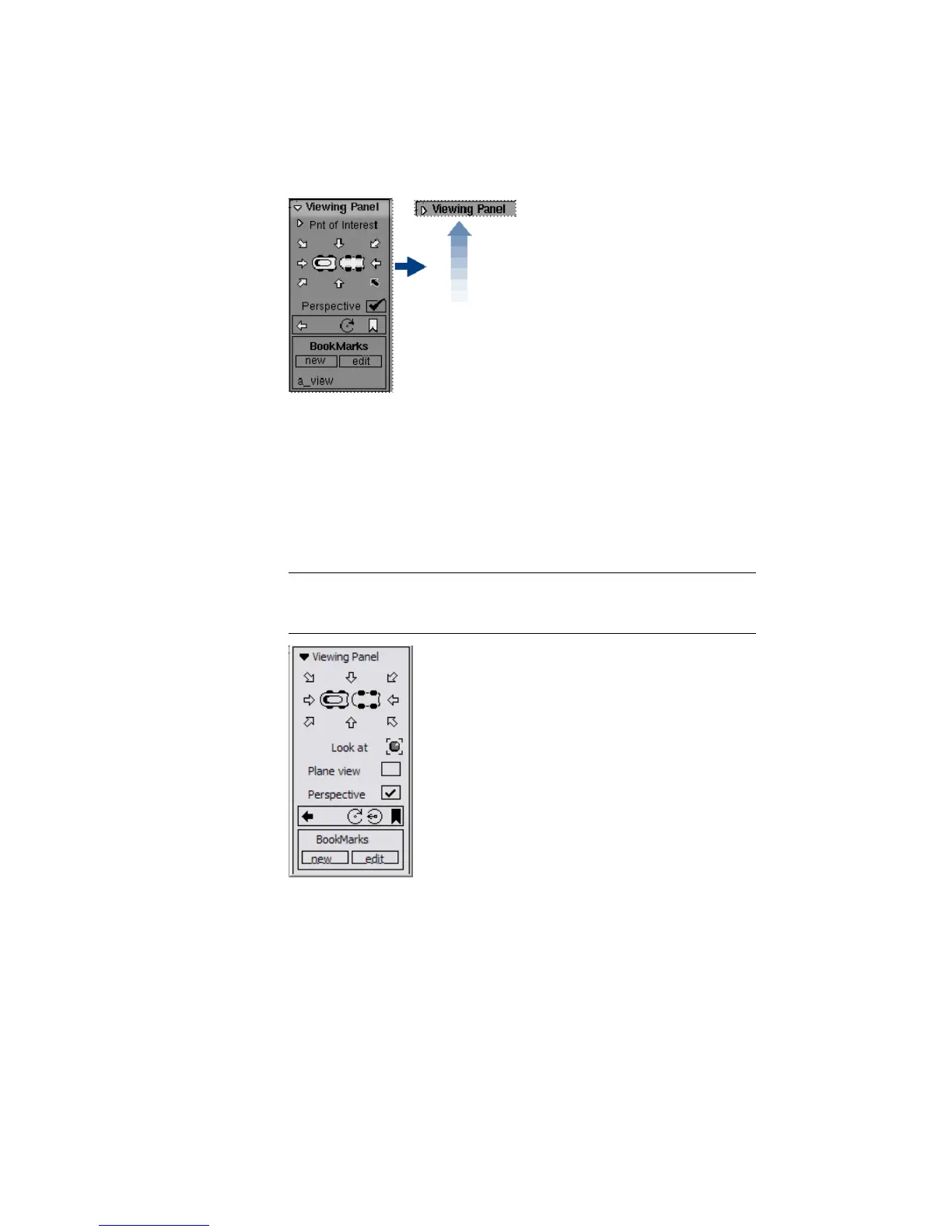
Use this technique to get the Viewing Panel out of the way when you
want as much viewing area as possible.
To use the Point of Interest manipulator
1 Hold down the Shift and Alt (Windows) or Shift and Command (Mac) keys,
then press the left mouse button to open the Viewing Panel. Keep the keys
held down for the rest of this procedure.
NOTE If the Viewing Panel does not appear, ensure that you are not clicking
the left mouse button before holding down Shift and Alt (Windows) or Shift
and Command (Mac) .
2 Double-click an object. This shows the manipulator and adds Pnt of
Interest to the Viewing Panel.
3 Click the arrow next to Pnt of Interest to see the options.
70 | Chapter 3 Interface Basics



 To Next Page