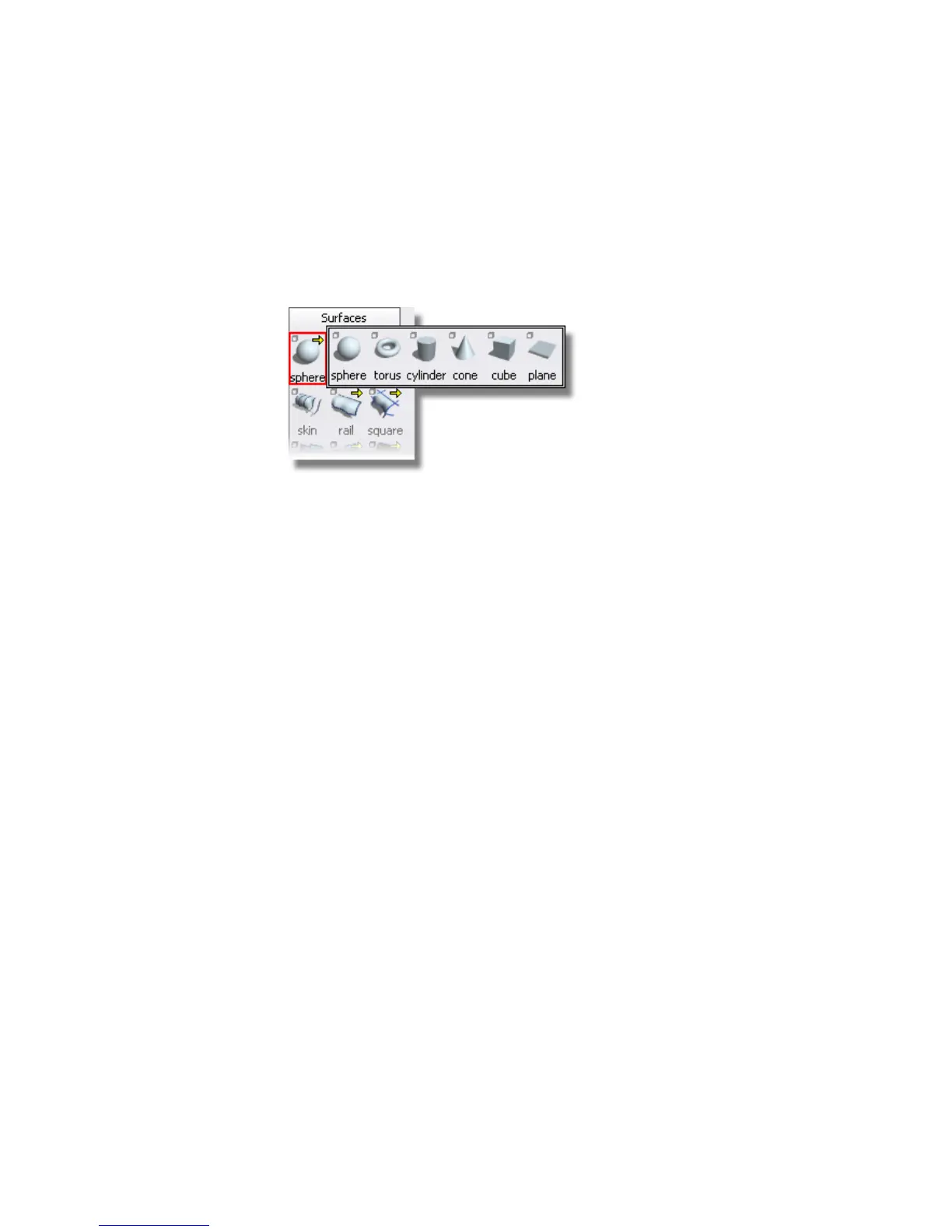
2 Choose Surfaces > Primitives > Cylinder from the palette. If the palette
is not open, choose Windows > Palette from the menu bar.
3 To choose the Cylinder tool, press and hold the mouse button, so the
cursor is over the Sphere icon until the entire Primitives drawer
appears.
Then, click the Cylinder icon to choose the Cylinder tool.
The Cylinder tool is displayed in the Surfaces palette, and is outlined
in red to indicate it is the active tool.
4 You can control the exact placing of a primitive using various snapping
modes. In this section, use grid snapping to align all the cylinders centrally
on the grid origin. The grid origin is where the two dark grid lines cross.
Hold down the Alt (Windows) or Command (Mac) key to turn on grid snap
mode.
Press and hold the Alt (Windows) or Command (Mac) key near the origin.
Keep your finger held down on the Alt (Windows) or Command (Mac) key
and move the mouse until the new cylinder snaps to the correct grid
point.
90 | Chapter 4 Introduction to 3D



 To Next Page