Touch screen basics 2 Display basics
Item Action Explanation
Home
and
Run
screens, Field
Manager
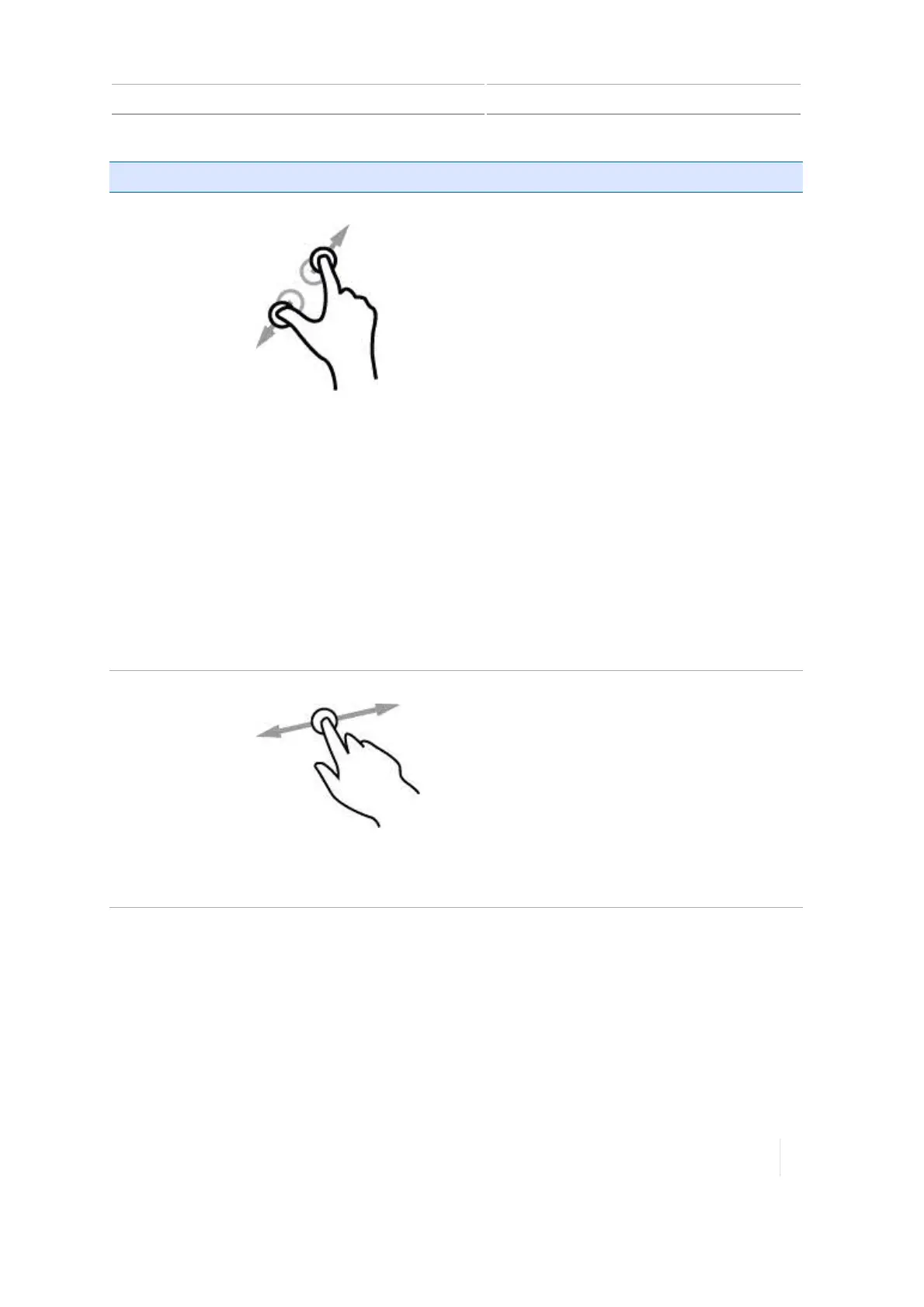
Zooming in and out You can enlarge the view to see more detail
(zoom in) or reduce the view to see less detail
but more area (zoom out).To zoom in:
1. Touch the screen where you want to see
more detail with your thumb and a finger
close together (or you can use two
fingertips).
2. Move your fingers apart while still touching
the screen.
3. Remove your fingers from the screen when
you are satisfied with the zoom level.
To zoom out:
1. Touch the screen where you want to reduce
the level of detail with your thumb and a
finger an inch or more apart (or you can use
two fingertips)
2. Move your fingers together while still
touching the screen.
3. Remove your fingers from the screen when
you are satisfied with the zoom level.
On the
Home
screen
Panning Panning in a map on the
Run
screen moves the
map left or right.
Panning means you can shift the view to show
information that is not in view on the screen.
1. Touch anywhere on the screen with your
finger and hold it on the screen.
2. Move your finger in the direction that you
want to move the map.
3. Remove your finger when you are satisfied
with the position of the map.
Version 1.075, Revision C TMX-2050 Display User Guide 43



 To Next Page