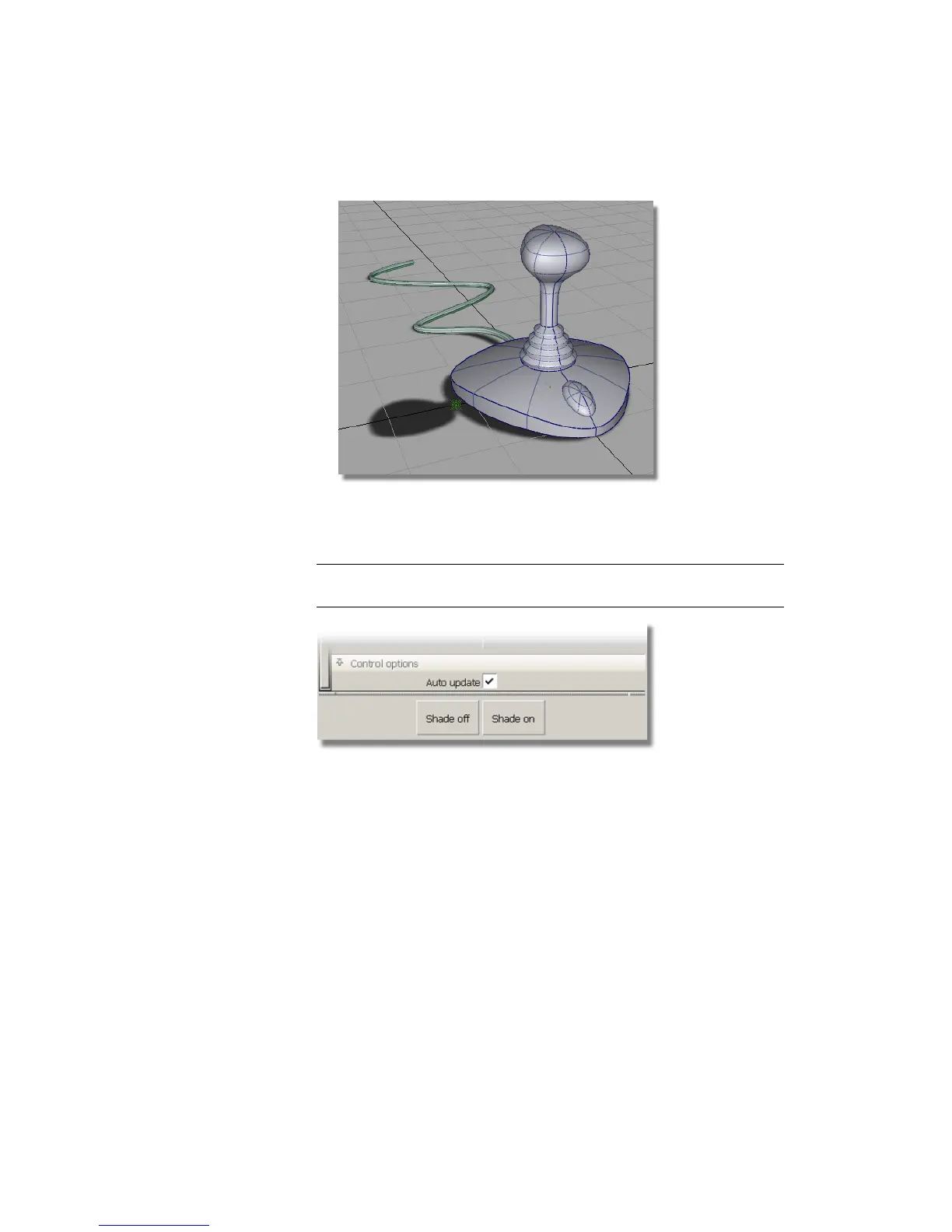
■ Change the Shadow Blur. Type in 0.2 and press Enter (Windows)
or Return (Mac) to soften the shadows.
TIP If your screen shows the wireframe view, choose the Shade On button
at the bottom of the Hardware Shade Settings box.
To view the design more clearly, you will now turn off the wireframe,
grid, and lights.
7 In the title bar of the modeling window, click the Show button to open
up the menu and select Model (to remove the check mark). The wireframe
lines are turned off.
Part 8: Visualizing the Model | 269



 To Next Page