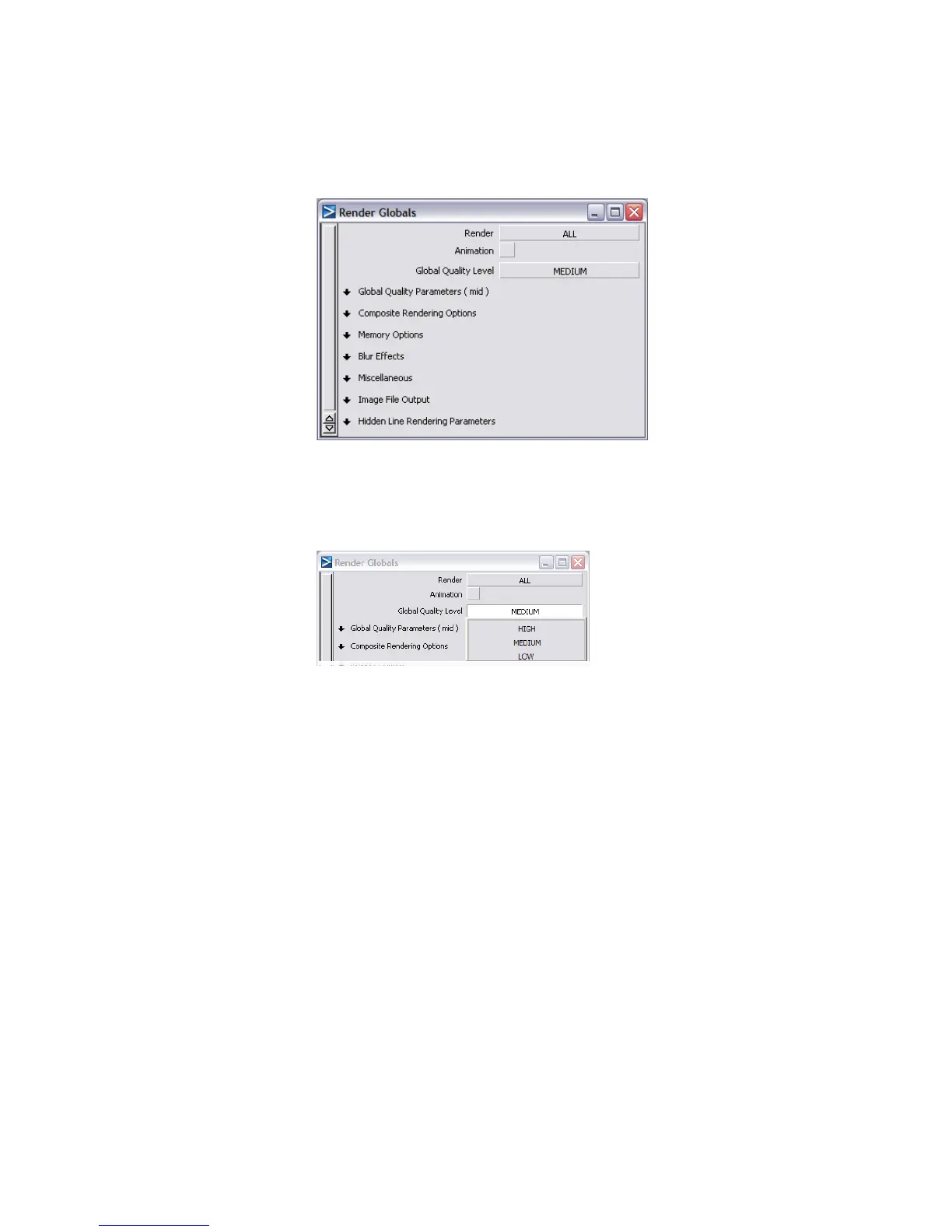
The Render Globals window allows you to set all the variables for the
quality of the final render, including the size and type of image.
2 Click MEDIUM in the Global Quality Level field.
A pop-up menu appears.
Global Quality Level is one of the most important variables in the
Render Globals window, because it specifies the quality of the final
render. LOW produces a faster image, but the render quality will be
significantly reduced: the final result will be faceted, and may not contain
all the reflections that would be achieved with a higher setting.
HIGH produces a very high quality image, but the image will also take
longer to compute.
The rendering process is an iterative process. The typical rendering process
is to set some variables in the scene and then render a test image to see
the results, then change one or some variables and re-render the scene
to see the new results.
For this reason, when you are starting the rendering process, you will
typically render the scene using LOW or MEDIUM Global Quality
Level, to make the rendering speed faster. After you have achieved the
Part 1: Editing the Render Globals parameters | 689



 To Next Page