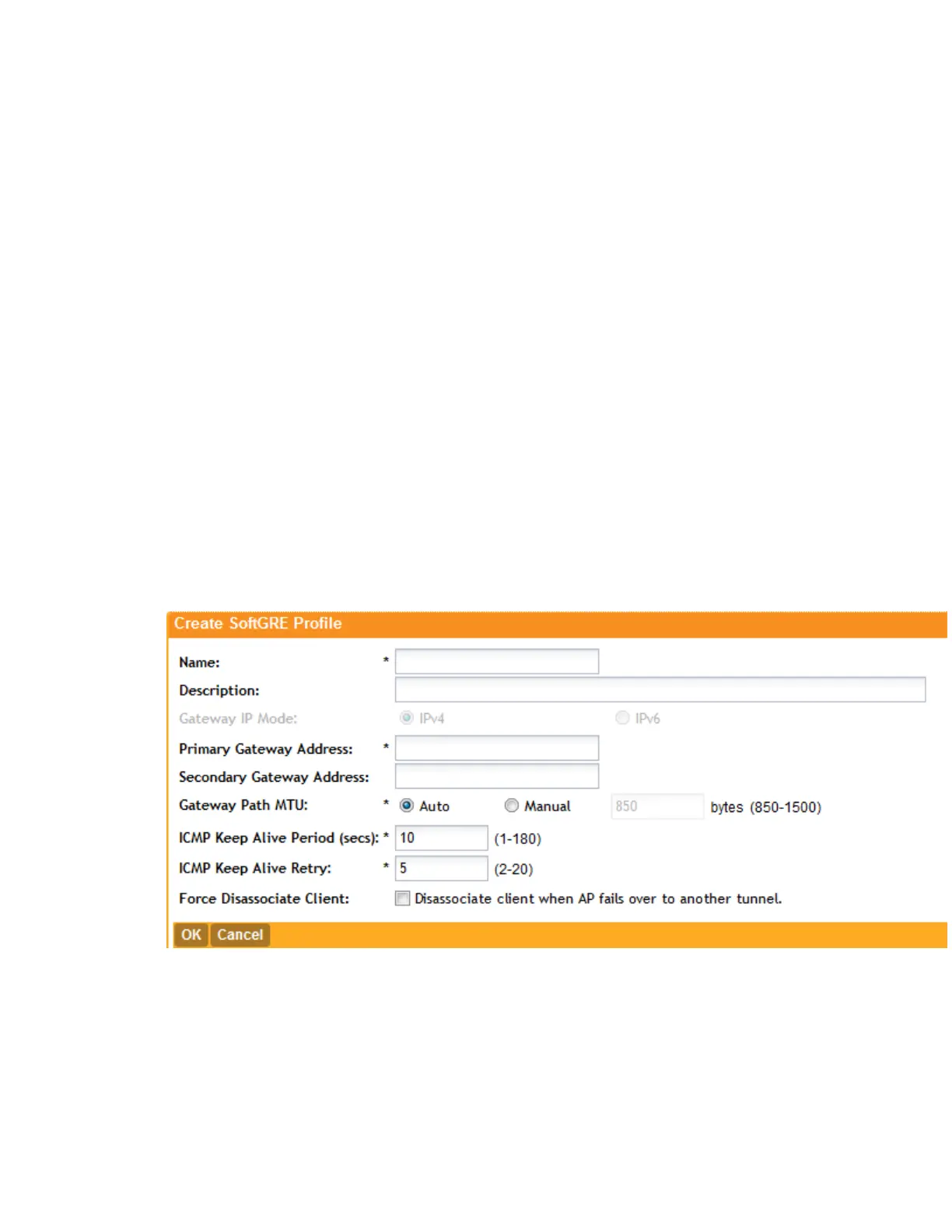
• Name: Type a name for the profile that you are creating.
• Description: Type a short description of the profile.
• Gateway IP Mode: Click the IP addressing mode that the gateway is using. Options
include:
• IPv4
• IPv6
• Primary Gateway Address: Type the IP address or fully-qualified domain name (FQDN)
of the primary gateway server.
• Secondary Gateway Address: If you have a secondary gateway server on the network,
type its IP address or FQDN in the box provided. If the controller is unable to reach the
primary gateway server, it will automatically attempt to reach the secondary gateway
address that you specify here.
• Gateway Path MTU: Set the maximum transmission unit (MTU) for the gateway path.
Options include Auto (default) and Manual (range is 850 to 1500 bytes).
• ICMP Keep Alive Period: Type the time interval (in seconds) at which APs send a keepalive
message to the active third party WLAN gateway. The range is 1 to 180 seconds and the
default value is 10 seconds.
• ICMP Keep Alive Retry: Type the number of keepalive attempts that APs wait for a
response from the active third party WLAN gateway before failing over to the standby
WLAN gateway. The range is 2 to 10 retries and the default value is 5 retries.
5. Click Create New.
Figure 42: Creating a SoftGRE profile
Creating an IPsec Profile
AP tunnel profiles configuration includes the procedures for IPsec tunnel profiles.
1. Go to Configuration > AP Zones > AP Tunnel Profiles.
SmartCell Gateway 200/Virtual SmartZone High-Scale for Release 3.4.1 Administrator Guide
104
Managing Global Configuration, AP Tunnel Profiles, Templates, and AP Registration Rules
Creating AP Tunnel Profiles



 To Next Page