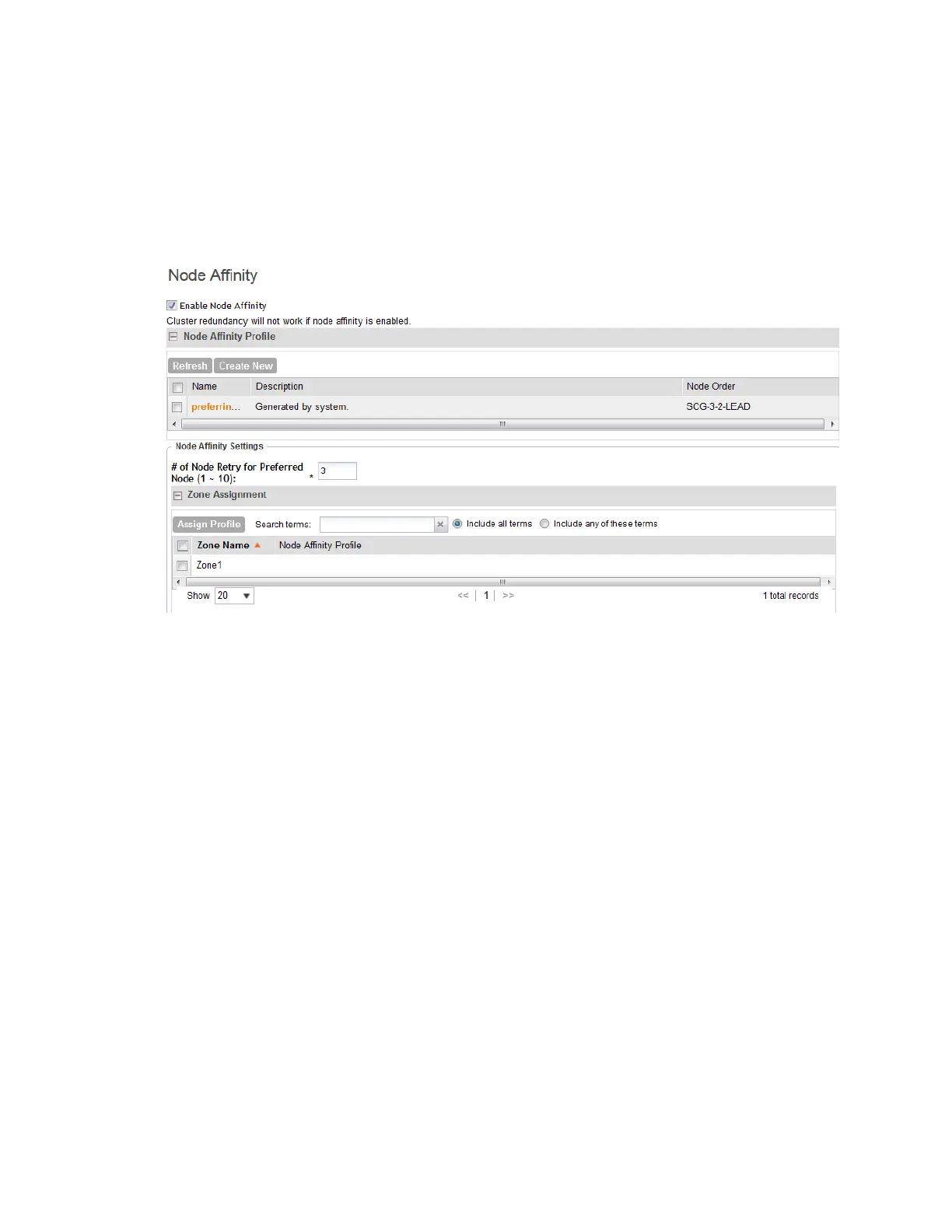
b) Click Assign Profile.
c) In Node Affinity Profile, select the profile that you want to assign to the node.
d) Click Apply.
Repeat this procedure for each zone.
7. Click Apply at the bottom of the page to save your changes.
Figure 106: Use the Node Affinity page to set the preferred node of each zone
Managing the Certificate Store
The certificate store is the central storage for all the security certificates that the controller uses
for its web interface, AP portal, and hotspots.
By default, a Ruckus Wireless-signed SSL certificate (or security certificate) exists in the controller.
However, because this default certificate is signed by Ruckus Wireless and is not recognized
by most web browsers, a security warning appears whenever you connect to the web interface
or users connect to the AP portal or a hotspot. To prevent these security warnings from appearing,
you can import an SSL certificate that is issued by a recognized certificate authority.
This section describes the steps you need to perform to import and apply an SSL certificate to
the web interface, AP portal, or hotspots. Topics include:
NOTE: The certificate that you will use for Hotspot 2.0 OSEN must be issued by a certificate
authority (CA) authorized by the Wi-Fi Alliance (WFA). Otherwise, it will not appear on the list of
certificates that you can use for Hotspot 2.0 OSEN.
If you are implementing Hotspot 2.0 on the network and you want to support anonymous
authentication using OSU Server-Only Authenticated L2 Encryption Network (OSEN), you will
need to import a trust root certificate, server or intermediate certificate and private key.
SmartCell Gateway 200/Virtual SmartZone High-Scale for Release 3.4.1 Administrator Guide
213
Configuring the System Settings
Configuring General System Settings



 To Next Page