For example, if you selected Dayin Expiration Timeand you typed 7in Expiration Value, the
package will expire 7 days after it is assigned to a user.
7. Click Save.
The page refreshes, and the package that you created appears in the view list.
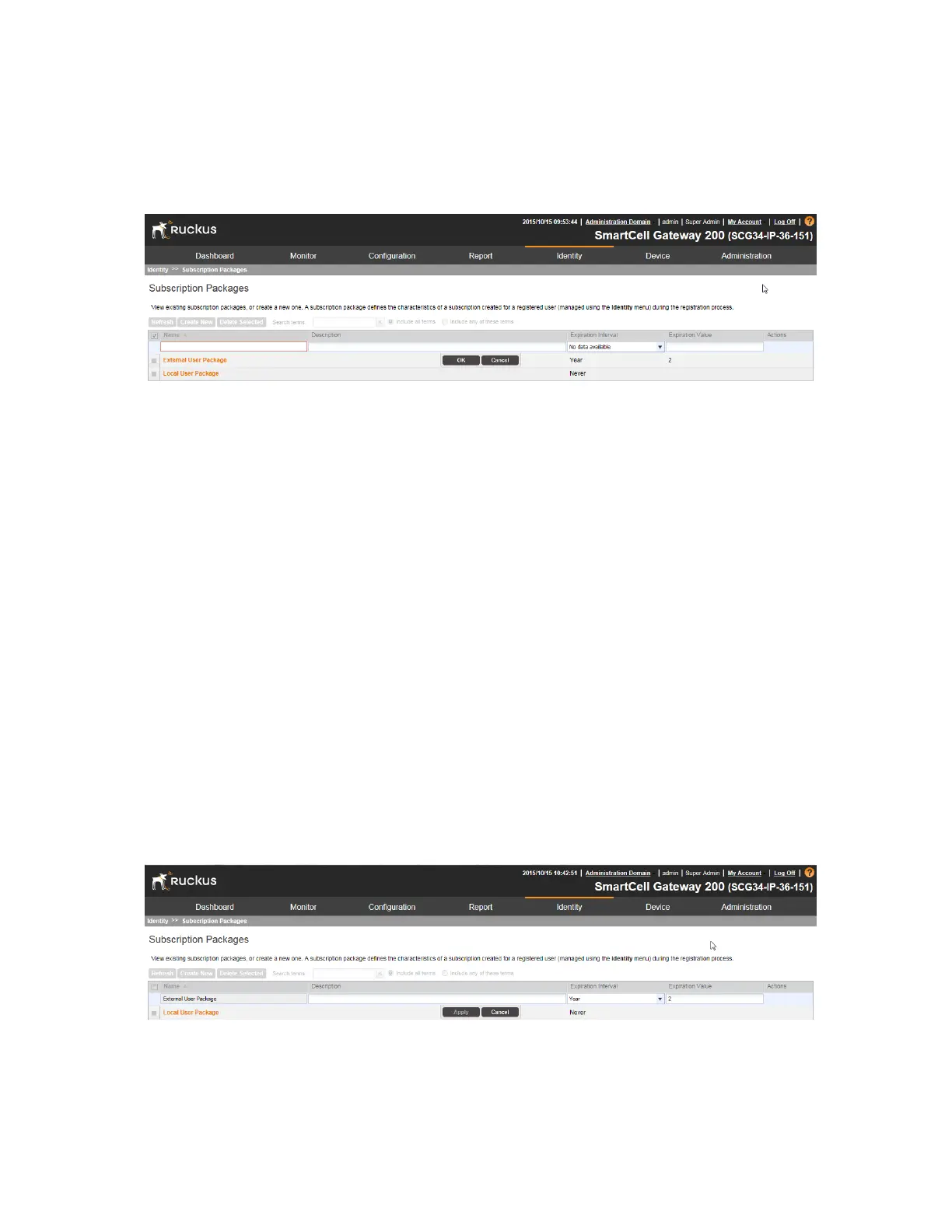
Figure 194: Creating a subscription package
Editing a Subscription Package
A subscription package defines the characteristics of a subscription that has been created for
a registered user.
Follow these steps to edit an existing package.
1. Go to Identity > Subscription Packages.
The Subscription Packages page appears.
2. Locate the package that you want to edit.
3. Under the Name column, click the name of the package that you want to edit.
The entire row becomes editable.
4. Edit the profile by changing any of the following options:
• Name
• Description
• Expiration Interval
• Expiration Value
5. Click Save.
You have completed editing a package.
Figure 195: Editing a subscription package
SmartCell Gateway 200/Virtual SmartZone High-Scale for Release 3.4.1 Administrator Guide
339
Working with Local, Guest, and Remote Users
Managing Subscription Packages



 To Next Page