Viewing All APs That Belong to an AP Zone on Google Maps
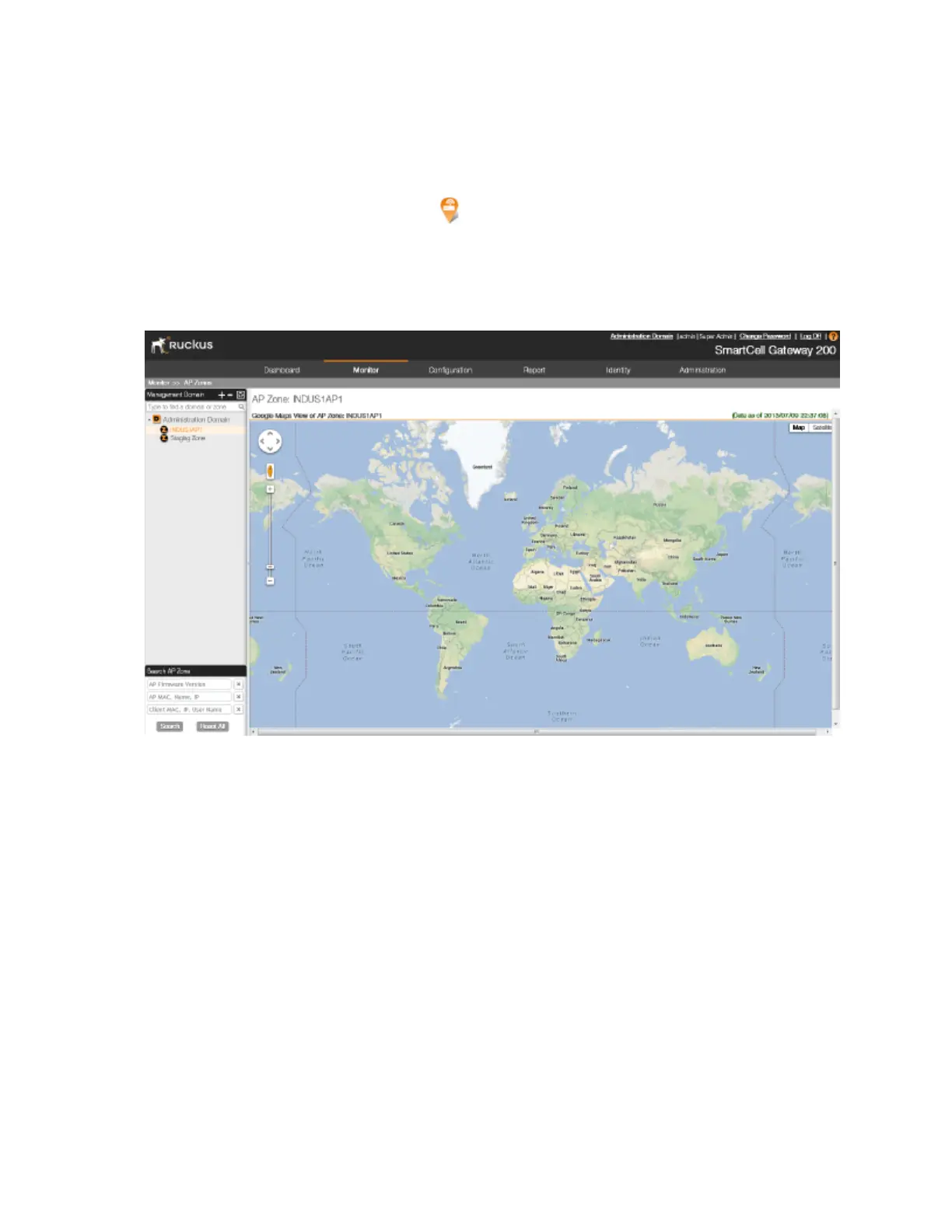
Follow these steps to view all APs that belong to a particular AP zone on Google Maps.
1. On the AP Zone List page, locate the AP zone that you want to view.
2.
Under the Actions column, click the icon that is in the same row as the AP zone name.
The page refreshes and displays the locations of all APs that belong to the zone on Google
Maps
™
.
3. To view a summary of details about an AP on the map, click the icon for the AP.
A text bubble appears and displays the AP details.
Figure 155: Page showing APs that belong to the AP zone on Google Maps
Monitoring Managed Access Points
This section provides information on how to monitor and view information about the access
points (both Ruckus Wireless access points and 3rd party access points) that you are managing
using the controller.
Topics covered include:
Viewing a Summary of Access Points
Monitor and view information about the access points (both Ruckus Wireless access points and
3rd party access points) that you are managing using the controller.
Follow these steps to view a summary of existing access points.
1. Go to Monitor > Access Points.
SmartCell Gateway 200/Virtual SmartZone High-Scale for Release 3.4.1 Administrator Guide
287
Monitoring AP Zones, Access Points, and Wireless Clients
Monitoring Managed Access Points



 To Next Page