DescriptionColumn Name
- Click to request the AP to upload the crash dump.
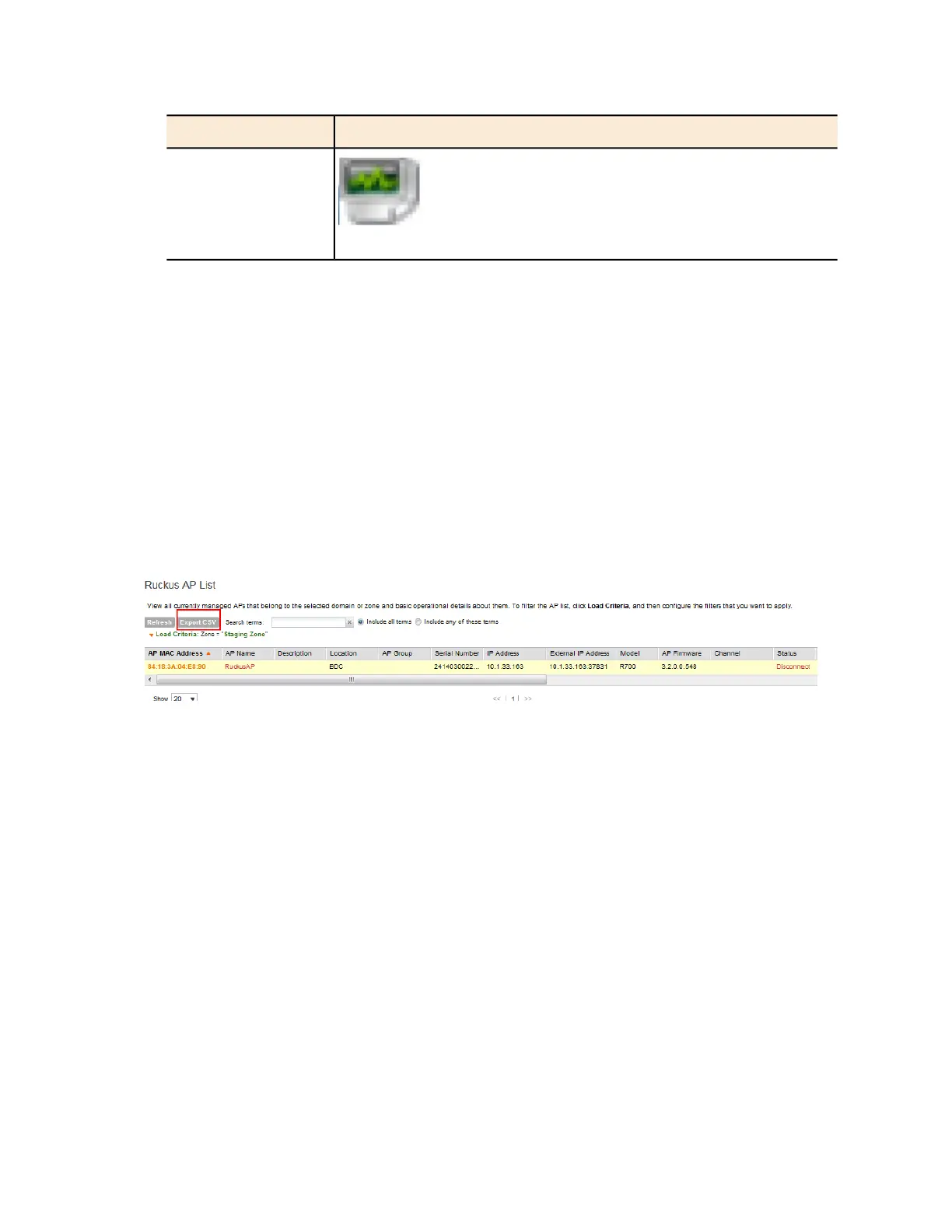
Exporting the Access Point List to CSV
Follow these steps to export the access point list to a CSV file.
1. Go to Monitor > Access Points.
2. Click the Export CSV button in the content area.
The following message appears: Downloading AP Data. Please wait...
3. When the message disappears, check the default download folder of your web browser and
look for a file named aps.csv.
4. Use a spreadsheet application (for example, Microsoft Excel
®
) to view the contents of the
CSV file.
You have completed exporting the access point list to CSV.
Figure 157: Click Export CSV to download the AP list
Viewing the Configuration of an Access Point
Follow these steps to view the configuration of an access point.
1. Go to Monitor > Access Points.
2. On the AP List page, locate the access point whose details you want to view.
3. Click the AP MAC address to view the AP status information, which includes:
• General AP information
• Status summary
• Radio information
• WLANs
• LAN port status
• Outstanding alarmsFor information on how to clear or acknowledge alarms, see Clearing
Alarms on page 307.
• Events
4. To edit the AP configuration details, click View AP Configuration.
SmartCell Gateway 200/Virtual SmartZone High-Scale for Release 3.4.1 Administrator Guide
290
Monitoring AP Zones, Access Points, and Wireless Clients
Monitoring Managed Access Points



 To Next Page