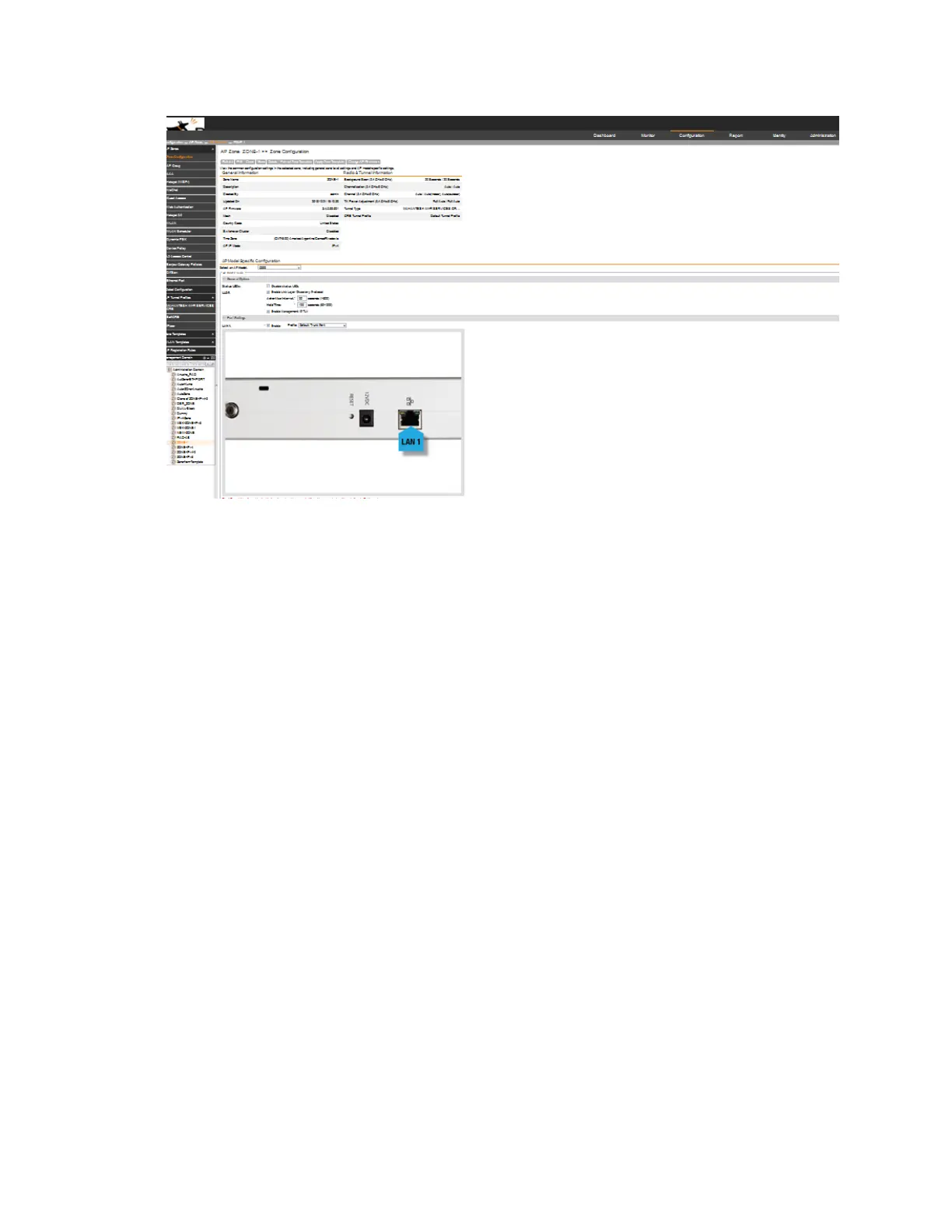
Figure 14: The Zone Configuration page displays a summary of the zone settings
The following buttons and options also appear on the page:
• Edit: Click to edit the AP zone configuration.
• Clone: Click to clone this AP zone.
• Move: Click to move this AP zone from its current management domain to another.
• Delete: Click to delete this AP zone.
If you want to override the AP zone settings for specific AP models, configure the AP
Model-Specific Configuration section at the bottom of the page (see Modifying Model Specific
Controls for more information).
Deleting an AP Zone
Deleting an AP zone that contains managed devices will automatically move those devices to
the Staging Zone (default zone).
Before deleting an AP zone, Ruckus Wireless recommends moving devices that belong to that
zone to another zone.
Follow these steps to delete an AP zone.
1. Go to Configuration > AP Zones.
2. In the domain tree, select the AP zone that you want to delete.
3. Click the Delete Selected button.
A confirmation message appears.
4. Click OK.
You have completed deleting an AP zone.
SmartCell Gateway 200/Virtual SmartZone High-Scale for Release 3.4.1 Administrator Guide
44
Managing Ruckus Wireless AP Zones
Working with AP Zones



 To Next Page