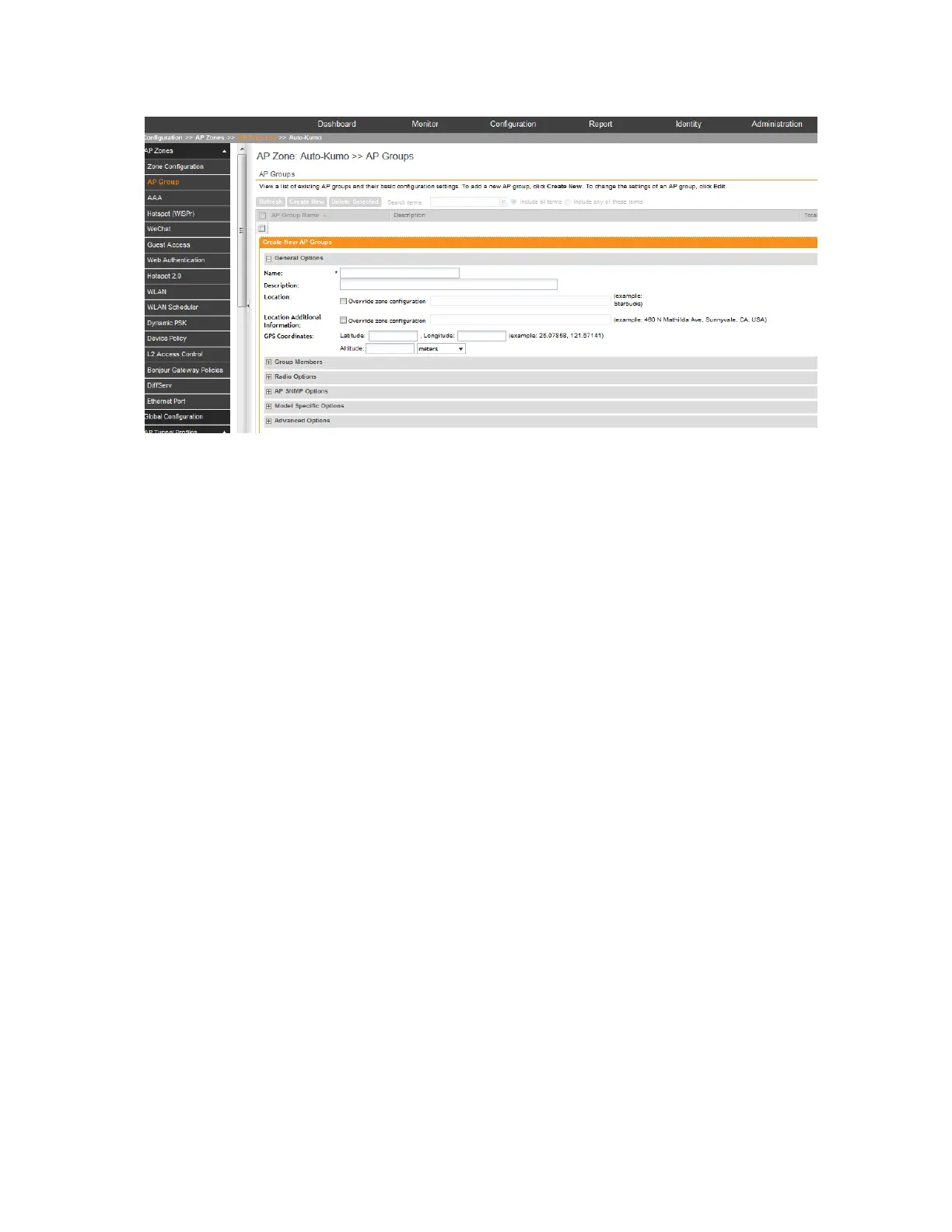
Figure 15: The Create New AP Group form
Configuring Model Based Settings
If you want to apply a set of settings to all APs of a particular model, use the Model Based
Settings page.
Follow the steps to configure the model based settings.
1. On the menu, click Configuration > Access Points.
The AP List page appears.
2. Click the MAC address of the AP for which you want to configure the model based settings.
The Edit AP Configuration form appears.
3. Scroll down to Model Specific Options section, and then click the + icon to expand the
section.
4. In Model Specific Control, select the Override zone configuration check box.
The settings available for the AP model appear.
5.
NOTE: The options that appear in the General Options section depend on the AP model
that you select. Not all the options described in the table below will appear for every AP model.
In the General Options section, configure the following settings:
DescriptionOption
To enable the PoE out port on the selected AP model, select the Enable
PoE out ports (specific ZoneFlex AP models only) .
NOTE: If the controller country code is set to United Kingdom, an
additional Enable 5.8 GHz Channels option will be available for outdoor
PoE out port
11n/11ac APs. Enabling this option allows the use of restricted C-band
channels. These channels are disabled by default and should only be
enabled by customers with a valid license to operate on these restricted
channels.
SmartCell Gateway 200/Virtual SmartZone High-Scale for Release 3.4.1 Administrator Guide
48
Managing Ruckus Wireless AP Zones
Working with AP Groups



 To Next Page